
How to Set Extra Space for Receipt Edge in Printer Settings
Introduction
- Easy POS extra space for R\receipt edge setting is a user-centric solution designed to enhance the overall receipt printing experience. By providing a customizable approach to gap size, businesses can overcome common printing challenges, resulting in improved efficiency, reduced wastage, and a more polished presentation of transaction details.
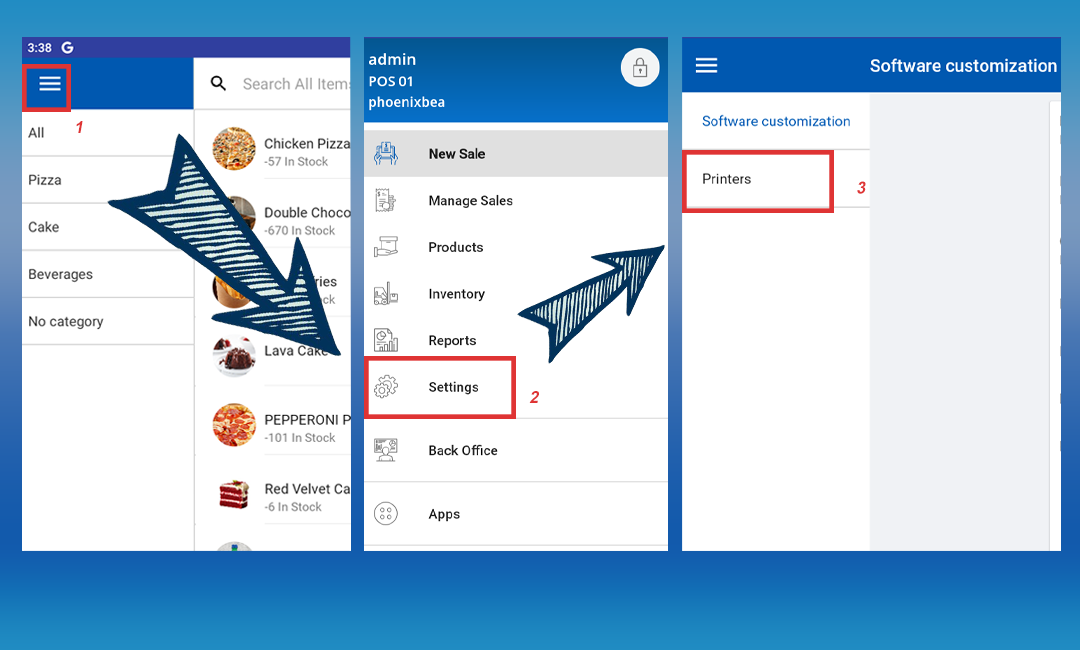
POS App main menu > Select “ Settings ” > Select “Printers
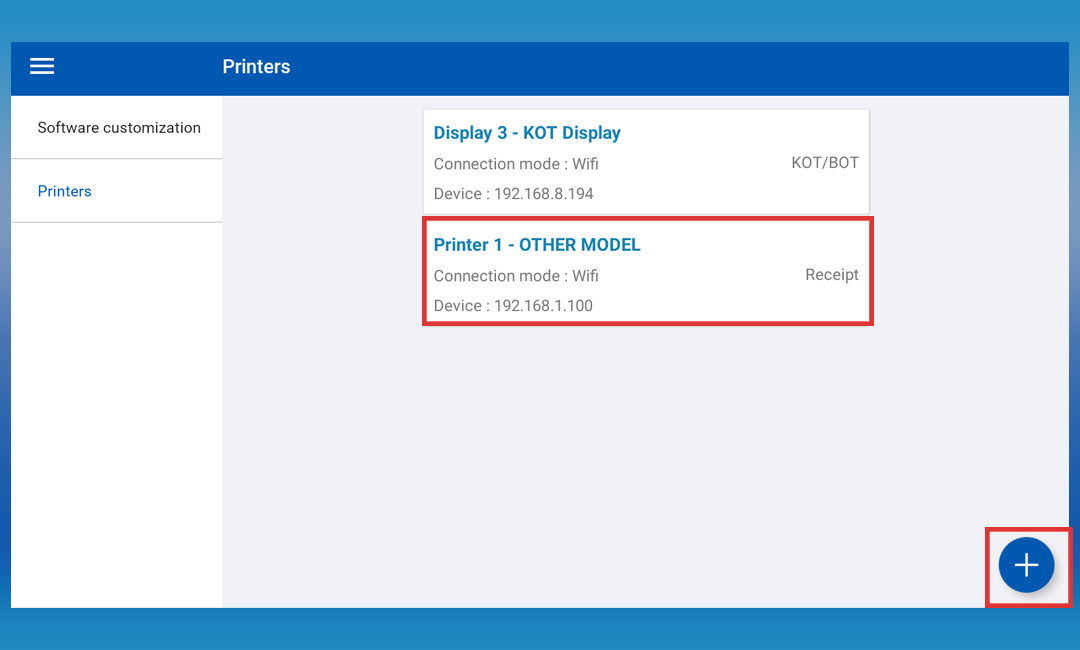
Click on the already created printer or Click the “Add (+) button
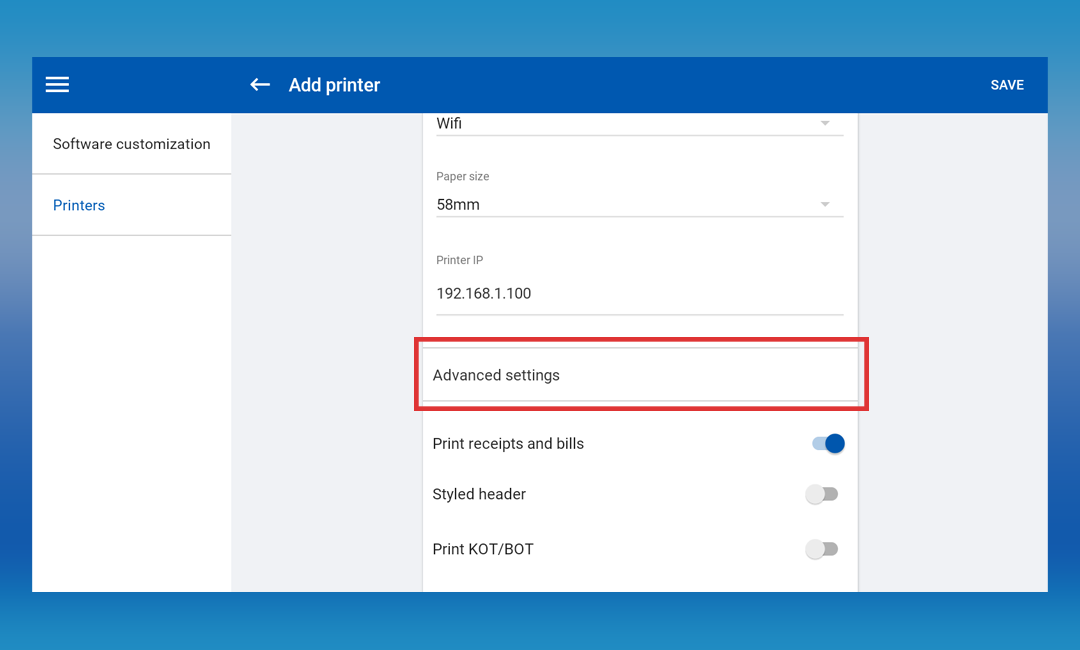
Select printer type as “ Advanced settings”
Select a measurement from the Extra Space for Receipt Edge dropdown
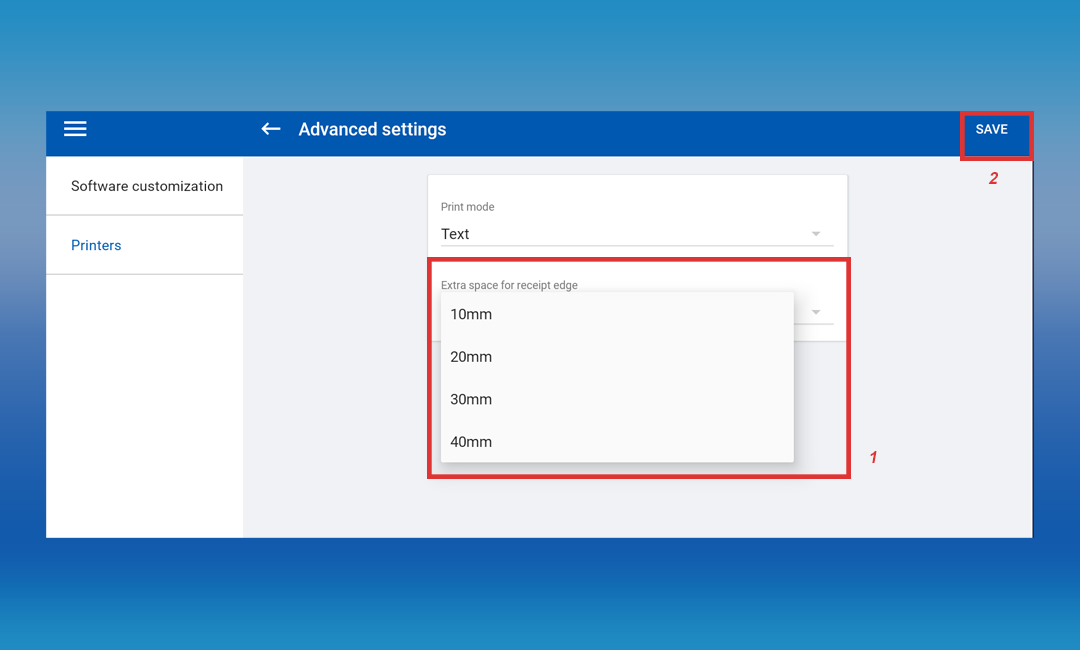
- Click 'SAVE'.
Key Features:
- Customizable Gap Sizes:
Users now have the flexibility to choose from various gap sizes - 10mm, 20mm, 30mm, and 40mm. This empowers businesses to tailor the setting based on the specific requirements and characteristics of their printers, accommodating different models and brands seamlessly.
- Activation through POS App:
The feature can be easily activated within the POS App settings, specifically under the Printer Creation page. Users will find the option labeled "Extra Space for Receipt Edge," where they can select their preferred gap size. Once selected, a simple click on the 'SAVE' button ensures that the chosen setting is applied to the receipt printing process.
For more info:
Was this article helpful? Tell our team what was missing.
Send us feedback