
How to Setup Printers
Easy POS supports a wide range of printer brands, including popular models like EPSON, ZEBRA, Star Printer, Xprinter, SUNMI, Blue Bamboo, BIXOLON, SCANGLE, and more. If you're using a different thermal printer model or brand, please select the "OTHER MODEL" option during the setup process. Supported connection types include Wi-Fi, Network, USB, and Bluetooth.
Setting Up the Printer in POS App
- Open thePOS App.
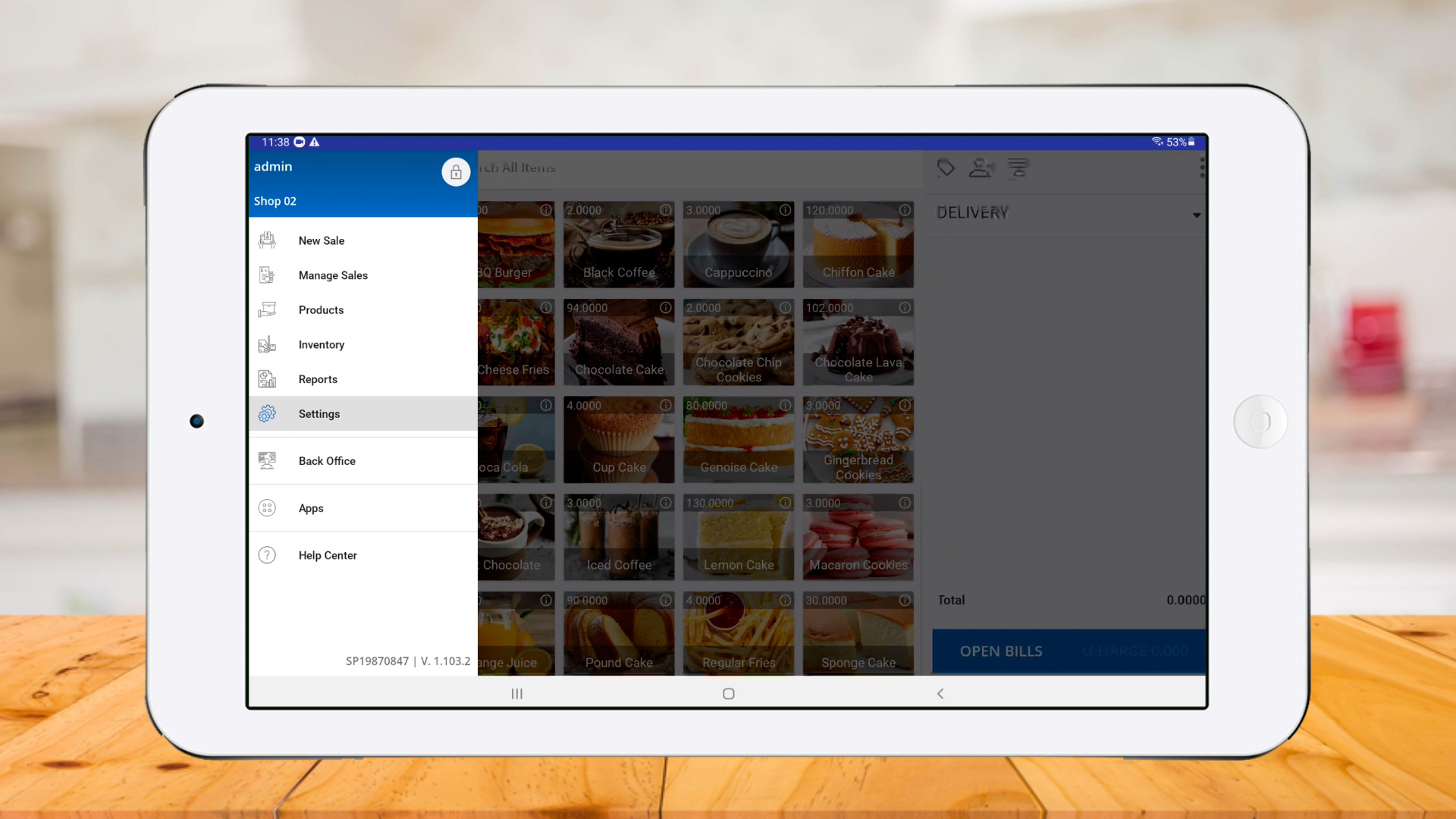
- Go to the Main Menu.
- Select Settings.
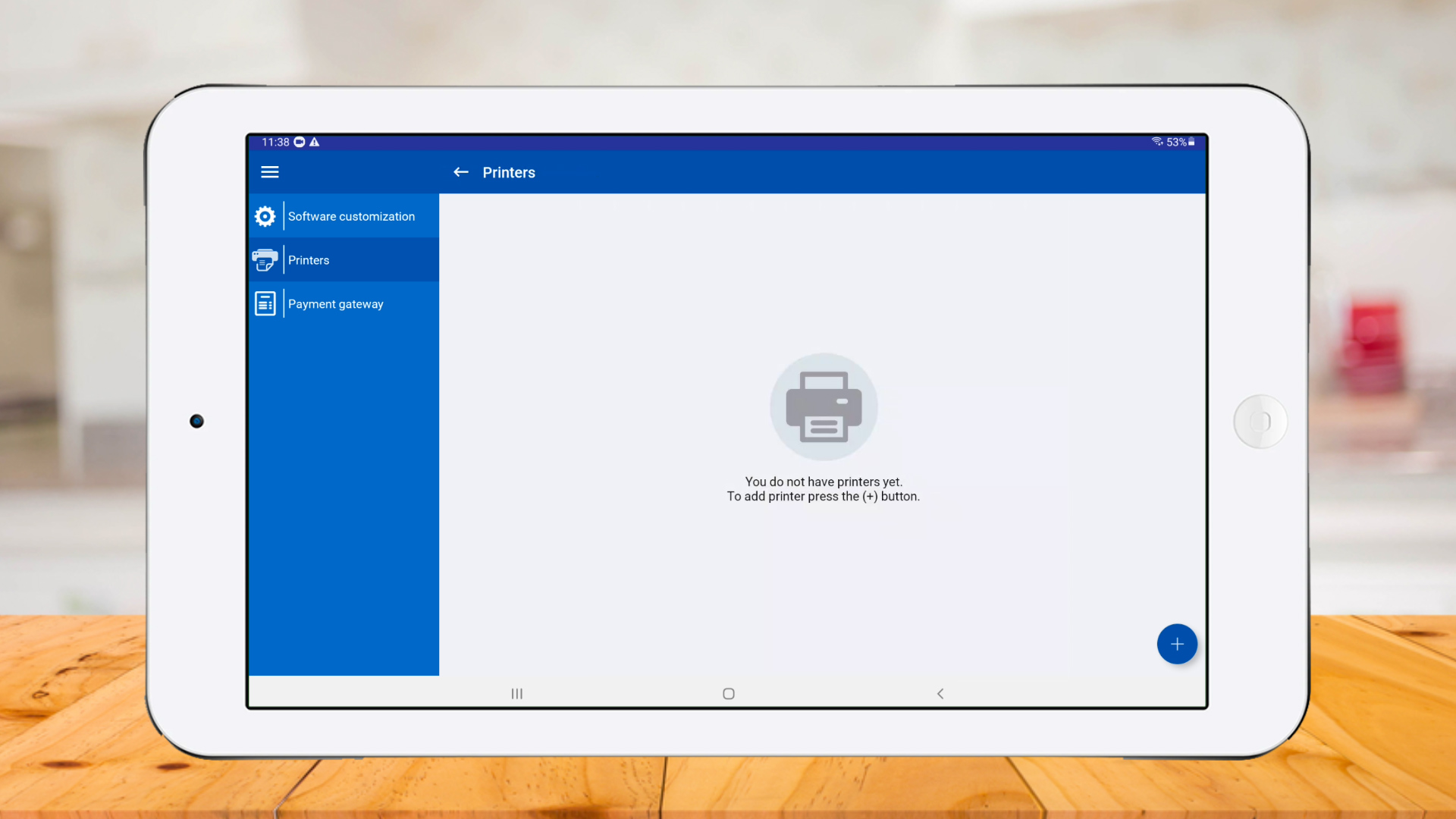
- Tap Printers.
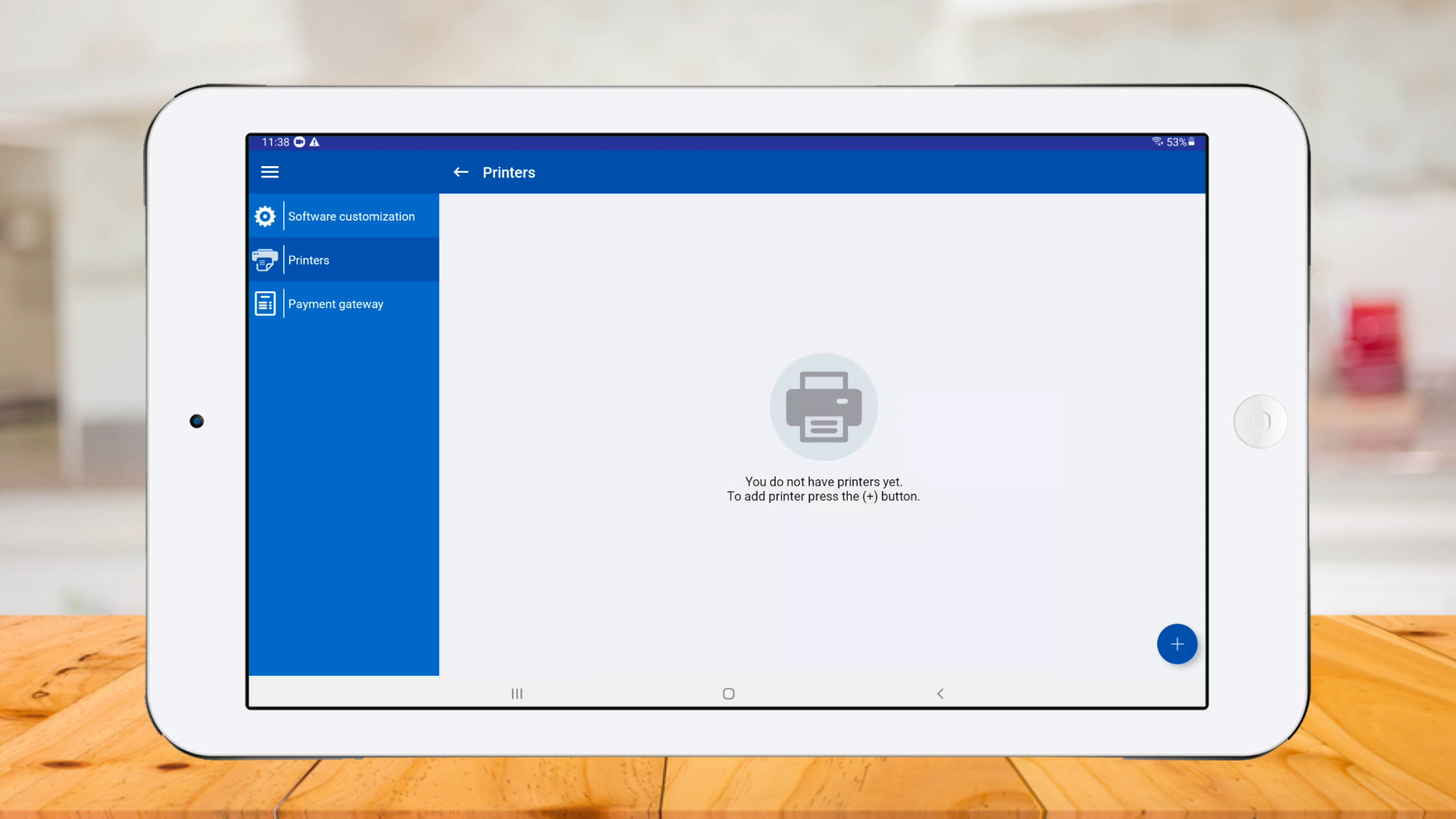
- Click the Add (+) button to add a new printer.
- Enter a printer name.
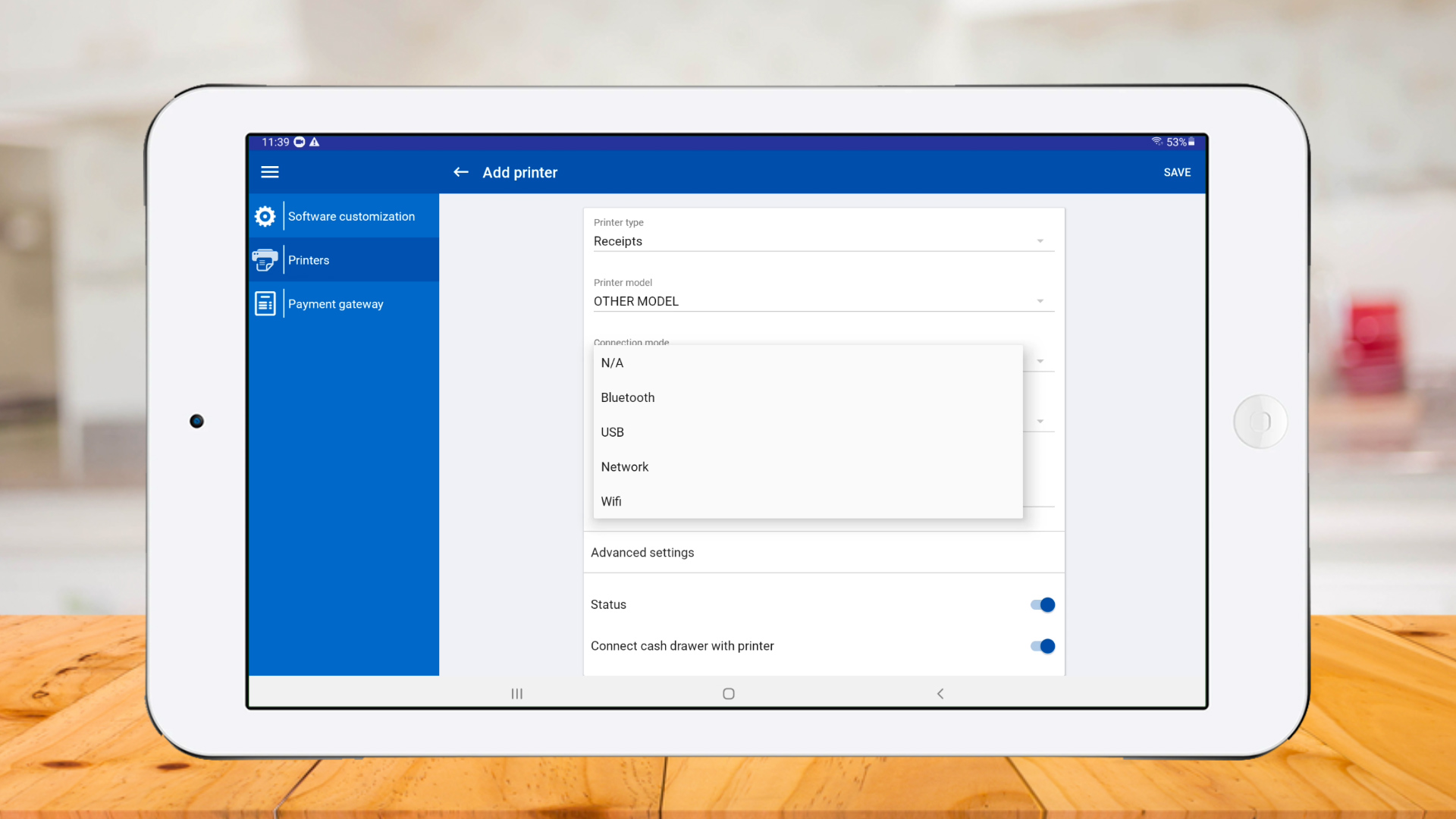
- Choose the printer model from the list (If your brand is not listed, select Other Model).
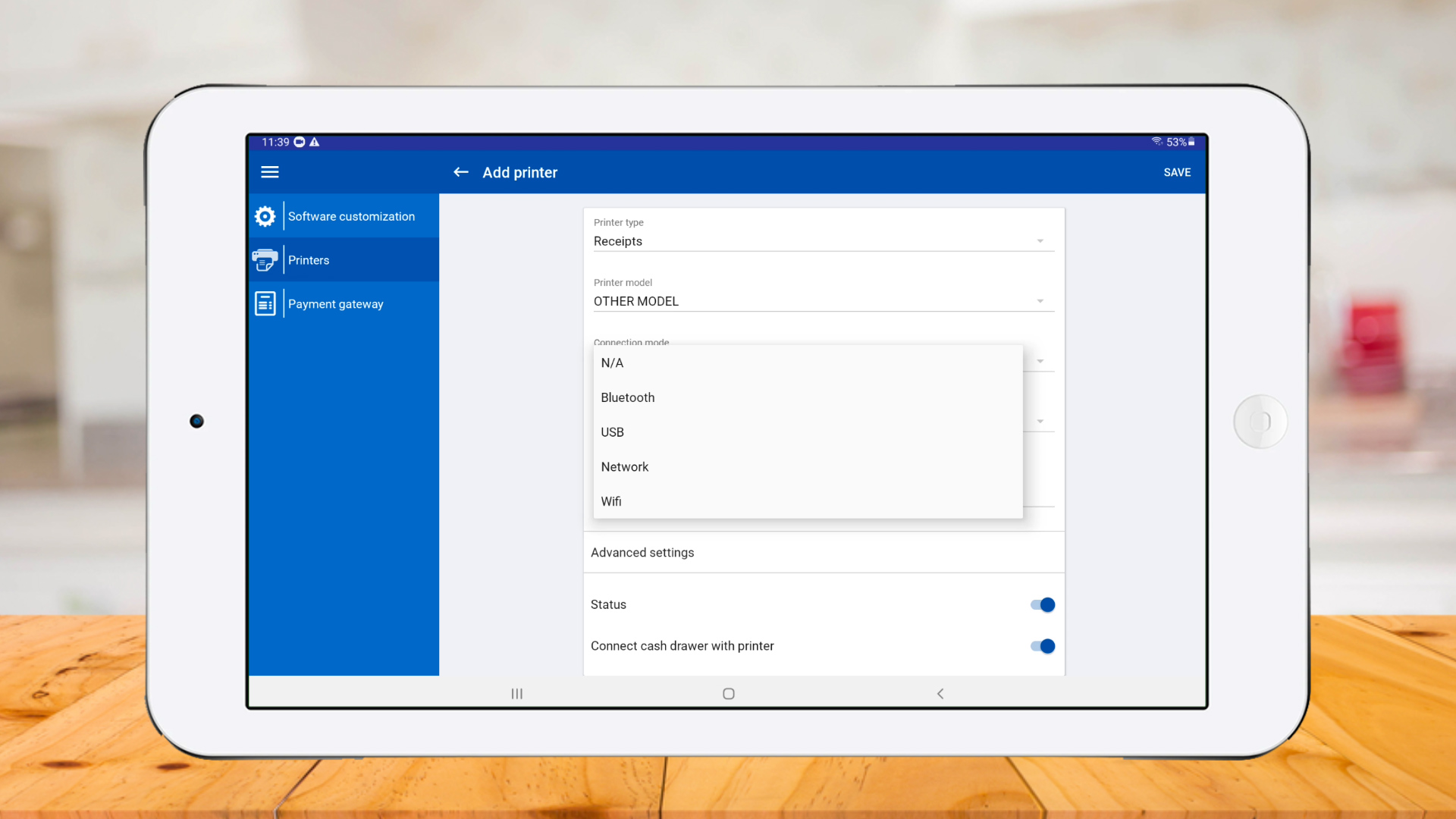
- Select the connection mode (USB, Bluetooth, Wi-Fi, or Network).
- Choose the paper size.
- Enter the printer IP address (for Wi-Fi and Network connections) or select the USB path.
- Tick the option to print receipts and bills.
- Click Save.
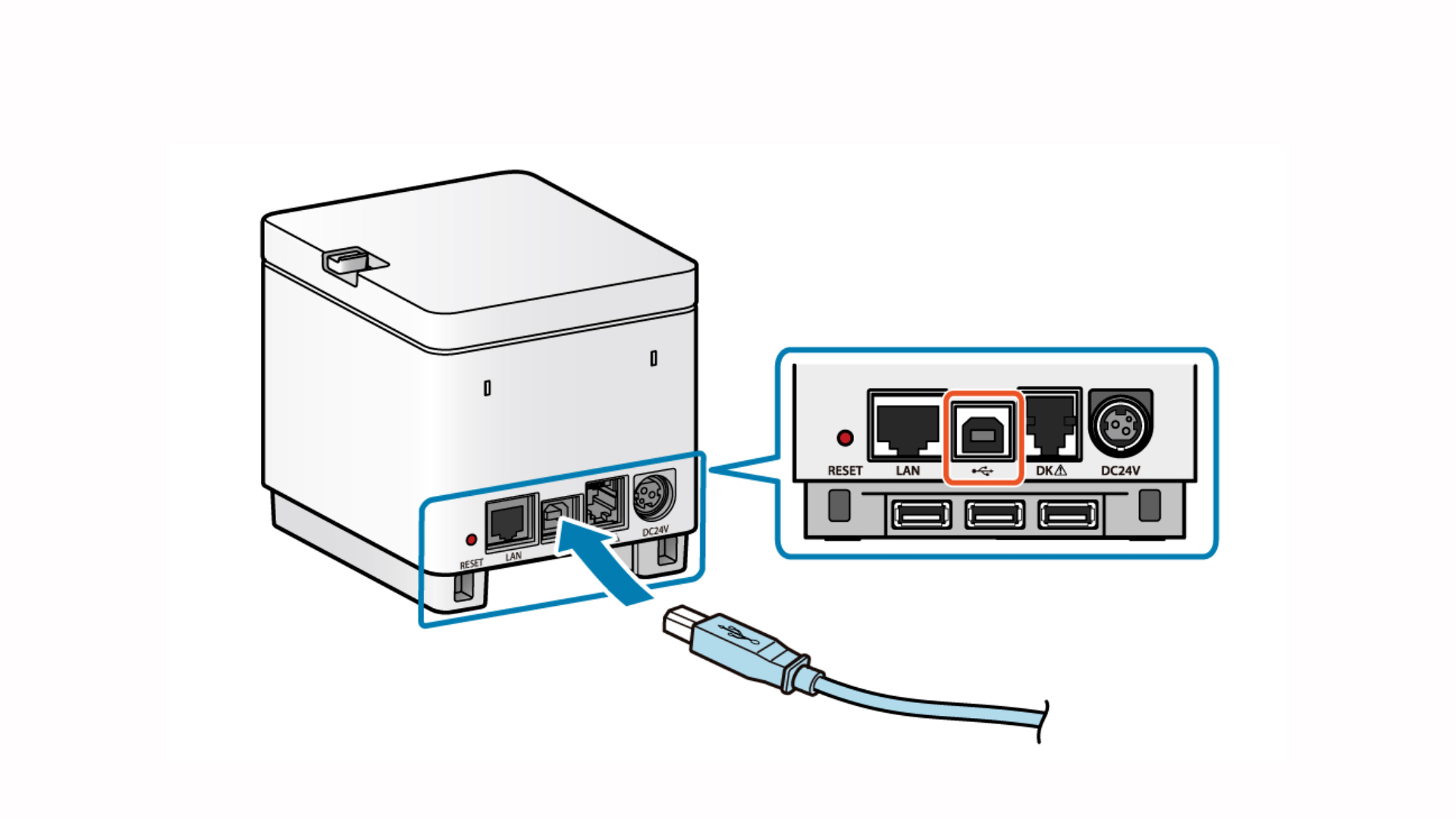
Connect printer to the USB Cable
Go to Easy POS app > Settings > Printers and click 'plus button'
Select a 'Printer model' and select 'USB' as 'Connection mode'
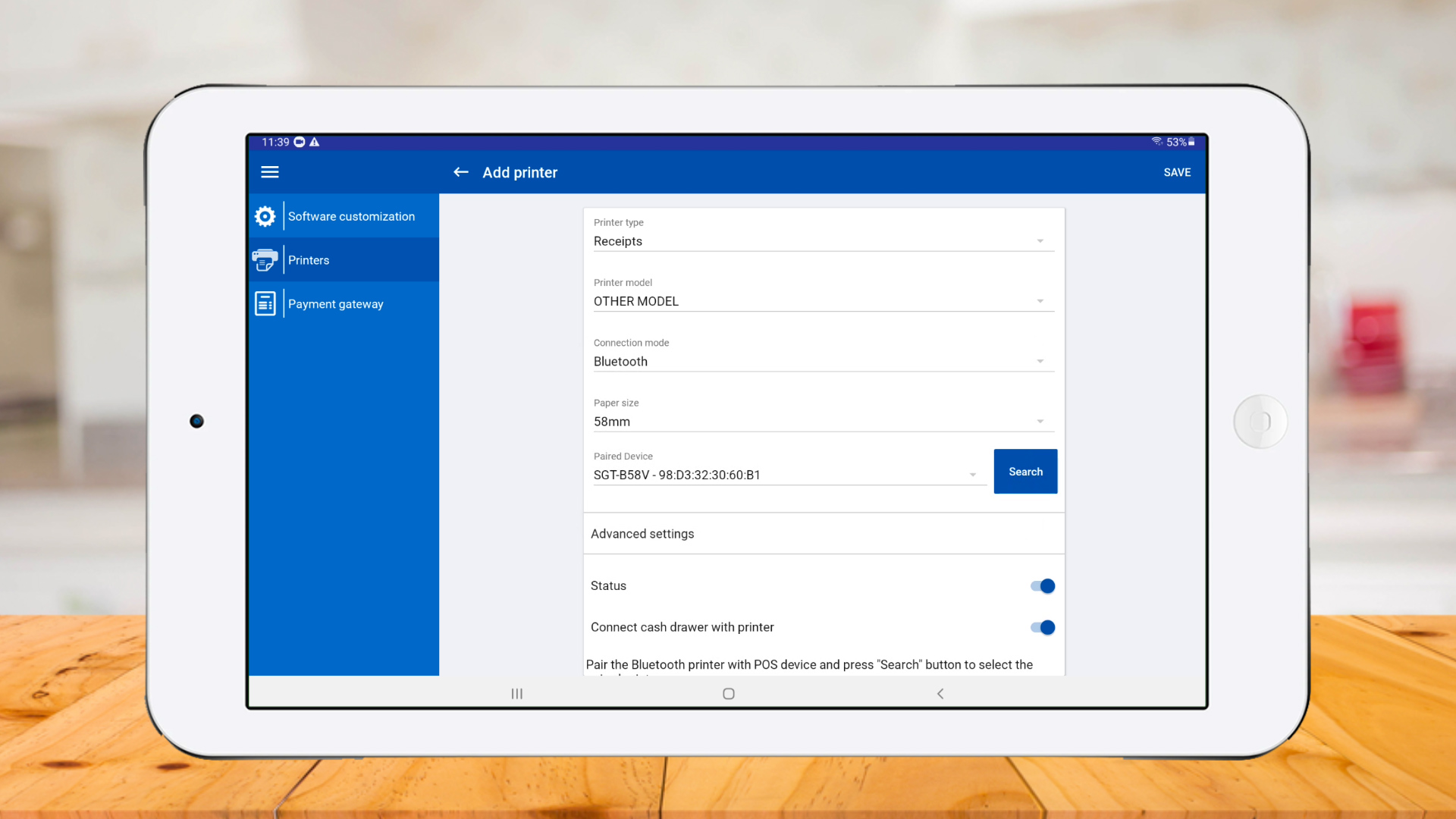
Select 'Paper size' and click 'Search'
Printer connected successfully
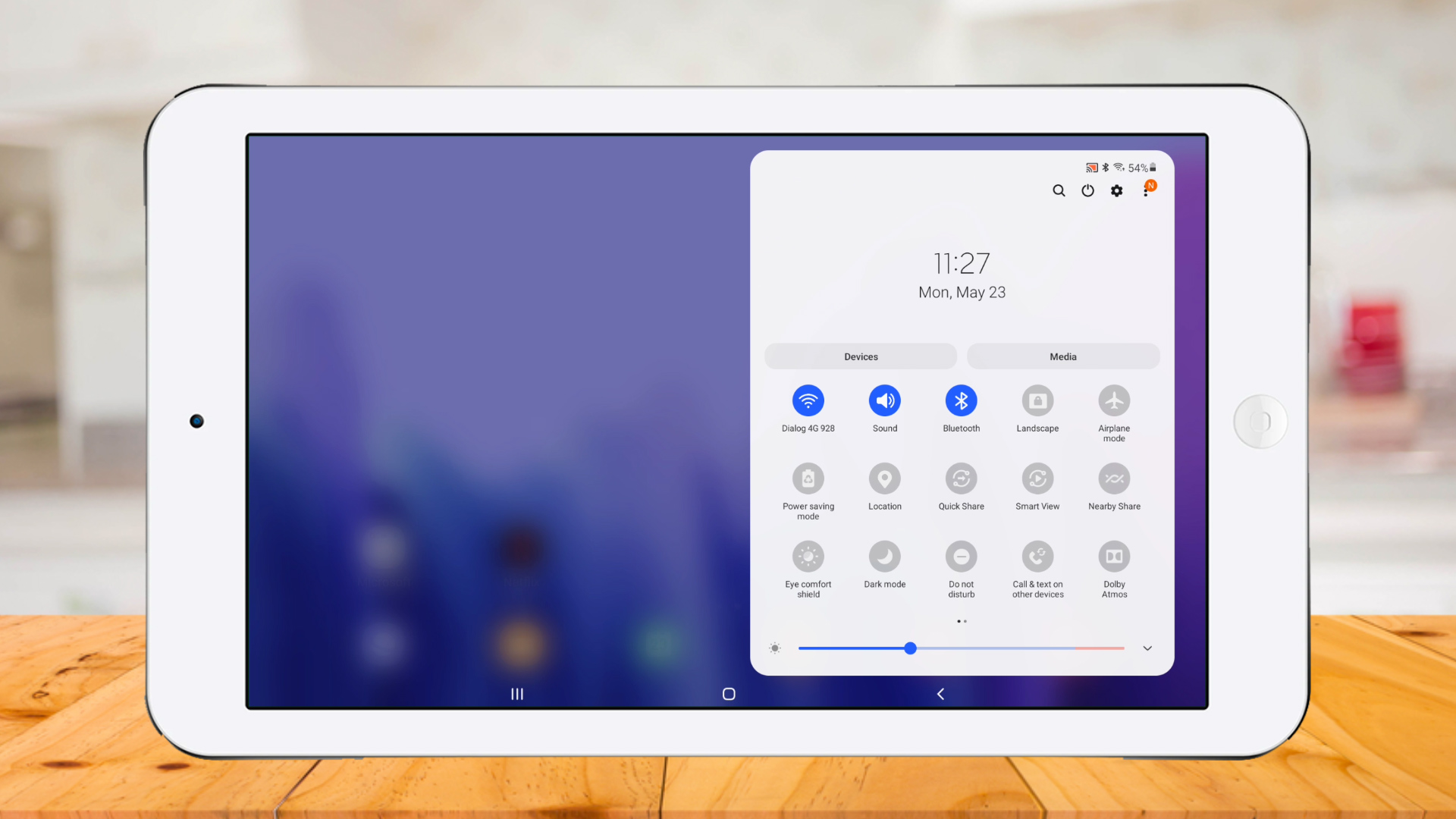
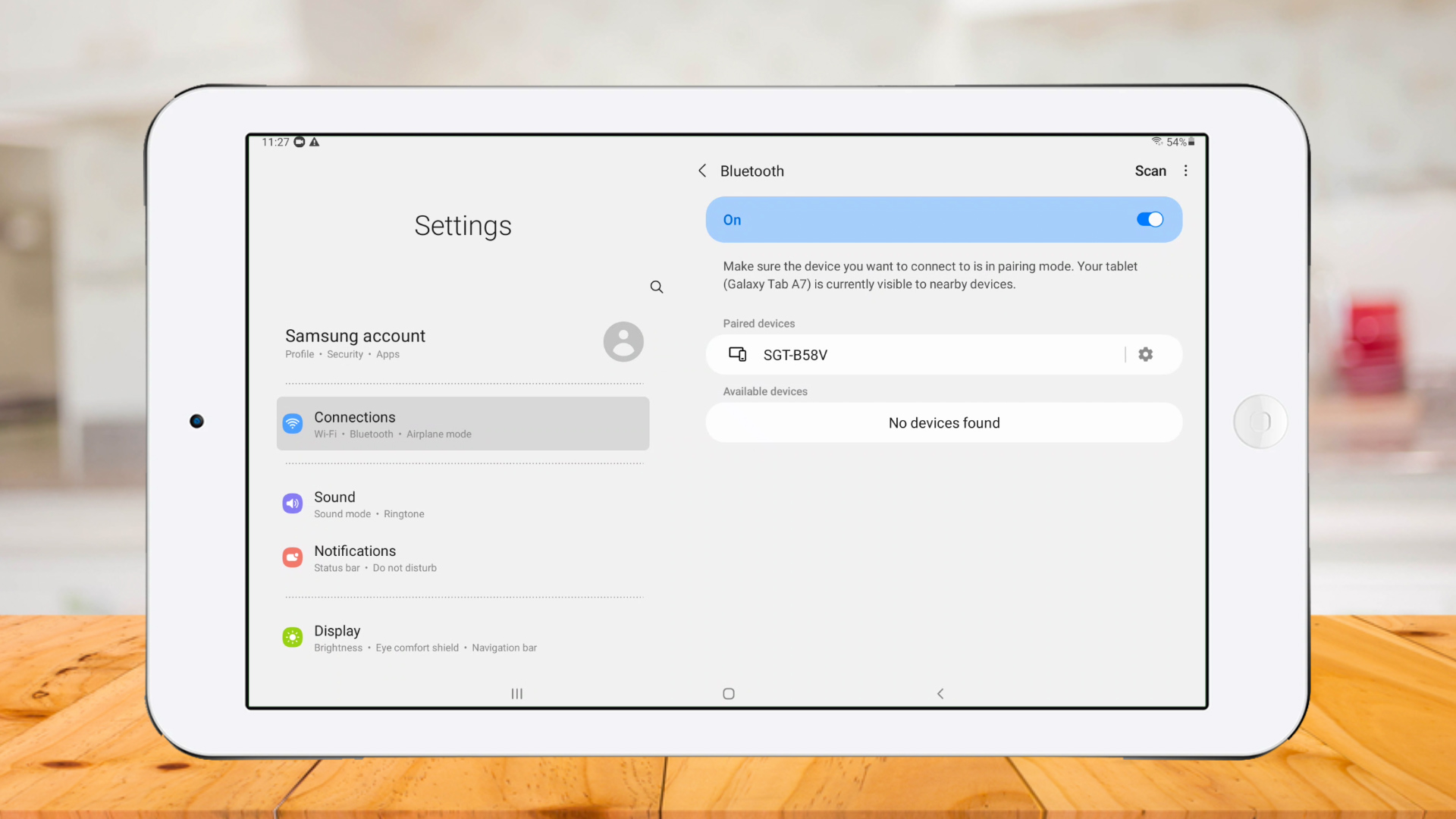
Click 'Bluetooth'
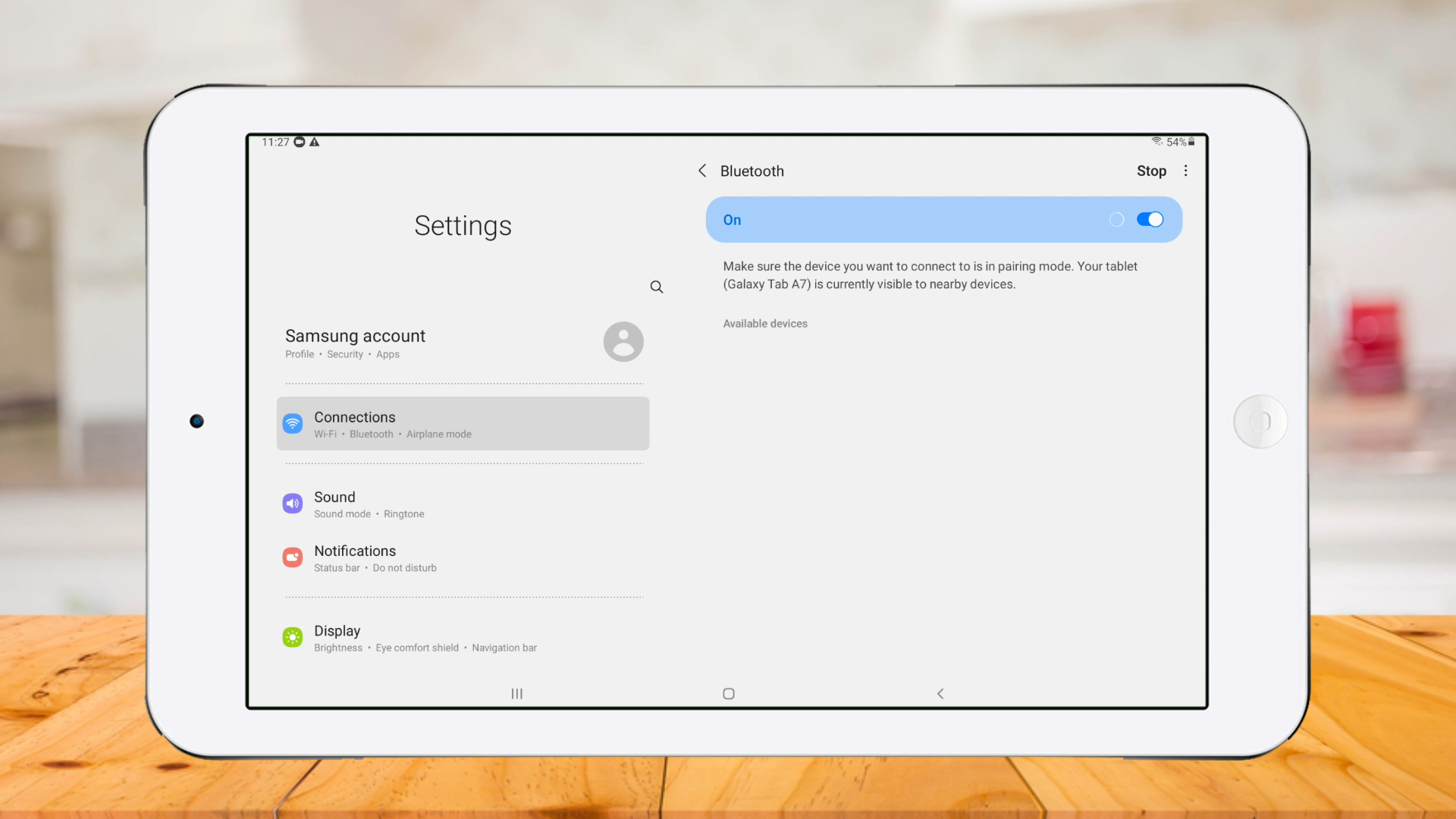
Click on Bluetooth printer.
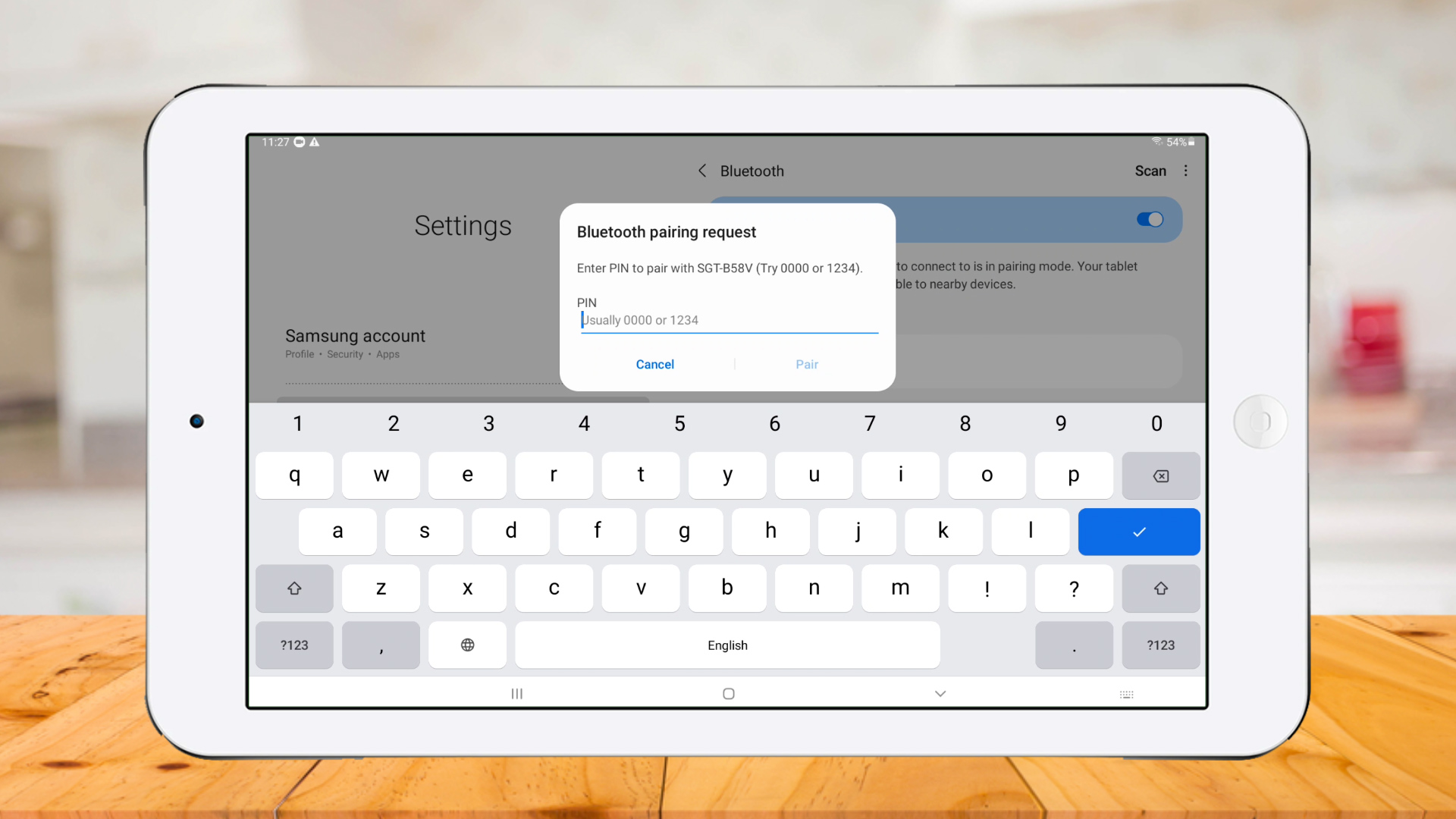
Add Pin number
Printer paired successfully
Go to POS App and click 'Settings'
Select 'Printers' and click 'Plus button'
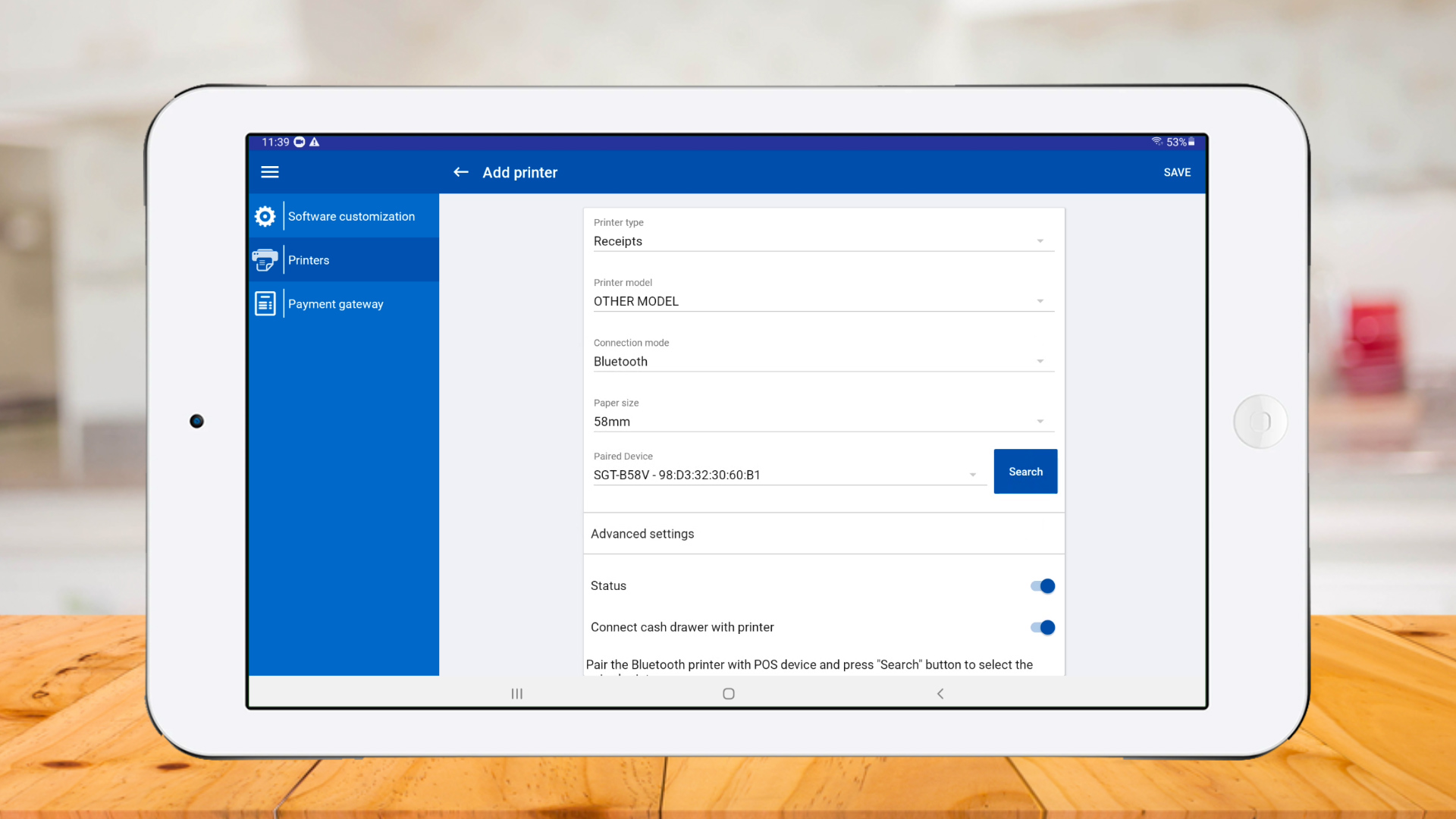
Select a 'Printer model' and select 'Bluetooth' as 'Connection mode'
Select 'Paper size' and click 'Search'
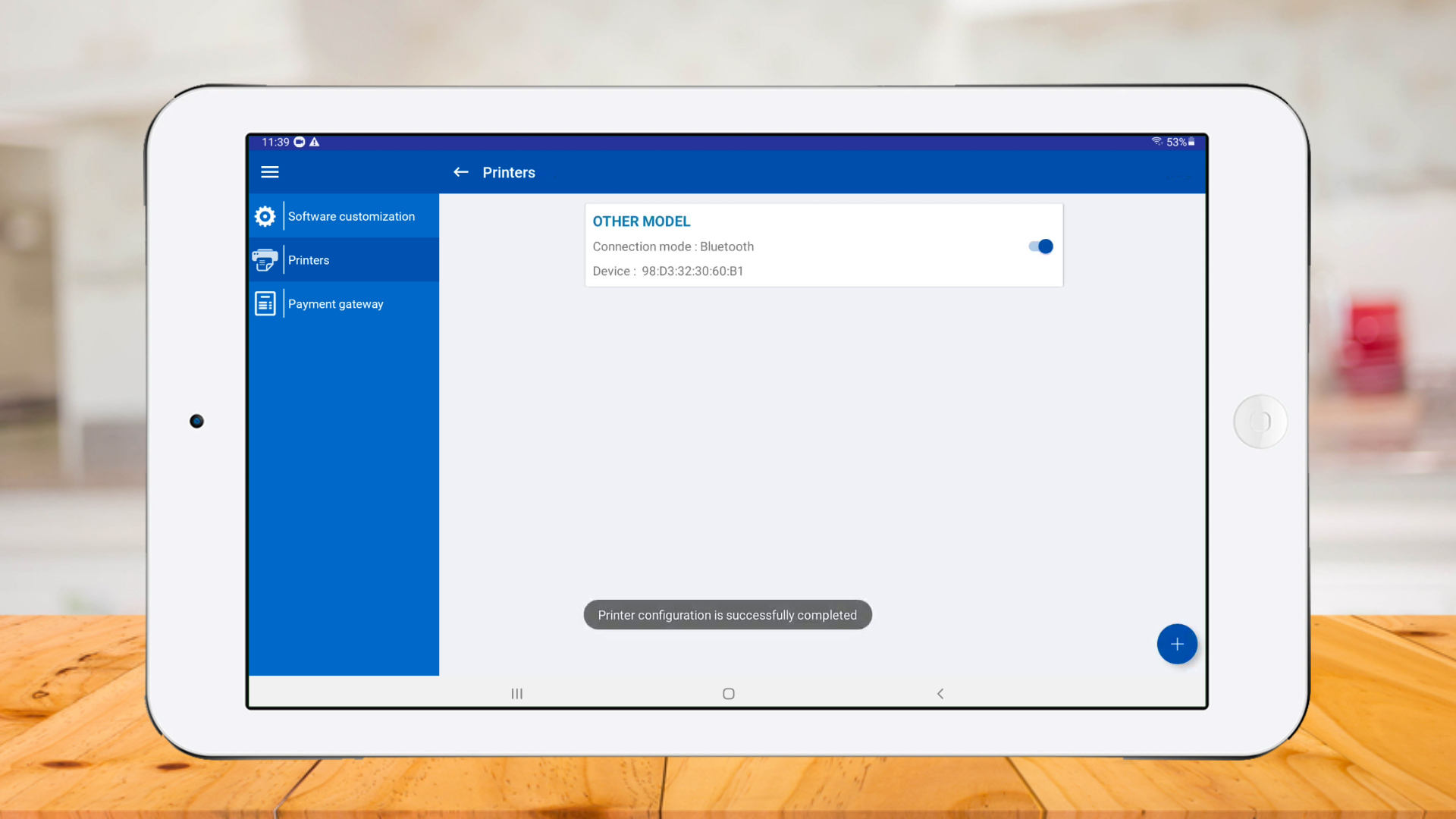
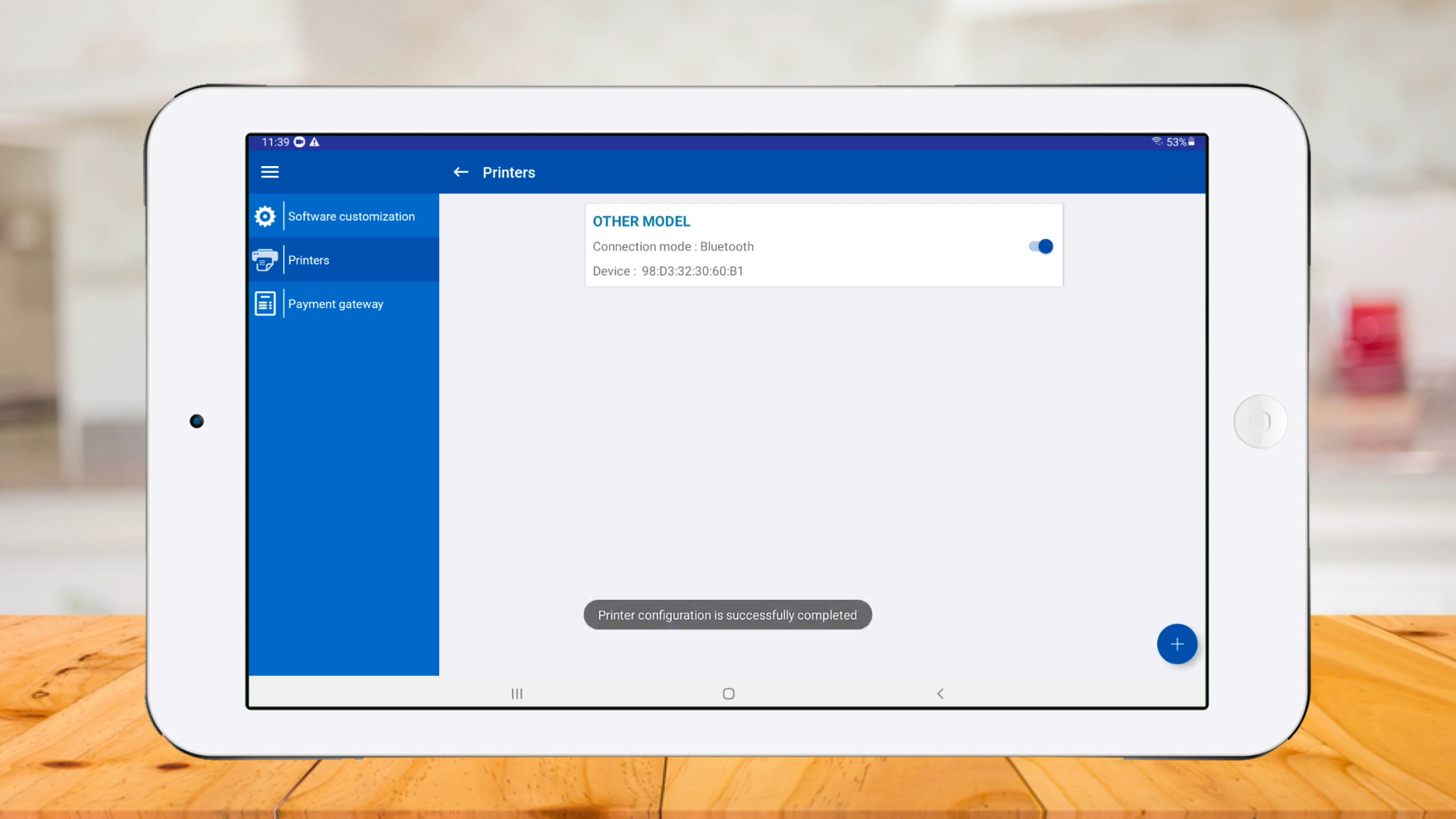
Printer connected successfully
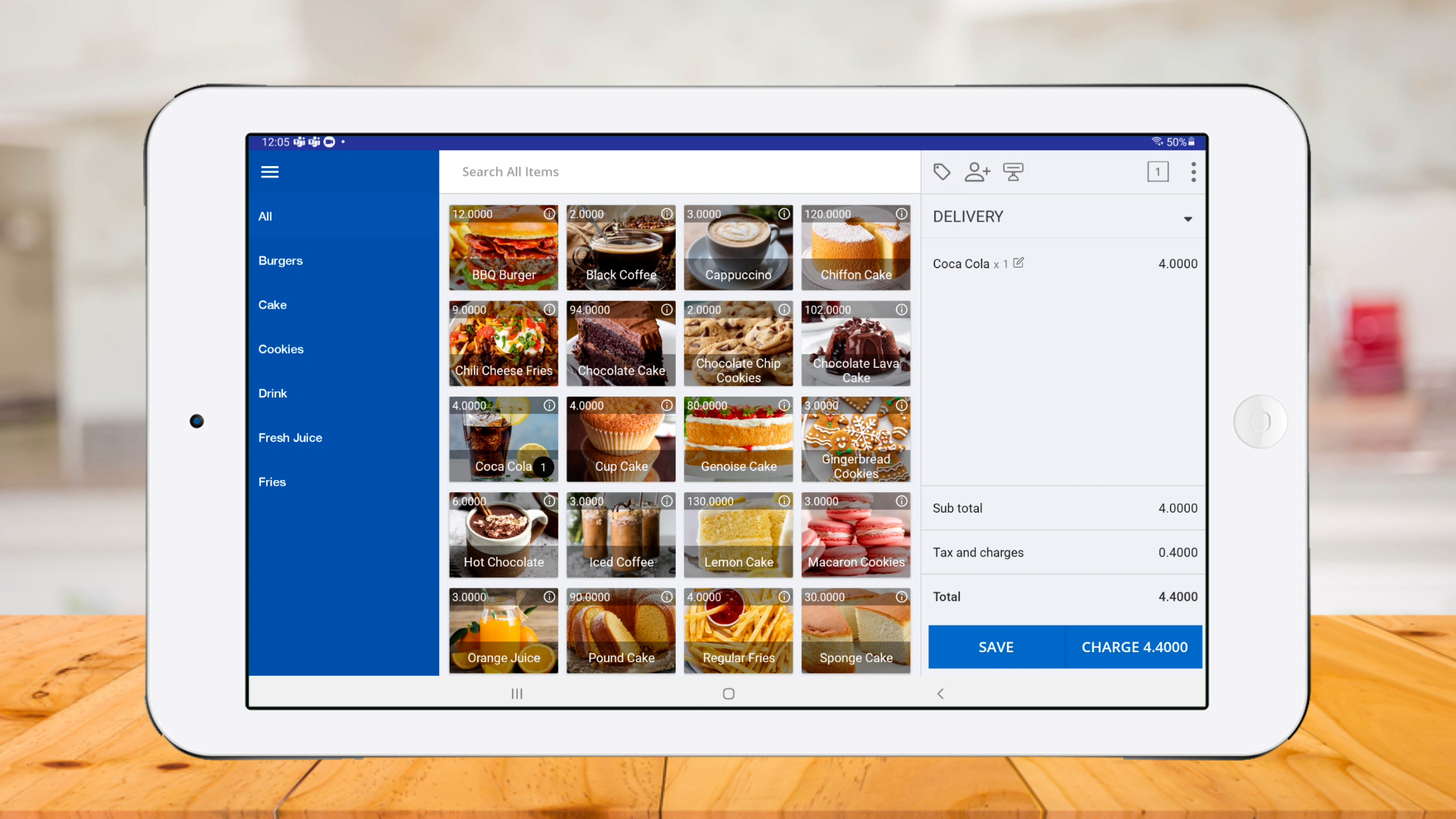
Click 'New Sale' , select products and click 'CHARGE'
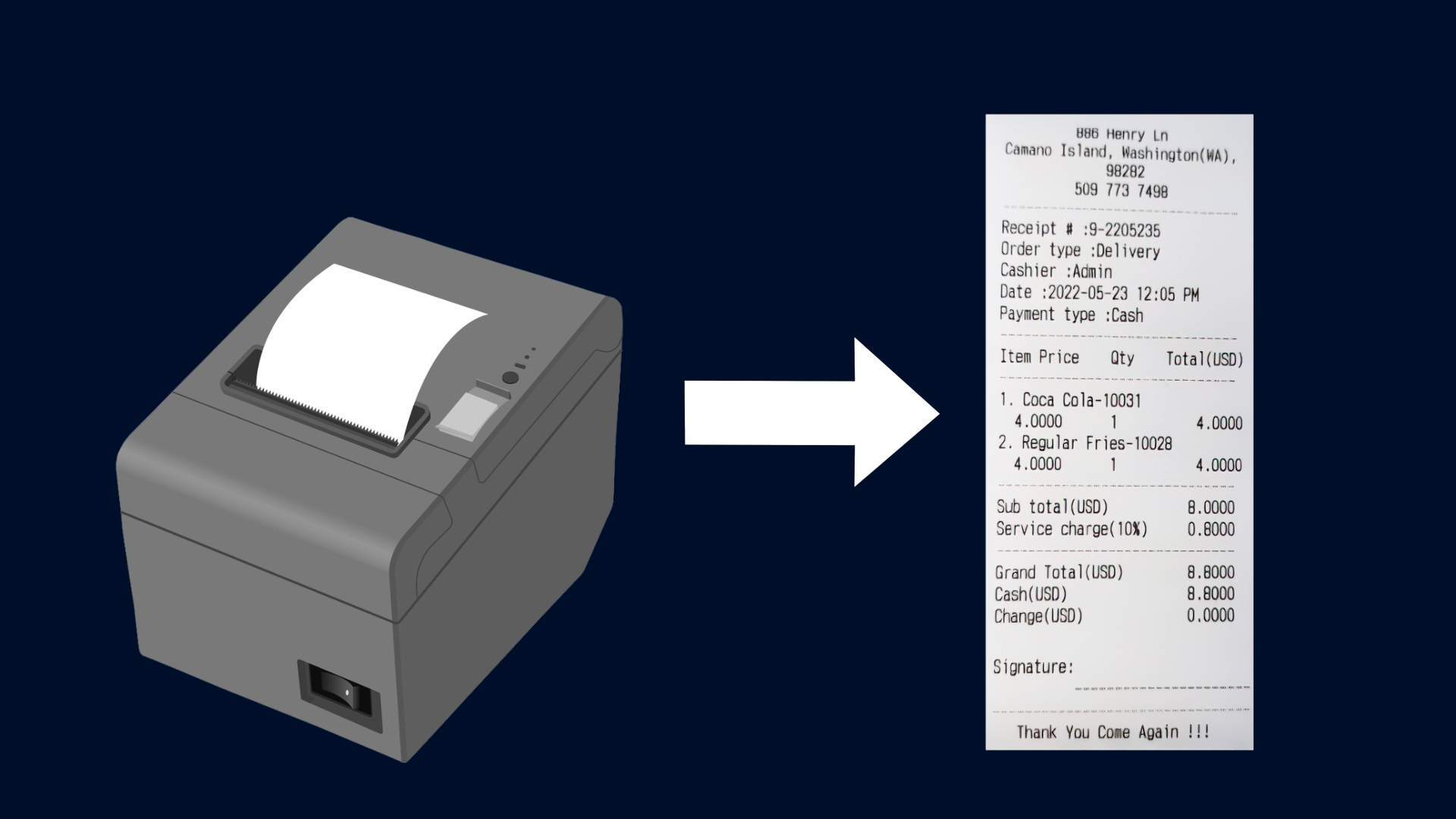
Receipt printed successfully
Related Articles
How to Set Up USB & Bluetooth Printers
How to Print Receipts in Other Languages
Was this article helpful? Tell our team what was missing.
Send us feedback