
How to Disable the Automatic Print Receipt Option
Disable Automatic Receipt Printing in Easy POS System
- Easy POS allows you to turn off the automatic print option. In such a situation, when you click the CHARGE button POS app will NOT issue a printout but you can still get a printout by clicking the “Print Receipt” button on the summary page.
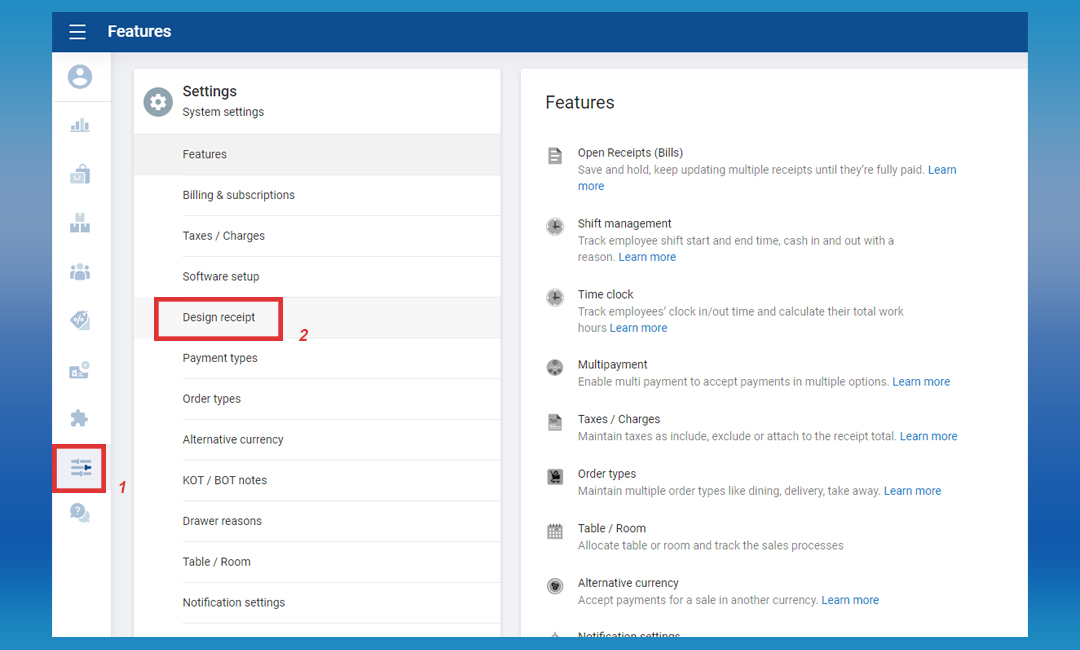
Login to POS Back Office > Select “ Settings ” from main menu > Go to the “ Design receipt”
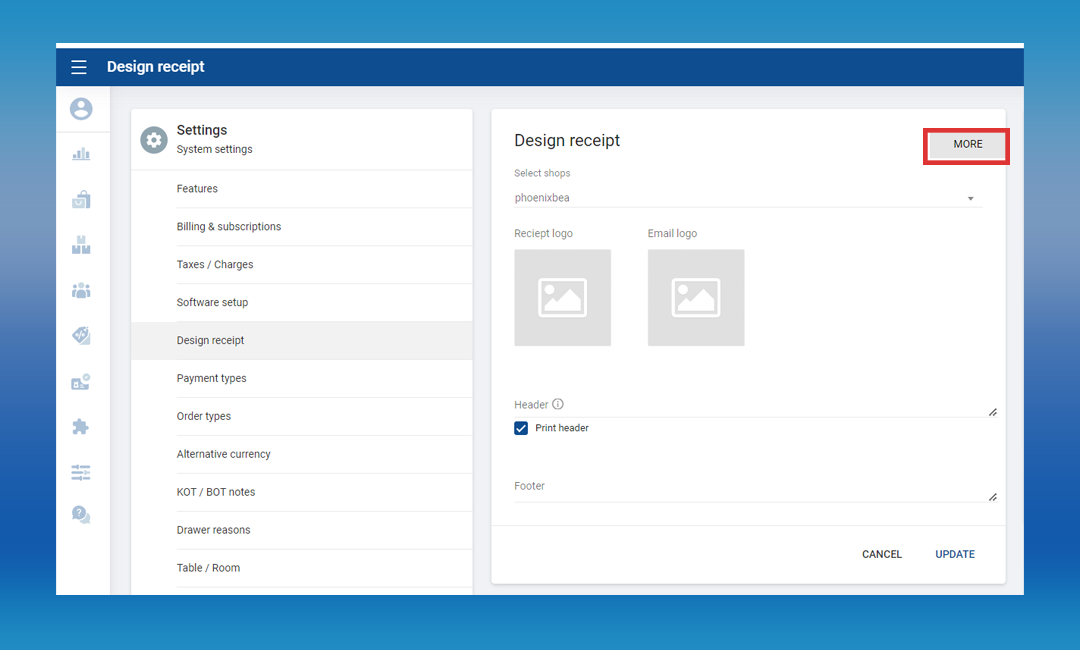
Click “More” section
Tick OFF the “Automatically print receipt” button > Click “Update”
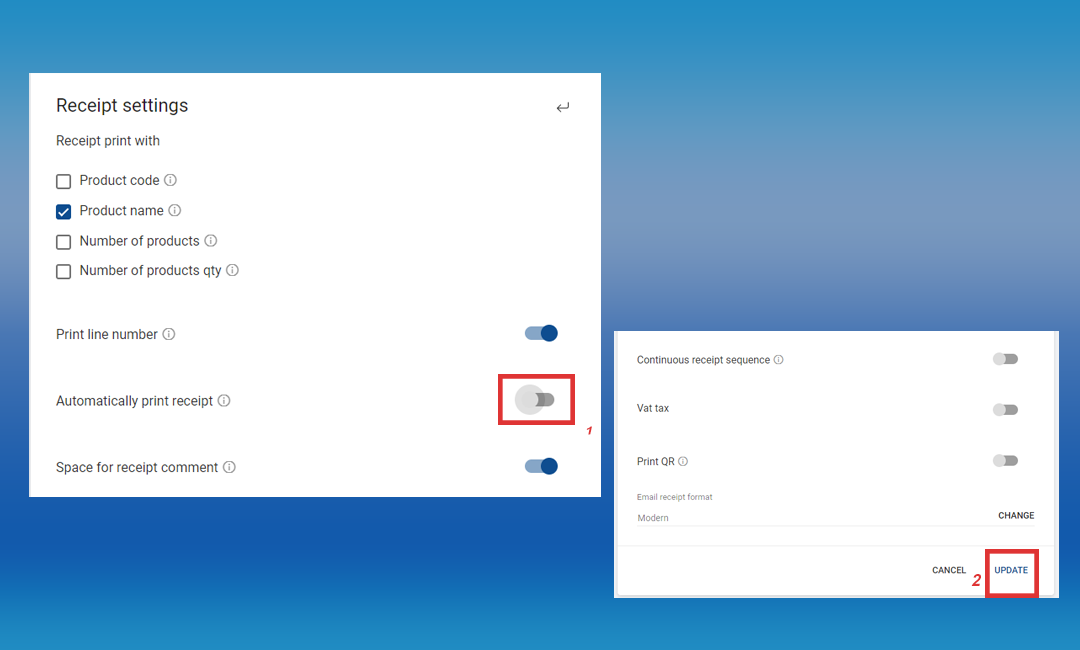
- Once updated, that feature will be deactivated from the POS App side. When you click the CHARGE button, you will NOT get a receipt print. If you want to get the receipt printout, then you can click the “Print Receipt” button on the POS final billing summary page.
How to TURN OFF the Automatic Print Receipt Option Within the POS App
POS App main menu > Select “ Settings ” > Select “Printers”
Click on the already created printer or Click the “Add (+) button
Tick OFF “Automatically print receipt” > Click SAVE
- Once updated, the feature will be activated and the user can click the CHARGE button and will NOT get a receipt print.
- If the user wants to get the receipt printout, the user can click the “Print Receipt” button on the POS final billing summary page
Was this article helpful? Tell our team what was missing.
Send us feedback