
How to Change and Reset Account Password
Change Account Password
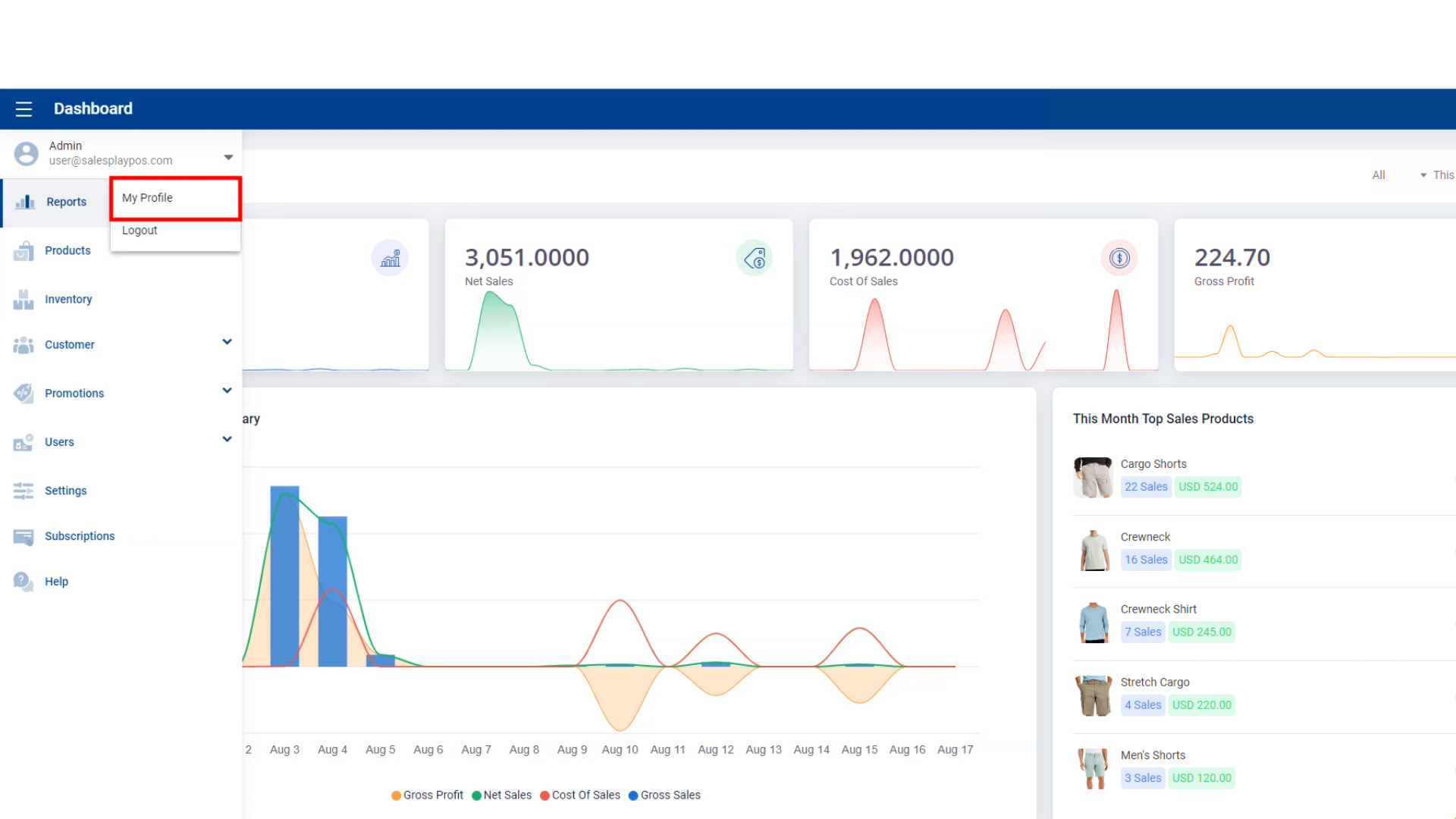
- Go to 'Main Menu'.
- Select 'Admin' profile section.
- Go to 'My Profile'.
Change Account Password
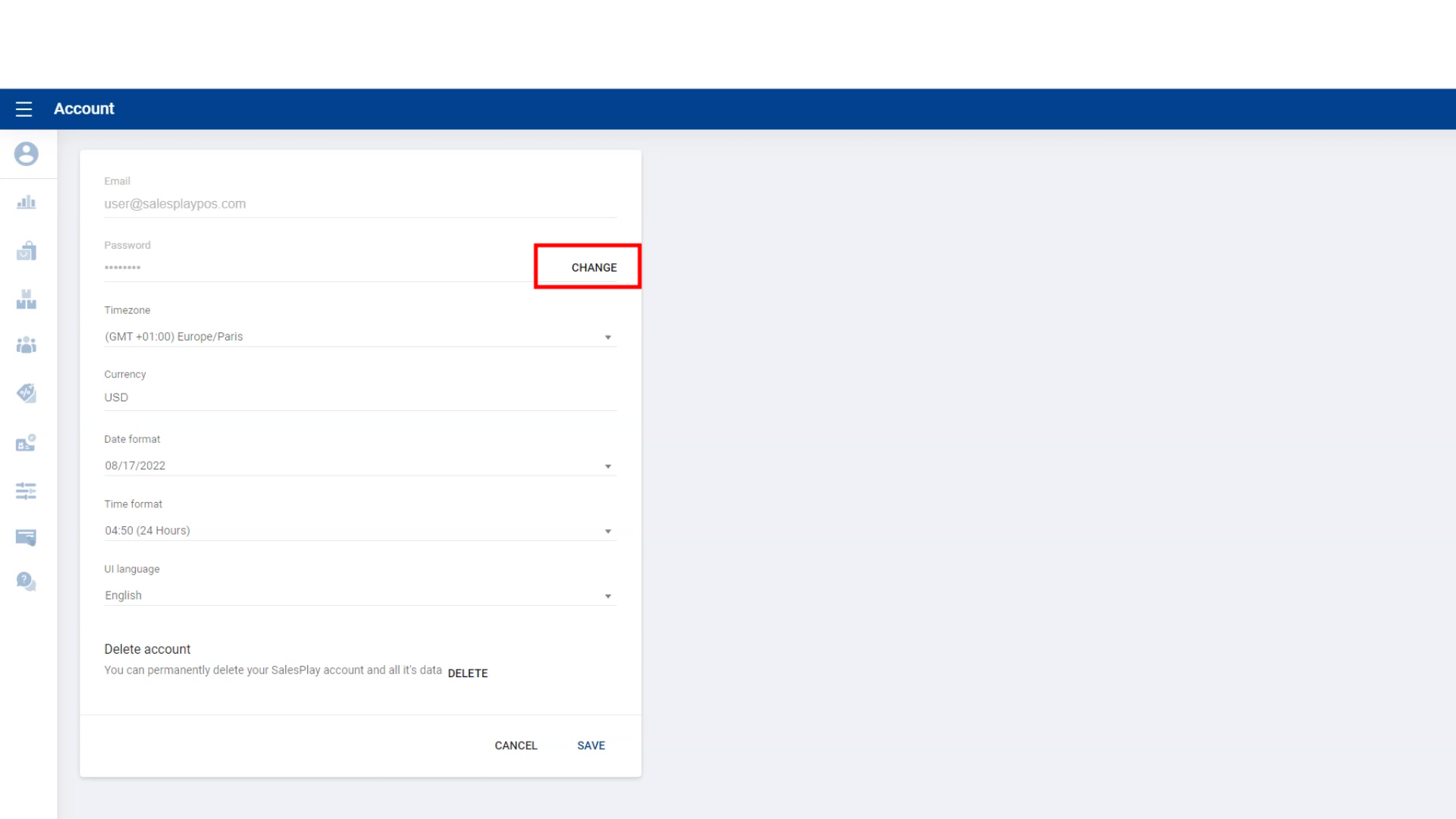
Click 'CHANGE' button.
Change Account Password
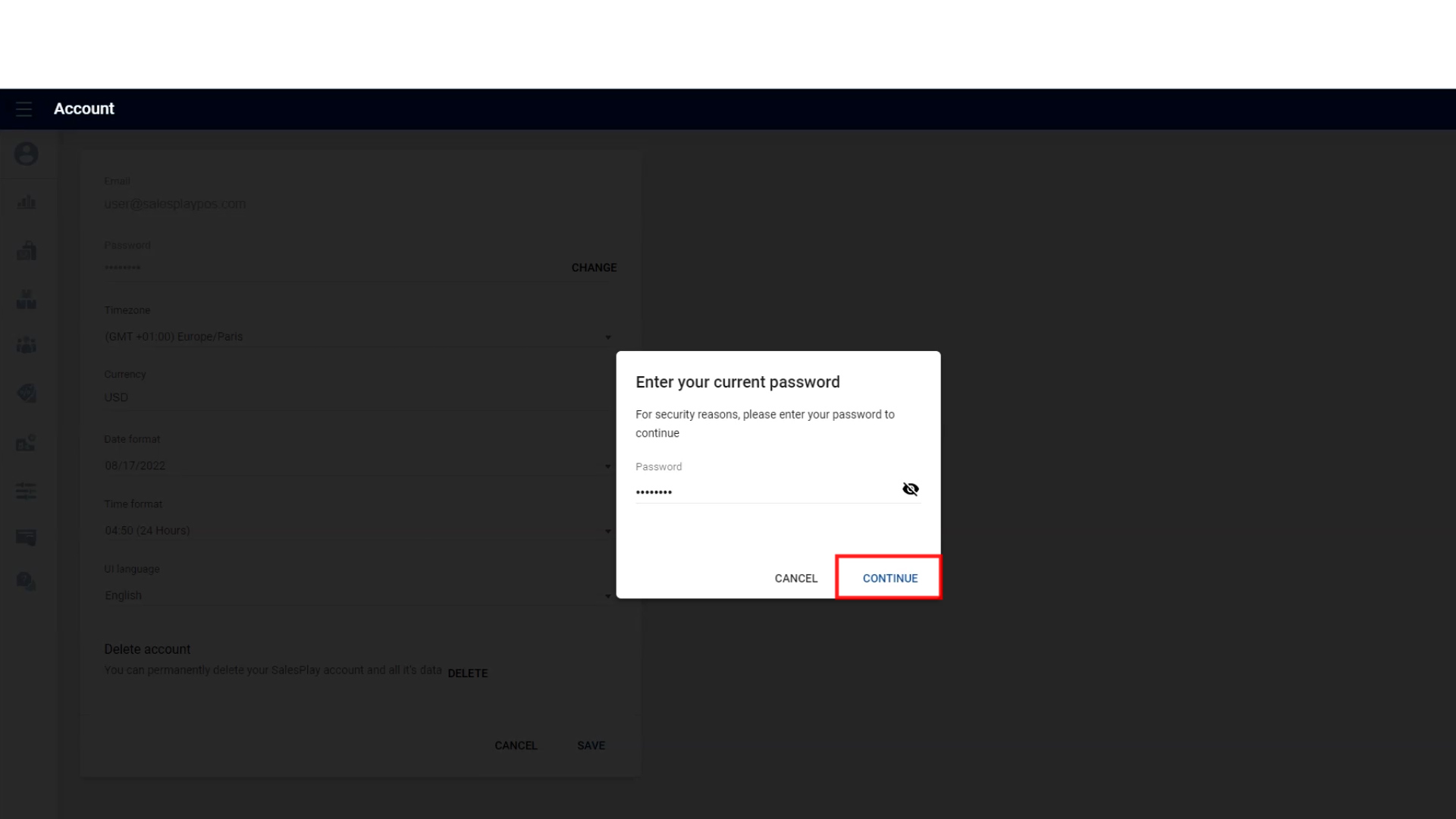
Enter your current password and click 'CONTINUE'.
Change Account Password
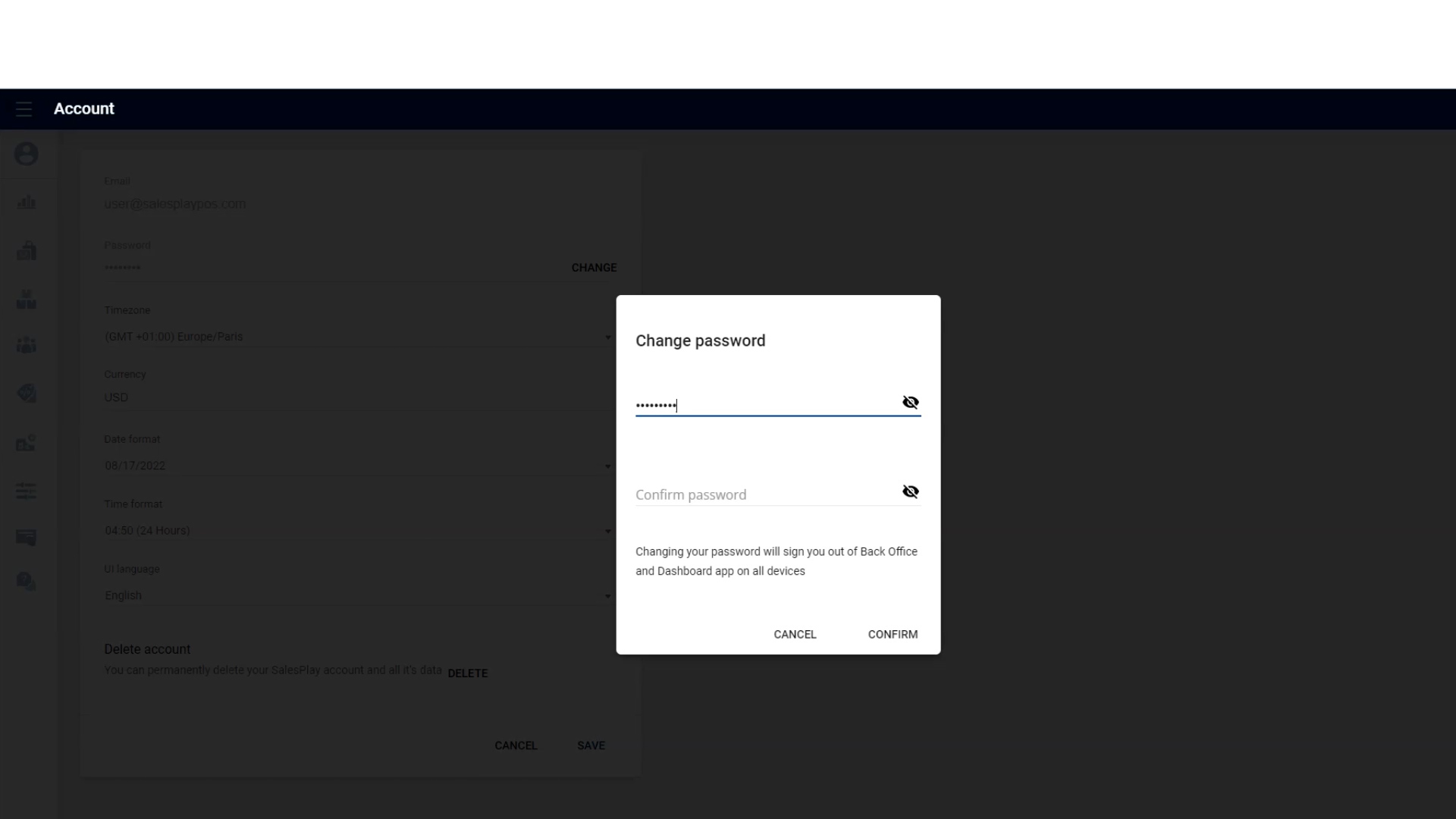
Type new pasword, re-type to confirm new password and click 'CONFIRM'.
Reset Account Password
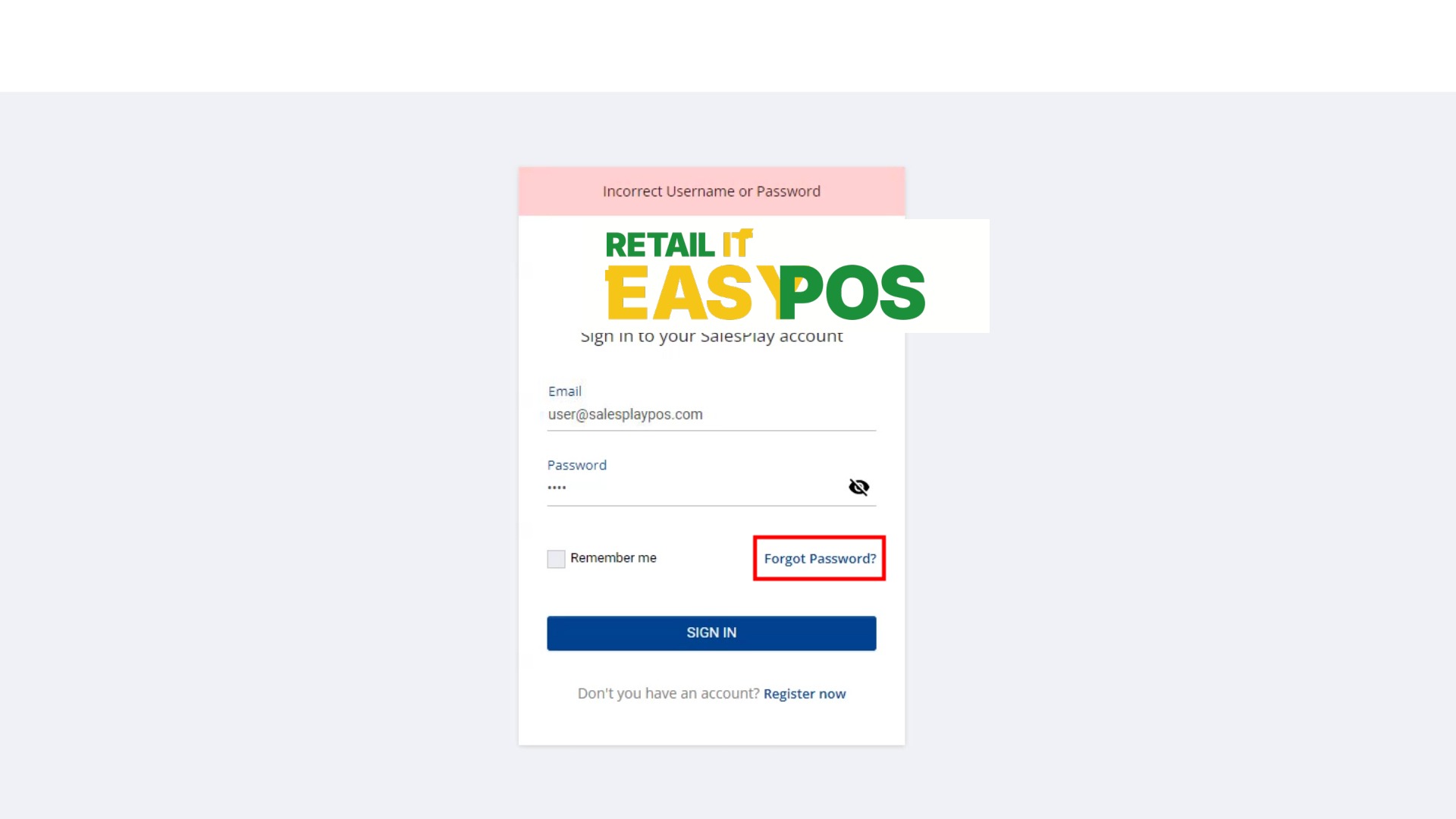
Click 'Forgot Password?'.
Reset Account Password
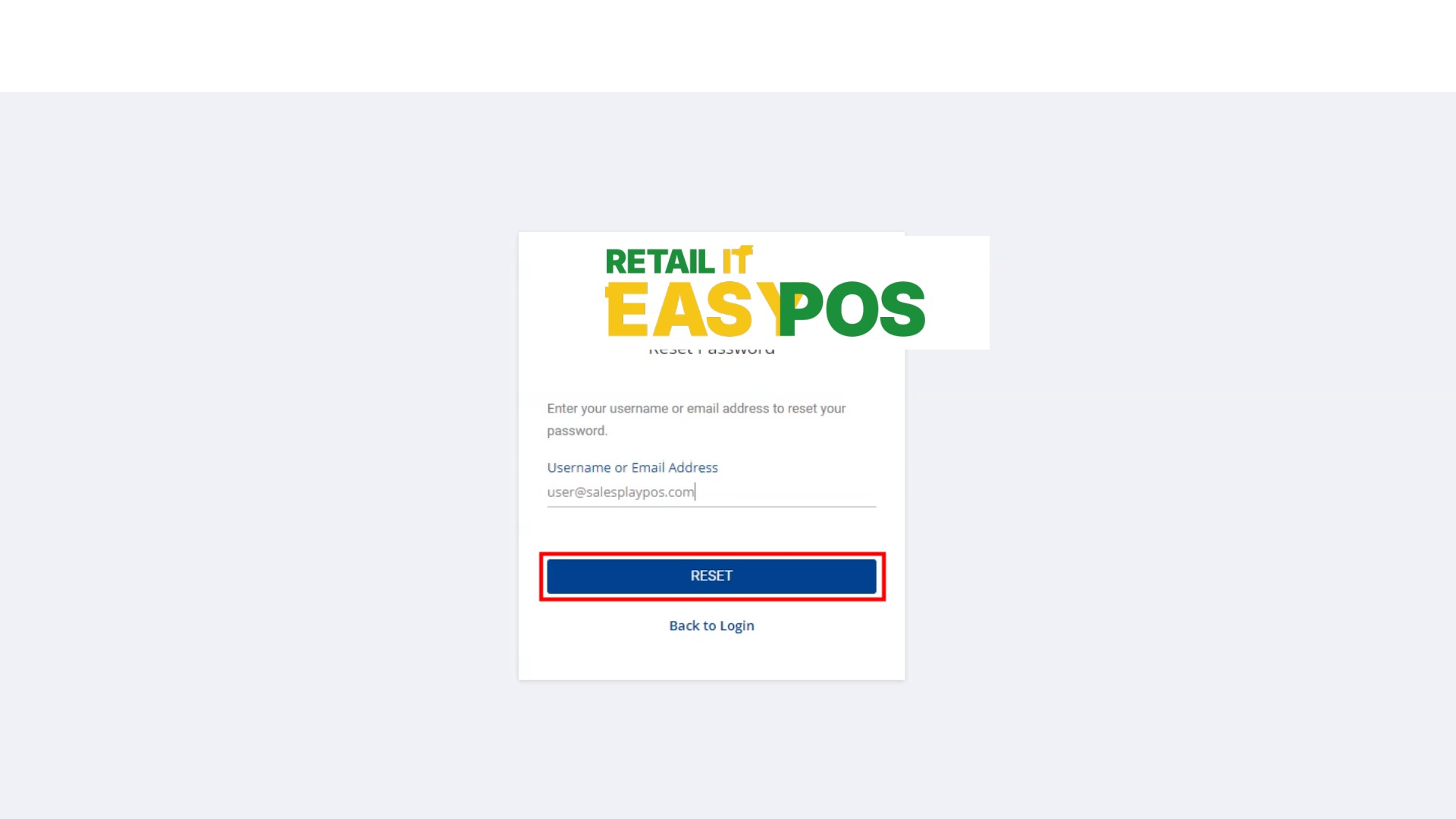
Enter the Registered E-mail address and click 'RESET' button.
Reset Account Password
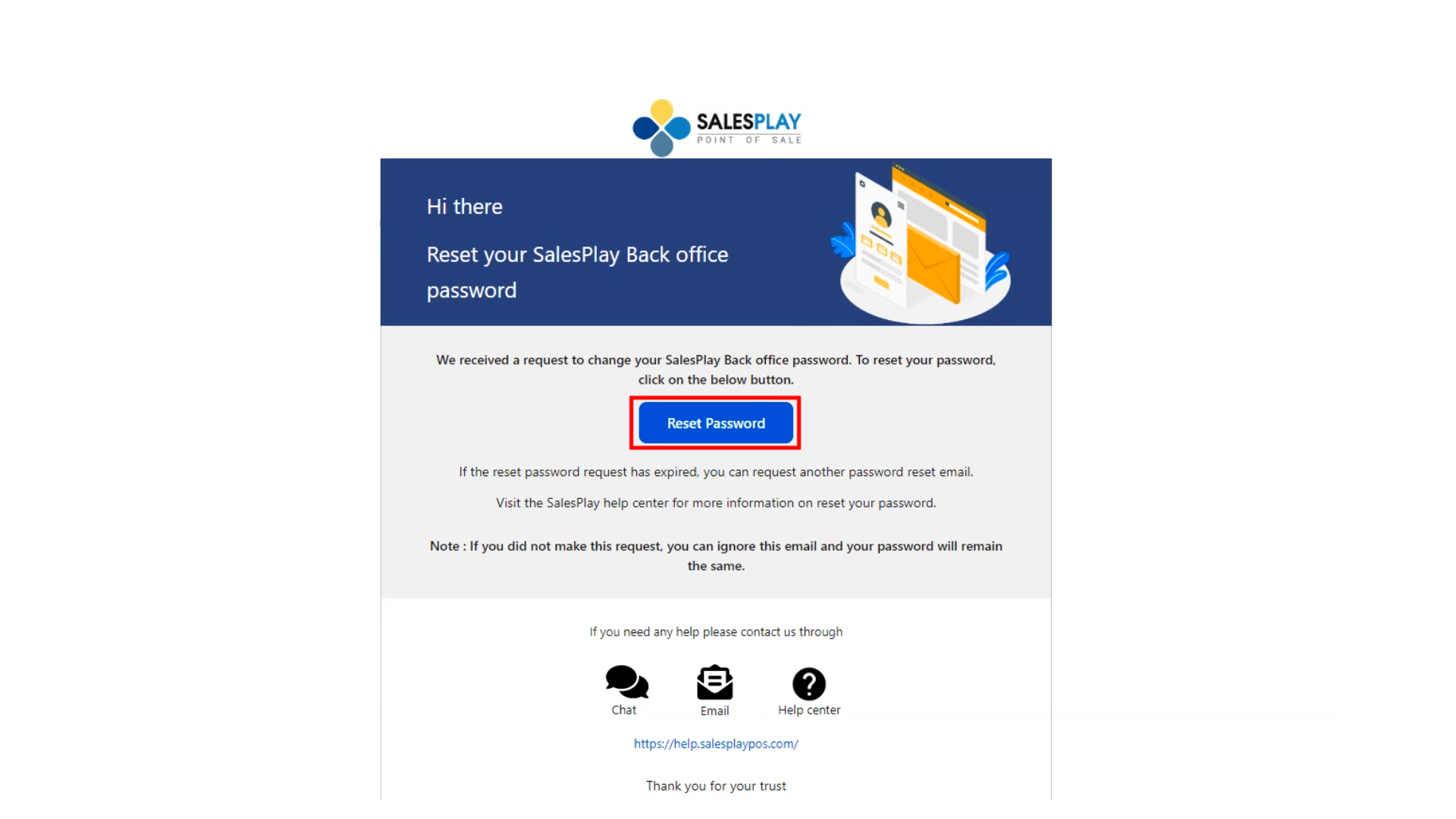
Check your inbox and click 'Reset Password' on the E-mail you received.
Reset Account Password
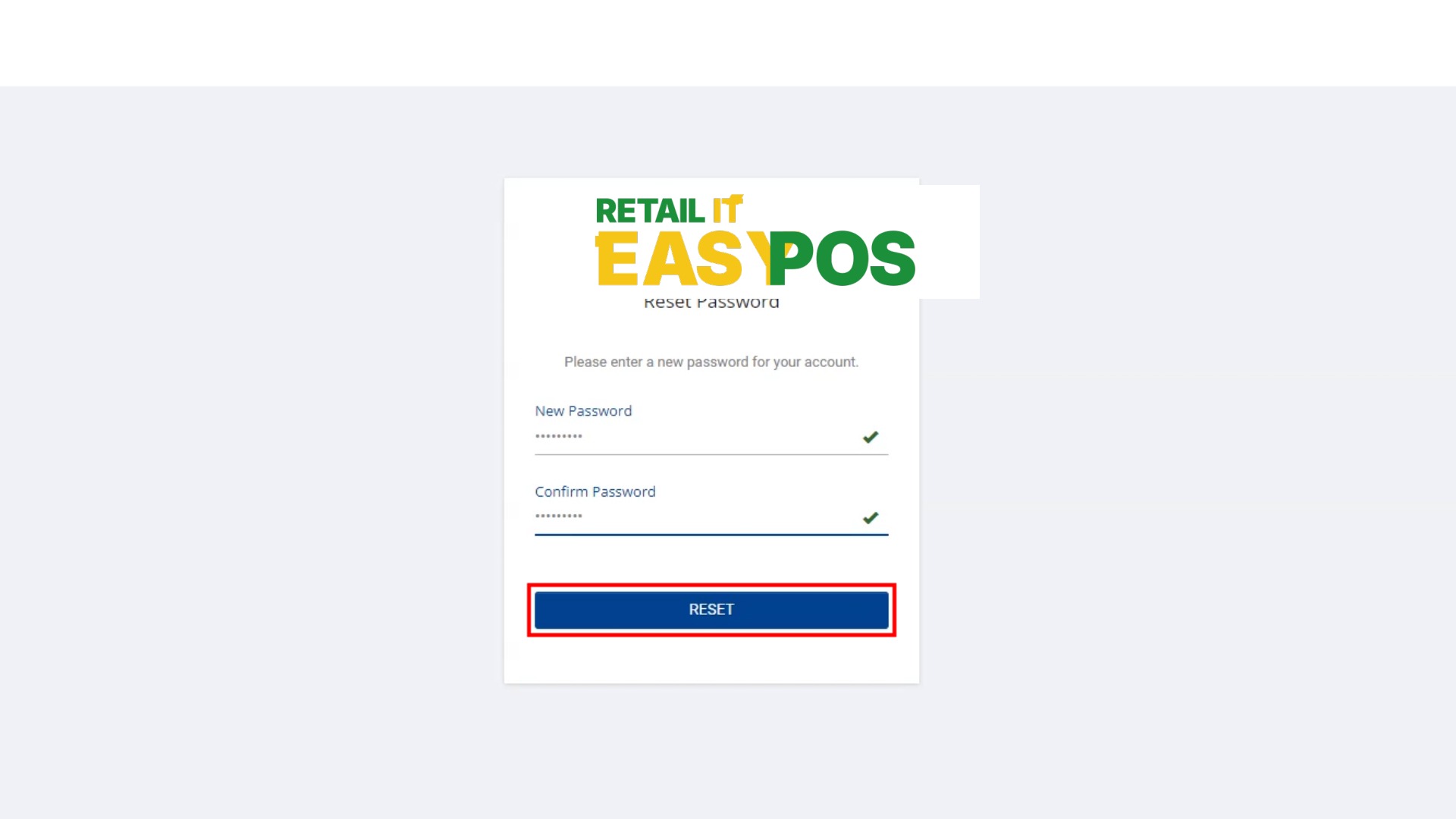
Type new pasword, re-type to confirm new password and click 'RESET'.
Reset Account Password
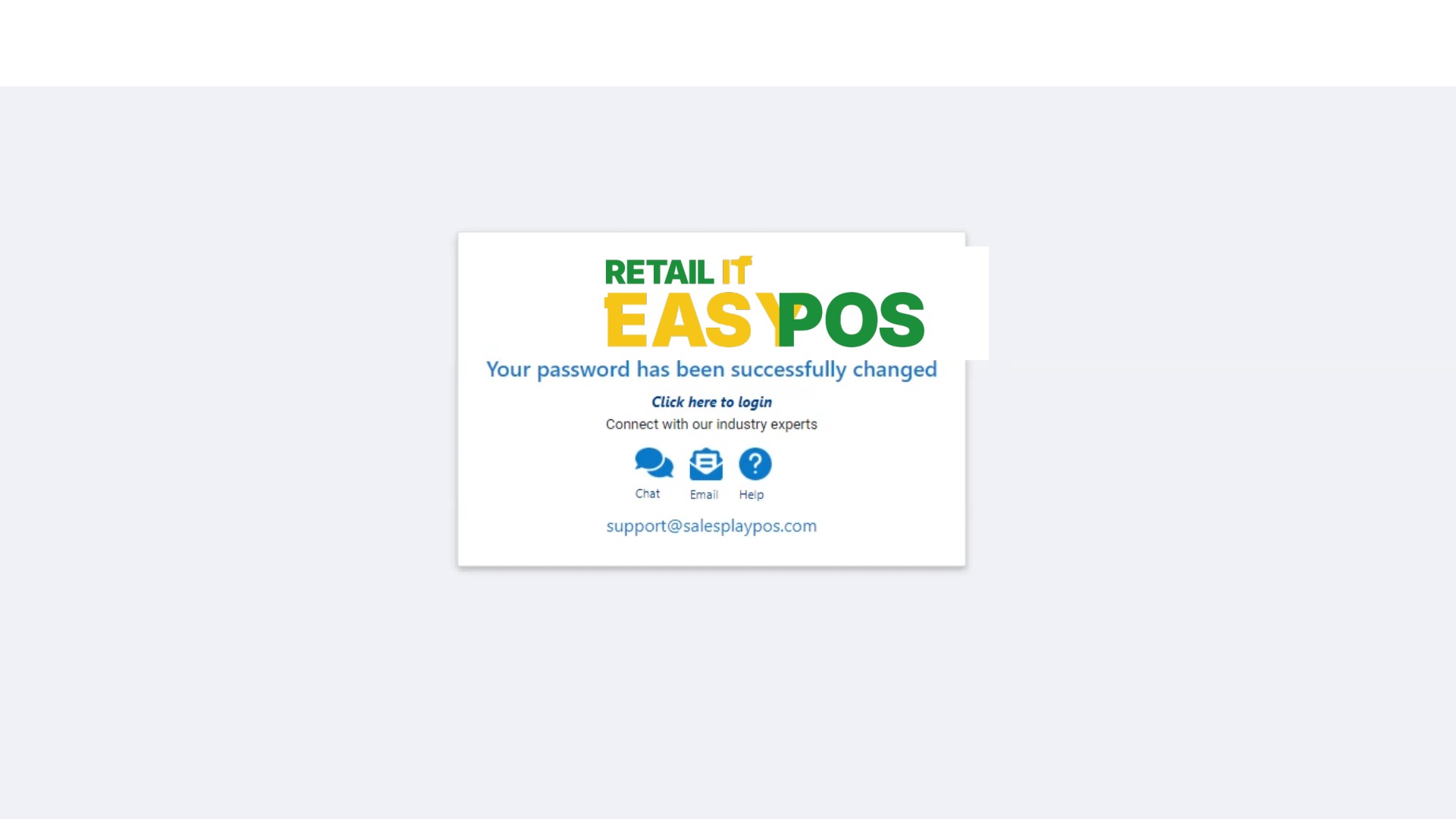
Your password has been saccessfully reset. Now you can sidn in using the new password.
Related Help Articles
How to create an Employee Setting Up and Changing PINs for Employees
Was this article helpful? Tell our team what was missing.
Send us feedback