
How to Create an Employee
Special Note
- When you set a Personal Identification Number (PIN) for your employees or at least for the Admin using the Back Office Webportal, you will see a padlock or a PIN icon within the Point of Sale (POS) app.
1. Create an Employee
POS system allows you to create different employees / users with different permissions and roles based on owner's requirements to allow certain levels for certain employees.
This access levels allows you to create different users and different user roles with wide range of permissions. Ex: User Role Cashier can only do the billing
User Role “Supervisor” can check some reports
User Role “Manager” can delete receipts
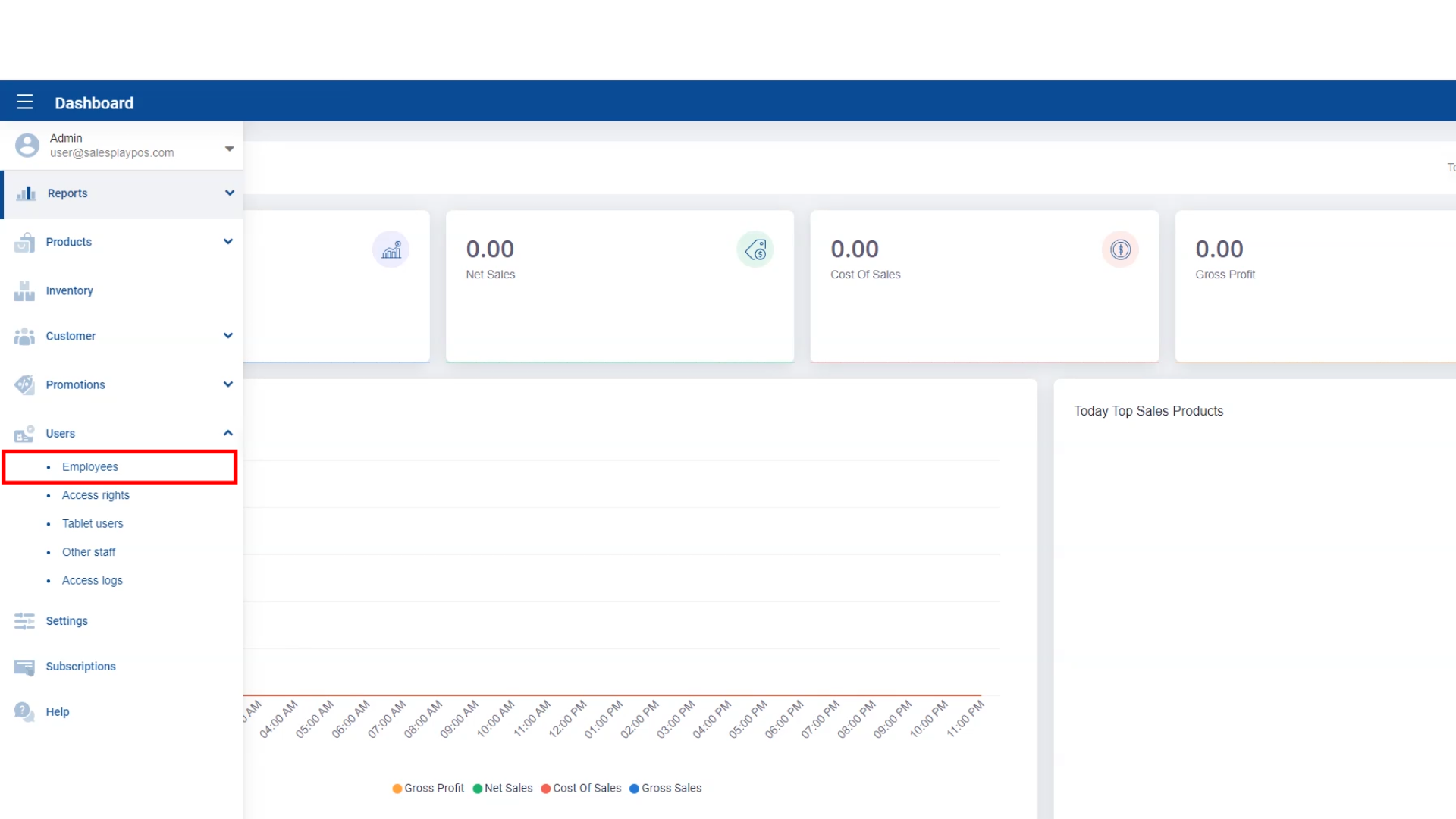
After logging into Easy POS Back Office go to, Users > Employees > Create employee
2. Create an Employee
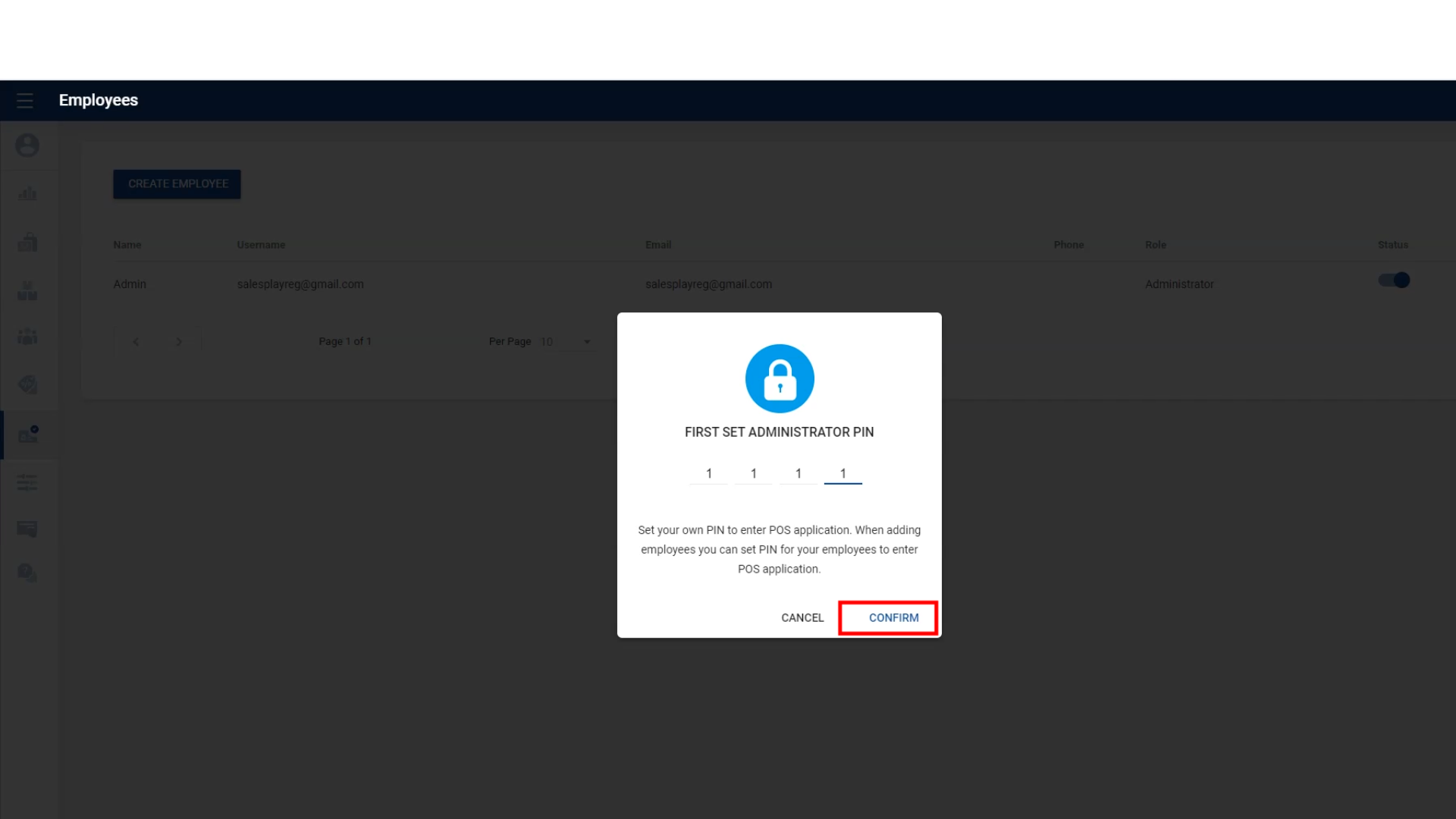
- Before you create **your first employee,**you need to set your own pin as the administrator. Then you can set pin for your employees when you create the employee and let them enter it at the POS application to login.
3. Create an Employee
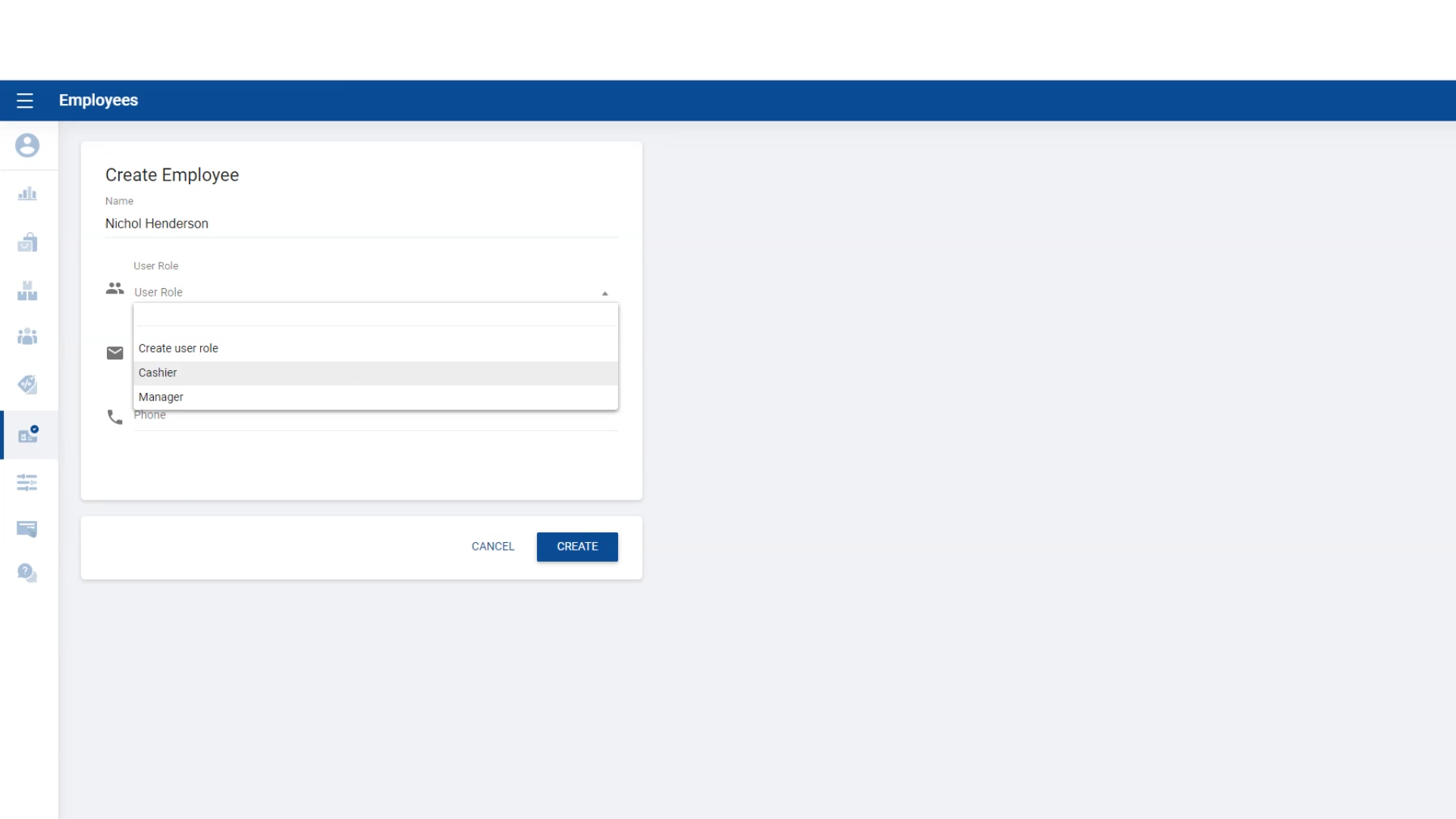
- Now you can enter the details of the emploee such as : name, user role(manager, cashier, etc) and POS login pin.
4. Create an Employee
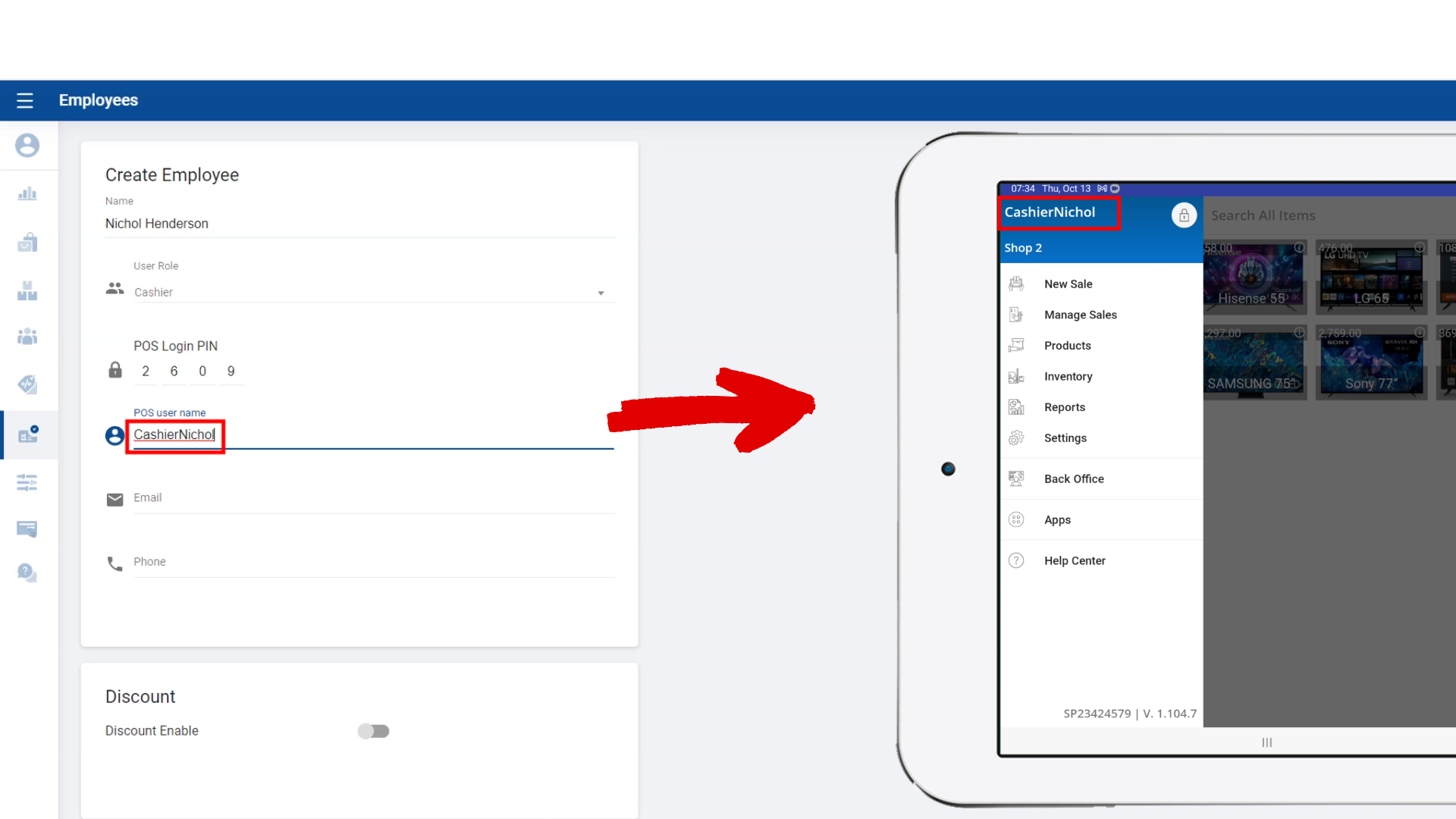
- Enter the employee's POS user name. As you can see in this image, POS user name will be visible on the main menu in POS app during the emplyee's shift.
6. Create an Employee
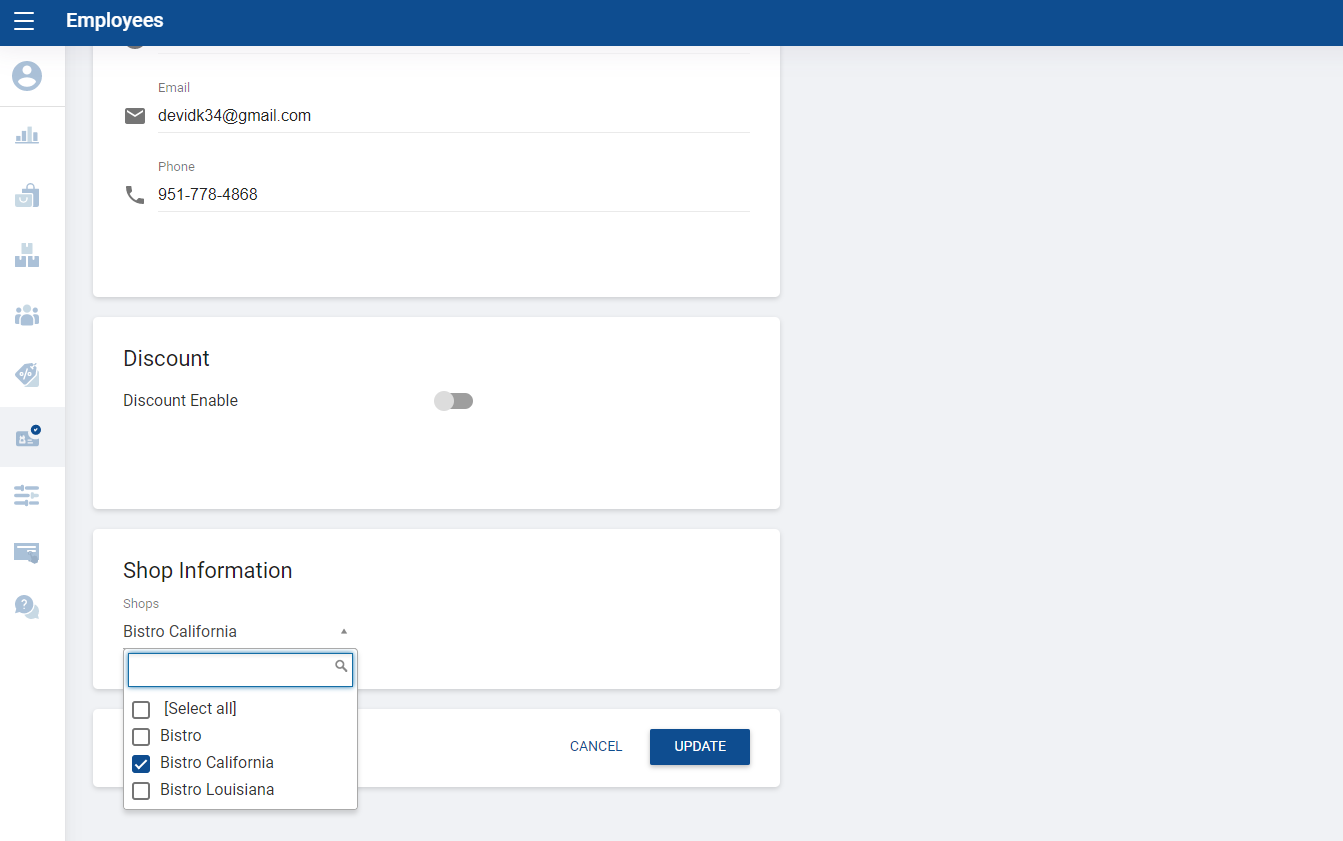
- Now you can assign your customer to a particular shop(s). Scroll down
Related Help Articles
Manage Employee POS Access Rights
How to Change and Reset Account Password Setting Up and Changing PINs for Employees
Was this article helpful? Tell our team what was missing.
Send us feedback