
How to Add Price Embedded Barcodes
What is Embedded Barcodes
- POS system allow users to use Embedded Barcode option.
- An embedded barcode can be defined as the barcode which carries extra information of the product such as item price or quantity. Ex : Weighing vegetables.
Embedded Barcodes Types
- There are two types of embedded barcodes.
- Weight based. Barcode consists of product code/ SKU, then the weight information.
Price based.
- Barcode consists of product code/ SKU and product price.
Barcode Profiles
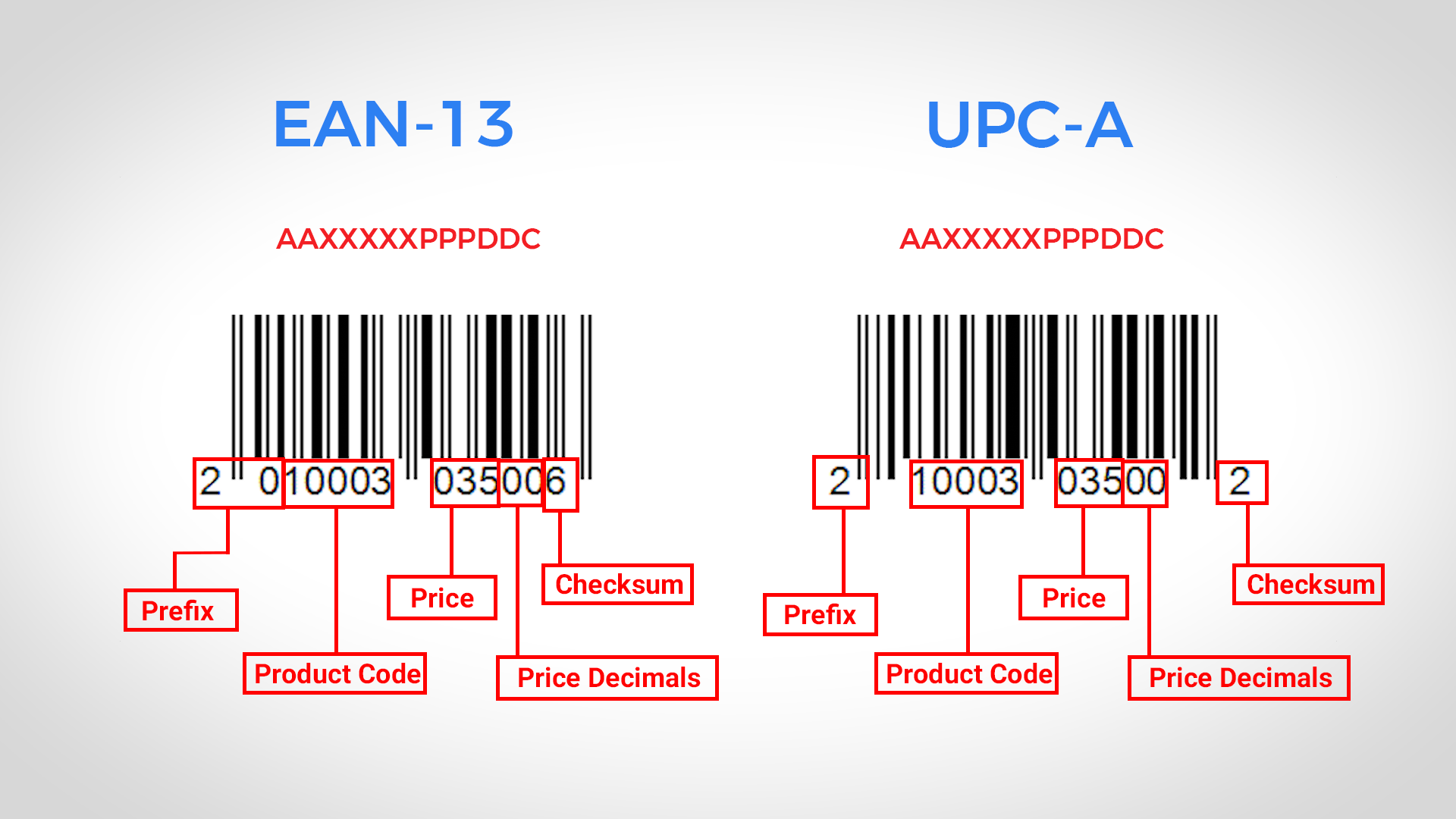
There are two types of Barcode profiles as EAN 13 and UPC-A.
EAN 13 Setup ( total 13 digits in the barcode) Price-embedded barcodes are generally of the format 'AAXXXXXPPPDDC'.
Barcode starts with 2 digits 'AA' for prefix, then 5 digits "XXXXX" for product code, then 3 digits "PPP" as the price, then 2 digits "DD" as price decimals. Finally 1 digit 'C' as checksums.
UPC-A Setup ( total 12 digits in the barcode) Price-embedded barcodes are generally of the format 'AXXXXXPPPDDC'.
Barcode starts with 1 digit 'A' for prefix, then 5 digits "XXXXX" for product code, then 3 digits "PPP" as the price, then 2 digits "DD" as price decimals. Finally 1 digit 'C' as checksums.
How to Add Price Embedded Barcodes
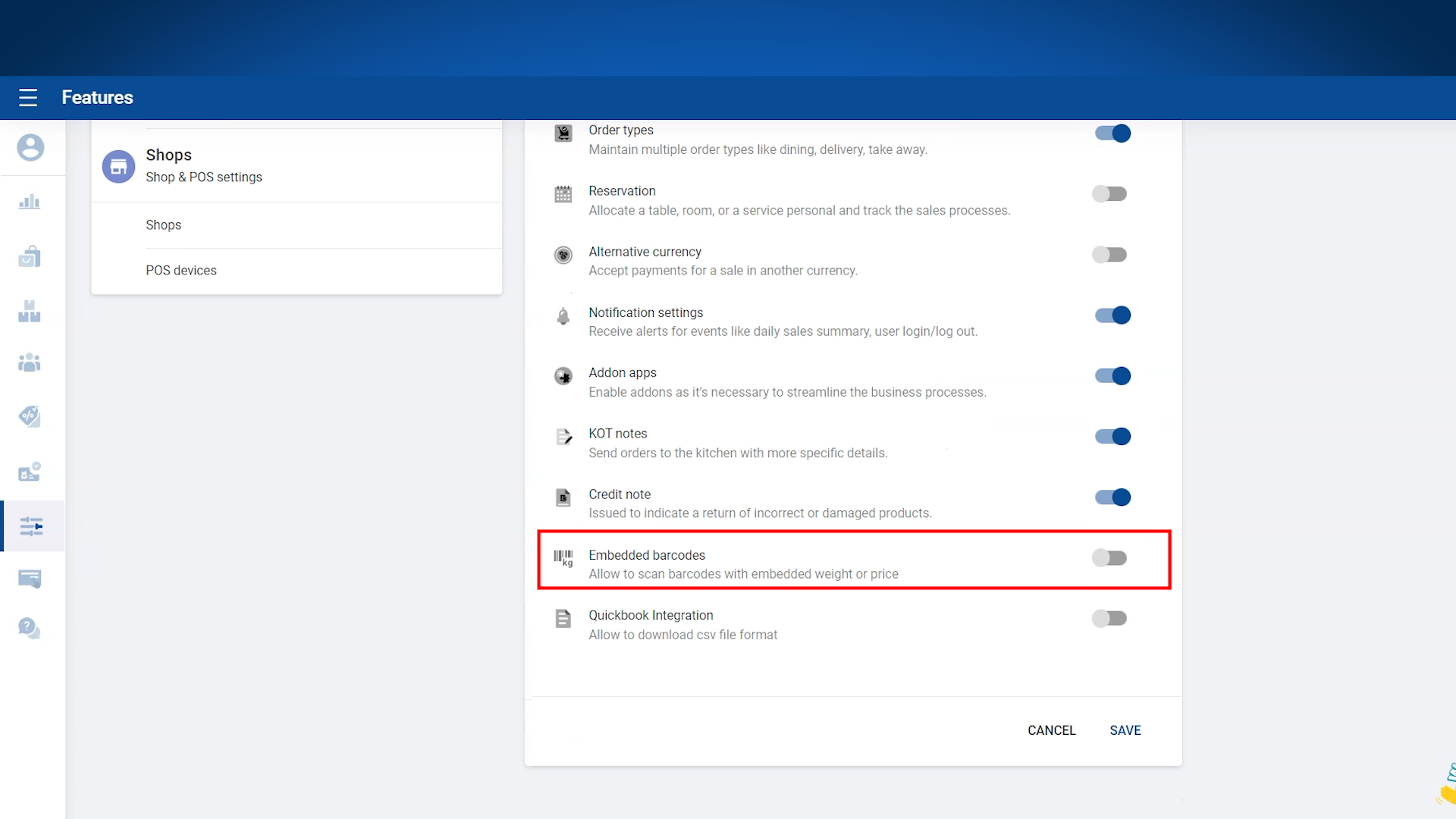
- Login to POS Back Office Webportal
- Select “ Settings” from main menu
- Go to the “Features”
- Tick ON “Embedded Barcode” section
- Click ‘Save”
(Once you ON “Embedded Barcode”, it will appear as a sub-menu in the Settings section)
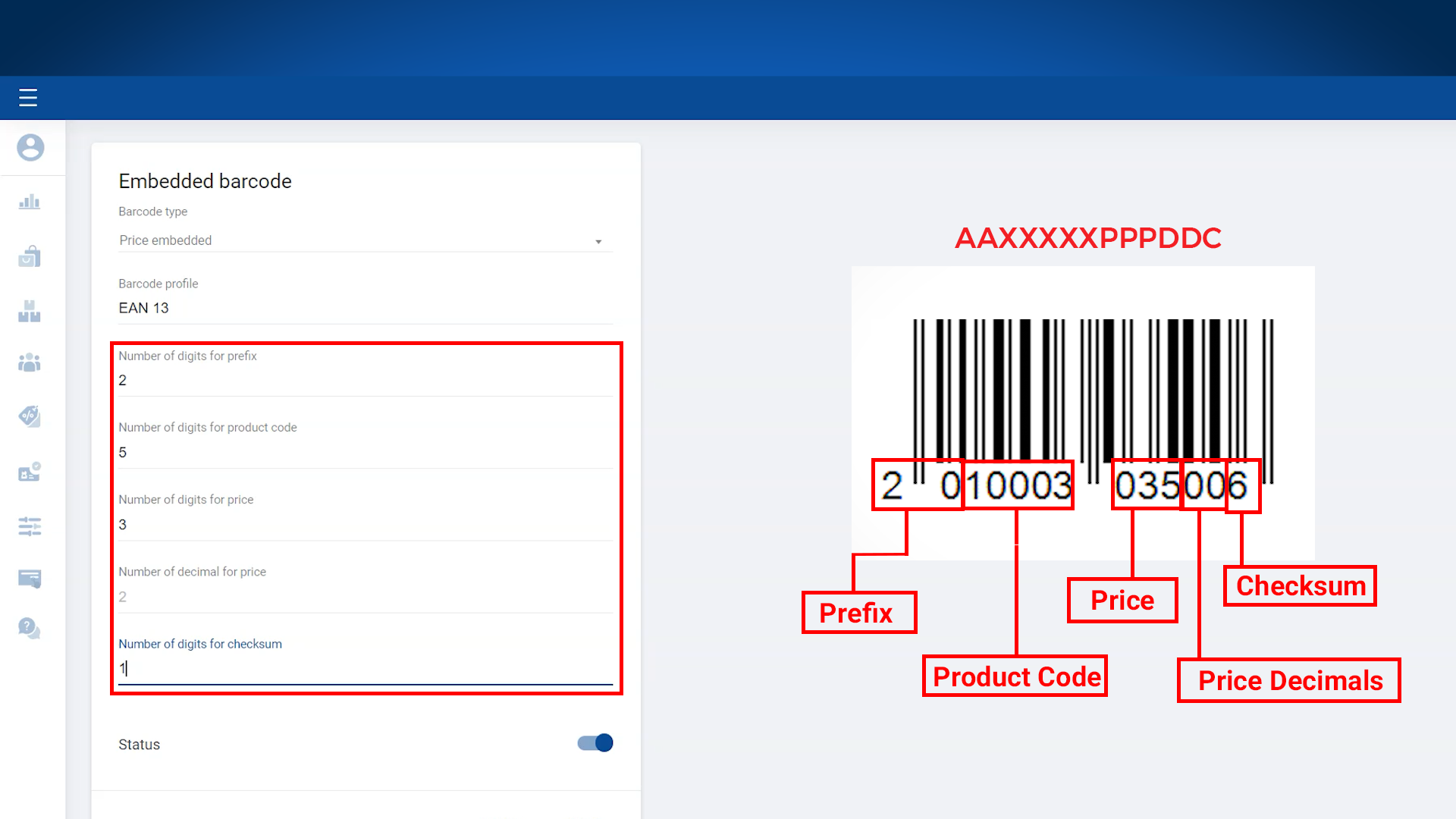
- Click “Embedded Barcodes” from sub-menu
- Click "Add New"
- Select a "Barcode type" as Price Embedded
- Enter correct digits
(Set the PLU value to 0 or empty if your product codes have 5 digits)
- Tick ON “status”
- Click Save
Note:
**Set the PLU value to 0 if your product codes have 5 digits.**If your product codes have less than 5 digits, make sure to configure the PLU value correctly, based on the number of digits in your product codes.
How to Add Price Embedded Barcodes
Related Help Articles
Was this article helpful? Tell our team what was missing.
Send us feedback