
Let's Add Products to Your Product List
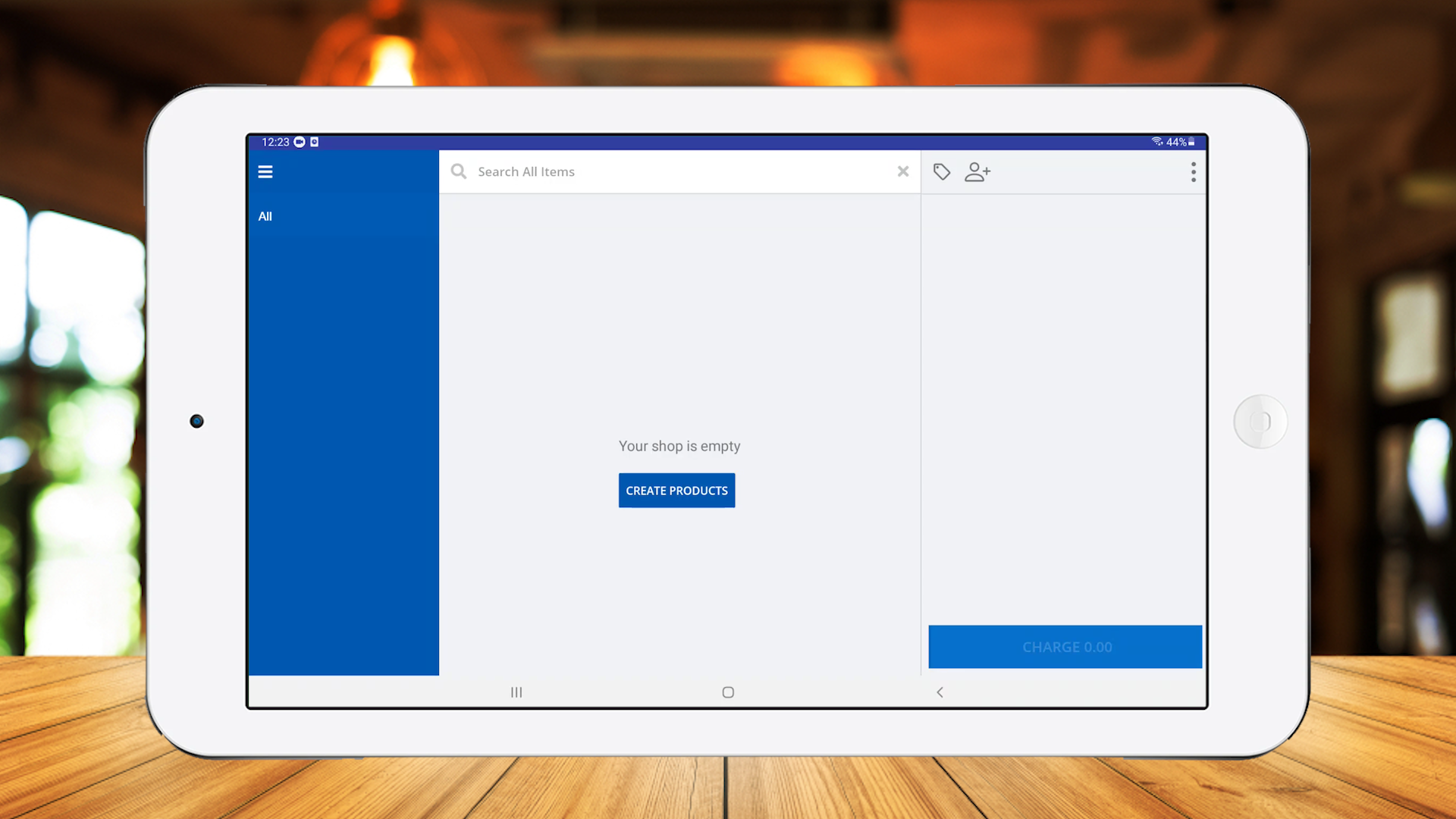
- After successfully signing in to your account, you can add products to the product list via Easy POS App. Click 'CREATE PRODUCTS'.
- Afterwards, when you need to create a new product, click the menu button (≡) at the top left corner, select 'Products' and click the plus button.
Add Product details
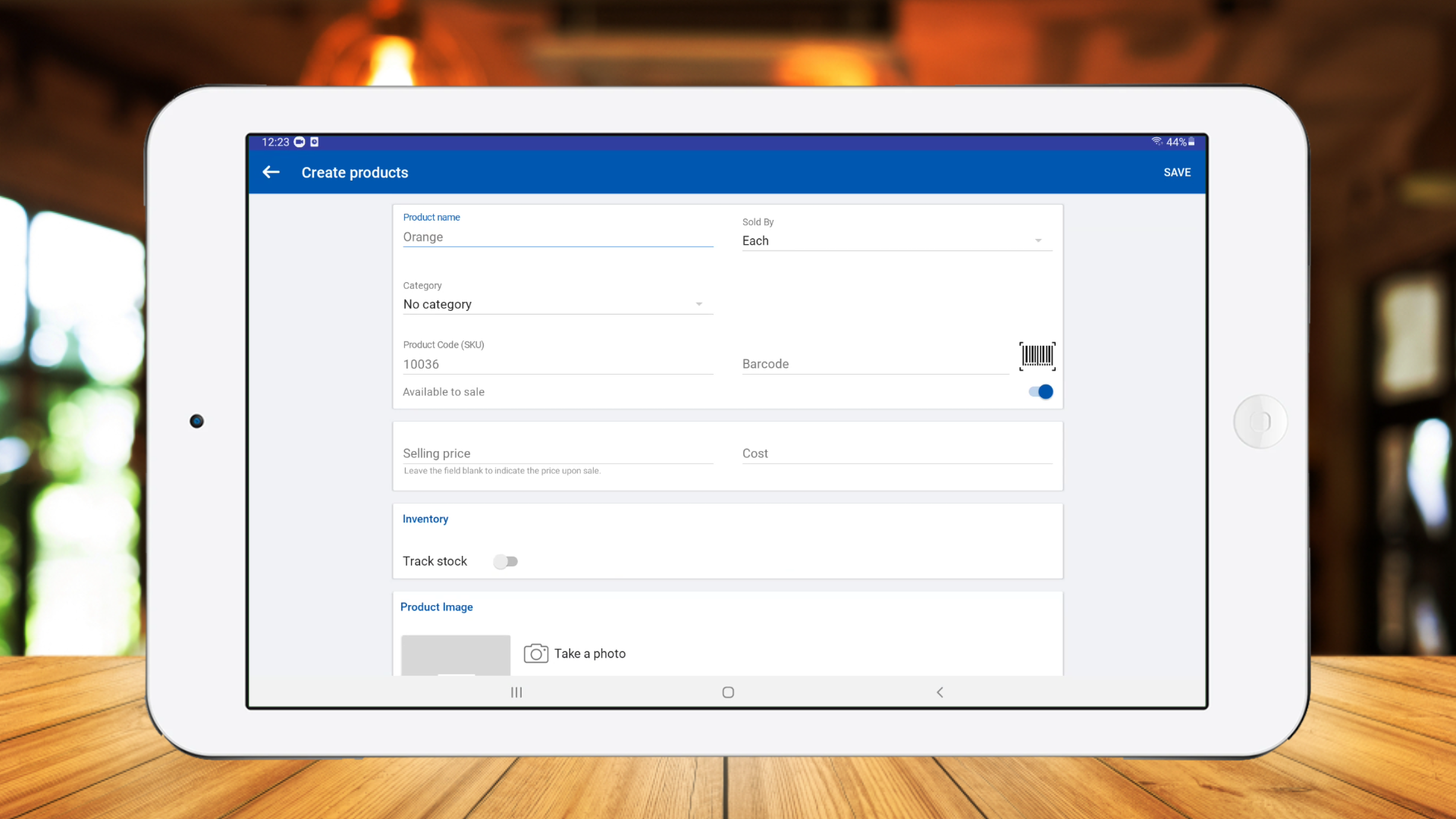
- Add product name and selling price.
Upload product image
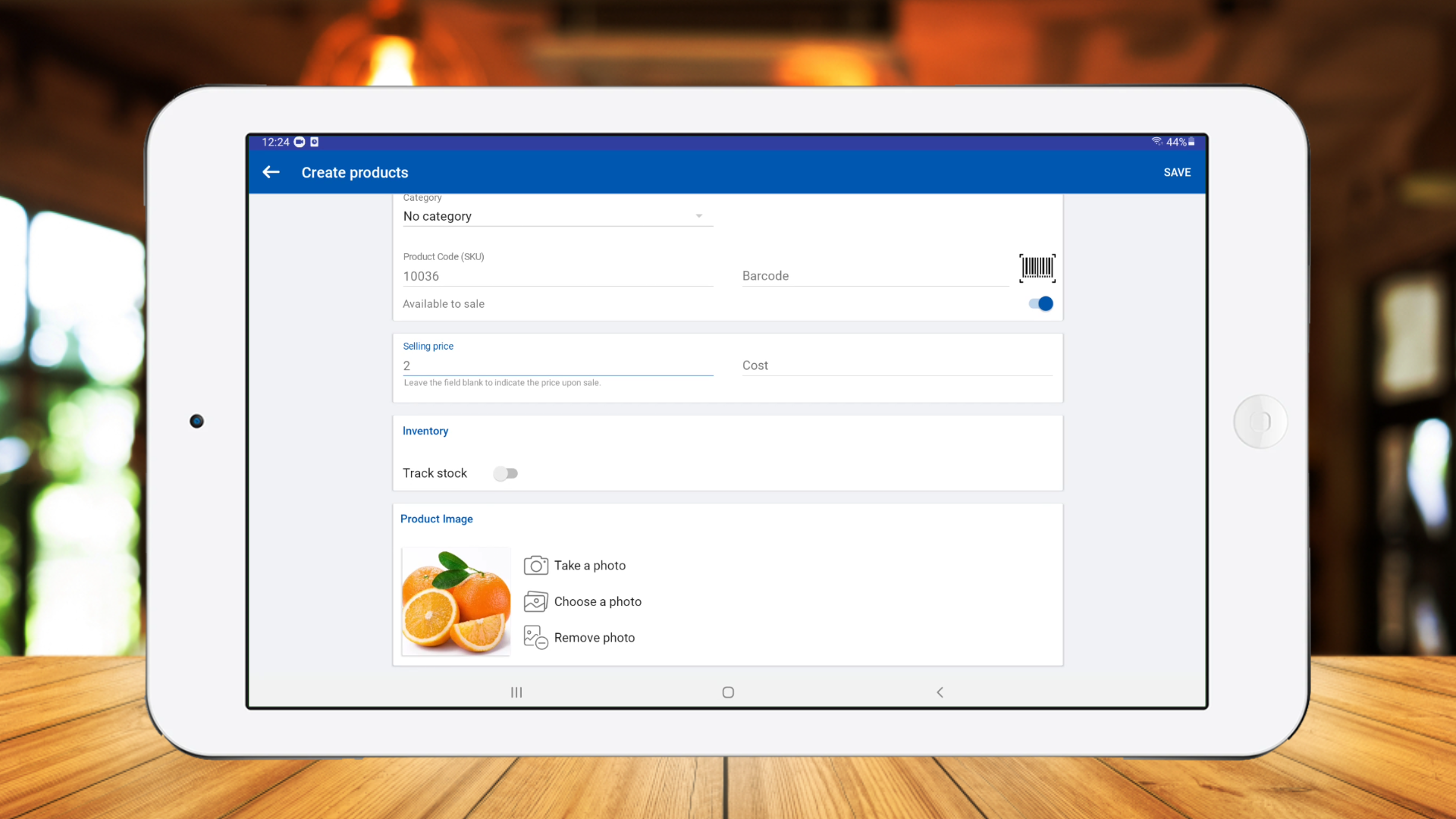
- Upload an image from your files and click 'SAVE'.
View product list
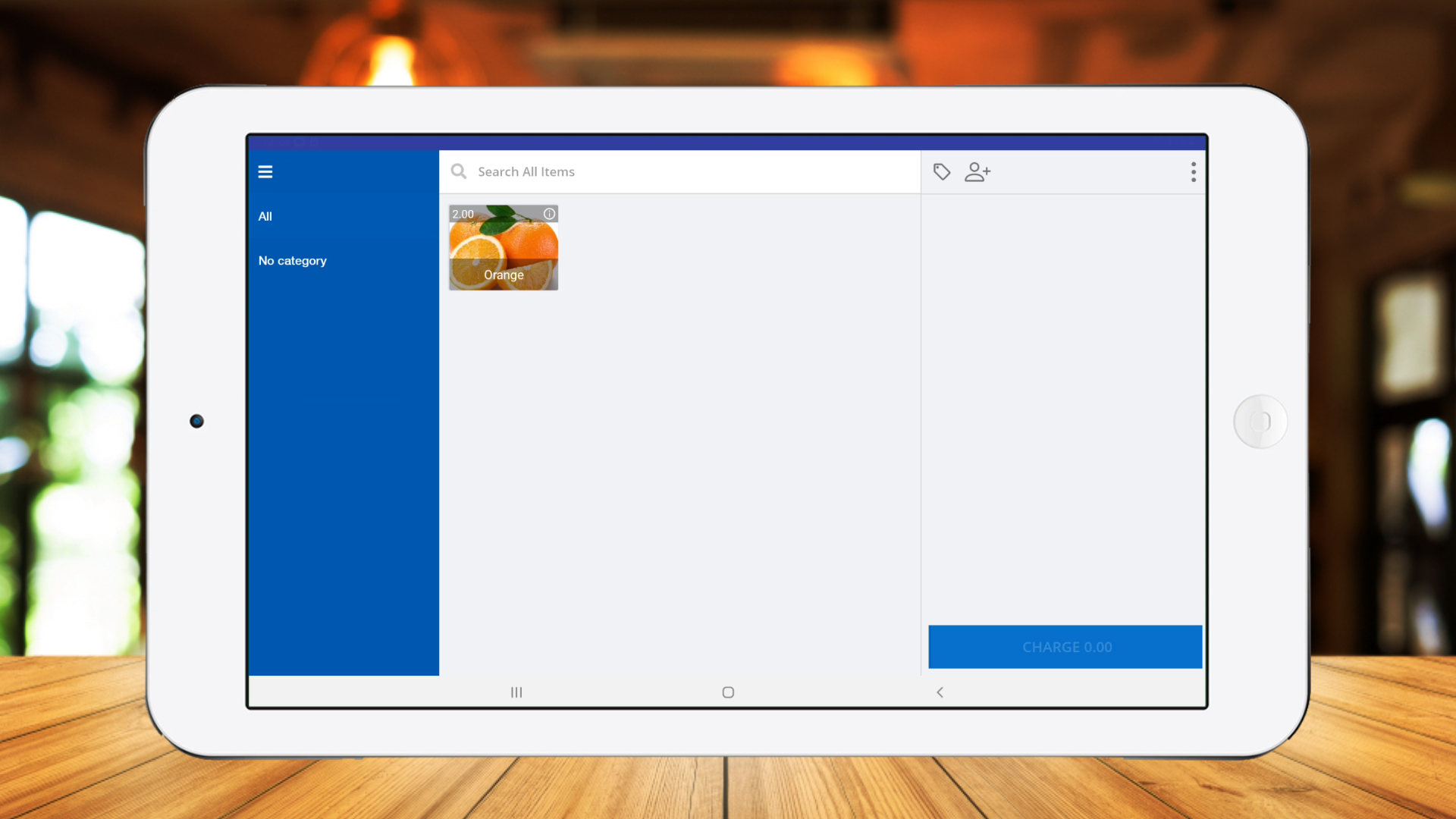
- Select 'New sale' and you will see the product appear on the screen.
Product List Navigation
- You can enter the page list number, and the POS system Back Office will display the corresponding page of the product list. This functionality is especially useful as it helps users quickly find and edit the desired products.
Login to POS Back Office Webportal.
Select “ Products” from main menu.
Go to the “Products List”.
Go to the bottom of the product list.
Enter the page number near “Page” section.
Click the “Enter” button on the keyboard
Sort Products in Back Office
- Easy POS allows you sort the product list based on alphabetical order, date created and the CODE. Available sorting methods are Product Name, Category, Recently Created and Product Code.
Login to POS Back Office Webportal.
Select “ Products” from main menu.
03) Go to the “Products List”.
Click on the “Sort By” dropdown menu4
Select a method
- (Once a sort option is selected, it will be saved even after the logouts)
Related Help Articles
How to create categories and sub-categories
Related Videos
Was this article helpful? Tell our team what was missing.
Send us feedback