
How to Get Started with Easy POS
1. Download and Installation
You can download the Easy POS app from:
- Google Play Store (for Android devices)
System Requirements:
- Android 6.0 or higher
Note:
The Easy POS app helps you process sales, manage products, accept payments, and serve customers quickly.
The Back Office gives you control over products, pricing, staff access, reports, and system settings, allowing you to customize how Easy POS works for your business.
2. Launch the App
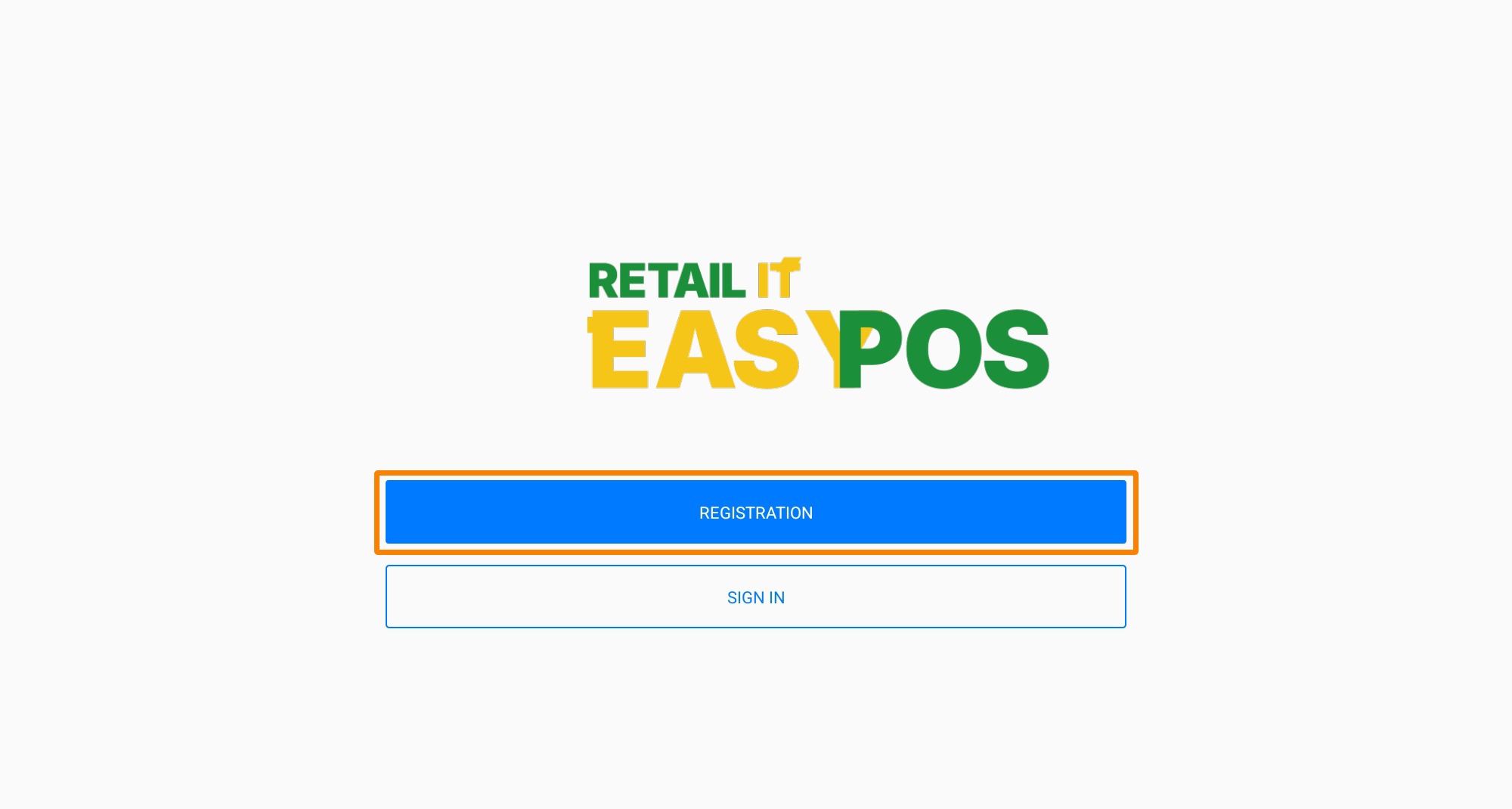
After installation, open the Easy POS app. You will see the Welcome screen.
If you don’t yet have an account, tap the ‘REGISTRATION’ button to create one.
3. Create an Account
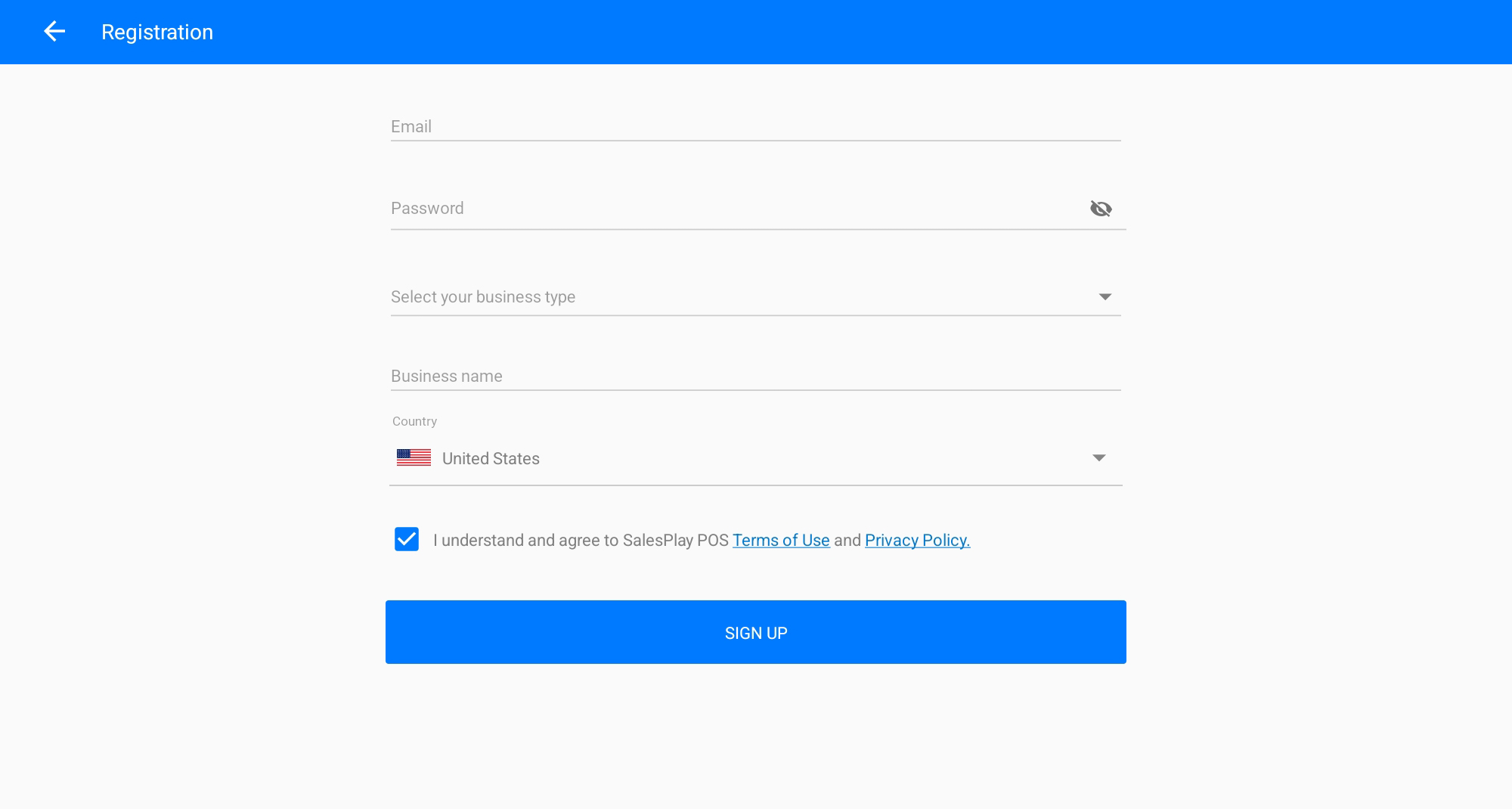
Fill in the simple registration form with your details.
Enter a valid email address and a secure password. Then select your business type and fill in the required details.
4. Sign In
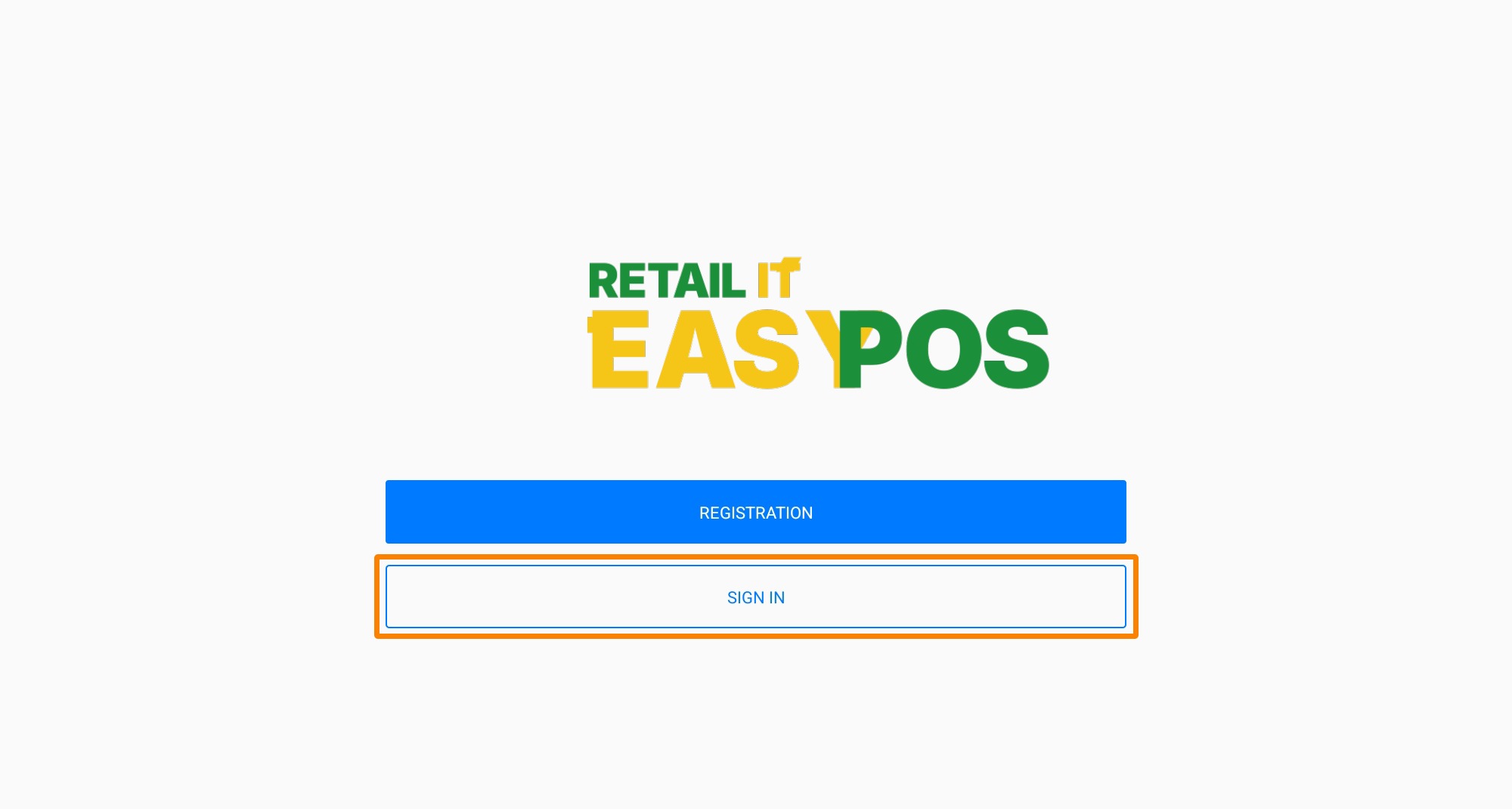
Once your email address is verified, return to the app and tap 'SIGN IN’.
Enter the email address you used to register.
Enter your password.
Tap 'SIGN IN’ to access your account.
NOTE:
If you forget your password, tapForgot Password. Easy POS will send a password reset email to your registered email address.
To begin using Easy POS, follow these steps to download, install, and set up the app on your device.
NOTE:
After submitting the form, check your email inbox. You will receive a verification email from Easy POS.
Open the email and click the “Verify the Email” button to confirm your email address and complete the registration.
When you SIGN IN****for the first time,
You’ll see a quick overview of Easy POS to help you get started.
Easy POS offers customizable screen layout settings and orientations to suit your preferences
These settings can be changed at any time after logging in;
- Tap ‘SAVE’ to continue
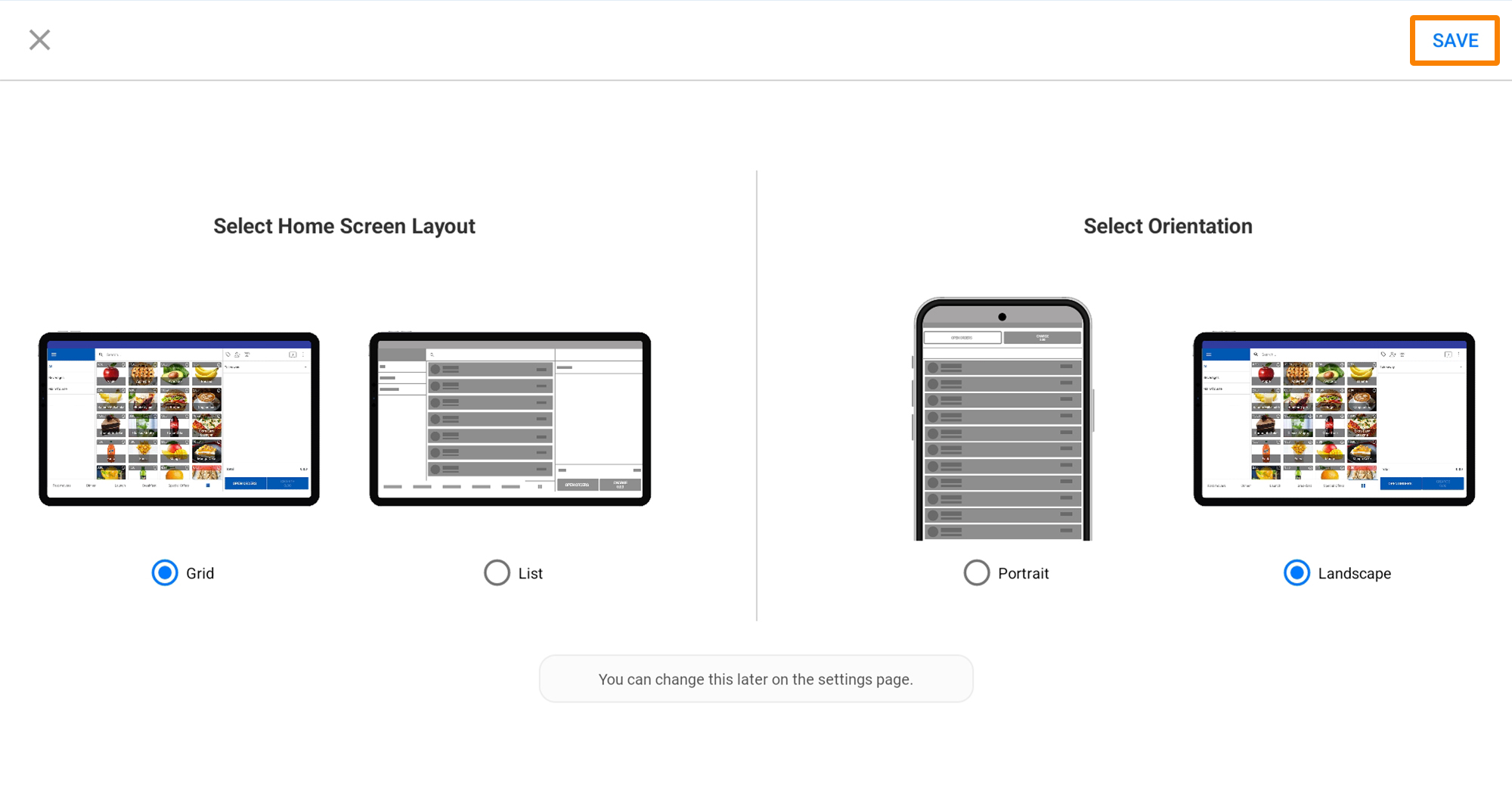
You are now successfully logged into Easy POS!
Was this article helpful? Tell our team what was missing.
Send us feedback