
How to Switch to Web POS EXE
Description
Easy POS Web POS offers a feature - the ability to run as an EXE file. This option provides users with a seamless way to use the Web POS without relying on a web browser. Discover the advantages of this feature and learn how to enable it for a faster and more convenient experience.
Once the EXE file is downloaded, a shortcut will be created on your desktop. Double-click on the shortcut to open Easy POS Web POS. For quick access, consider adding it to your Task Bar for one-click opening.
Key Benefits of the EXE File Option: Faster Deployment: Installing the POS system as an executable file is quicker and more straightforward compared to setting up a web-based system. Get started swiftly without the complexities of browser-based installations.
Enhanced User Experience: In a web-based system, using multiple tabs may lead to issues for users. With the EXE file option, enjoy a smoother user experience without concerns about tab-related complications.
How to Enable the EXE File Option: New Users: Registering for the First Time: After completing the registration process, a separate window will appear for you to download the Web App.Once the EXE file is downloaded, a shortcut will be created on your desktop. Double-click on the shortcut to open Easy POS Web POS. For quick access, consider adding it to your Task Bar for one-click opening.
Existing Users: Switching from Browser to EXE: If you are already using Easy POS Web POS in a browser and wish to switch to the EXE file option, follow these steps:
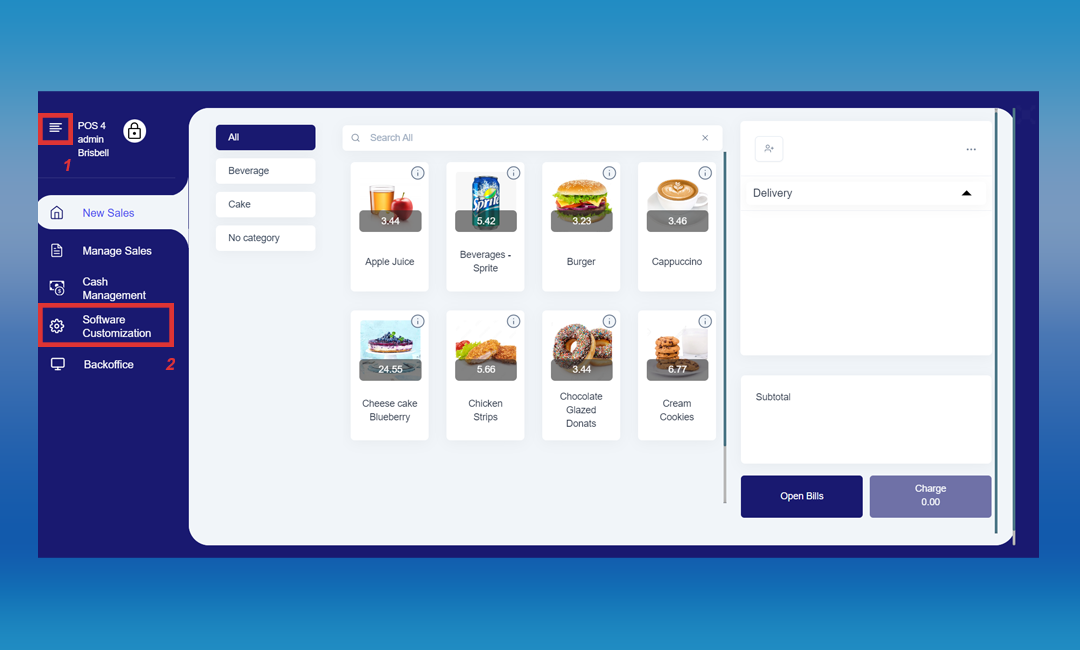
1. Login to Web POS > Click the main menu > Select the “Software Customization ”
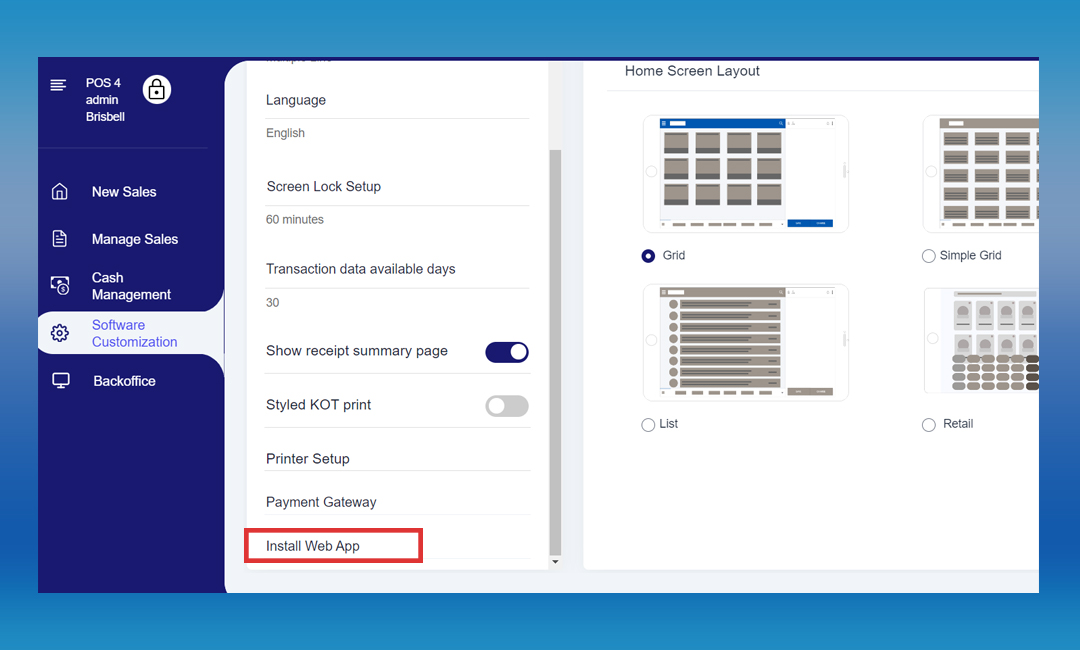
2. Click “Install Web App”
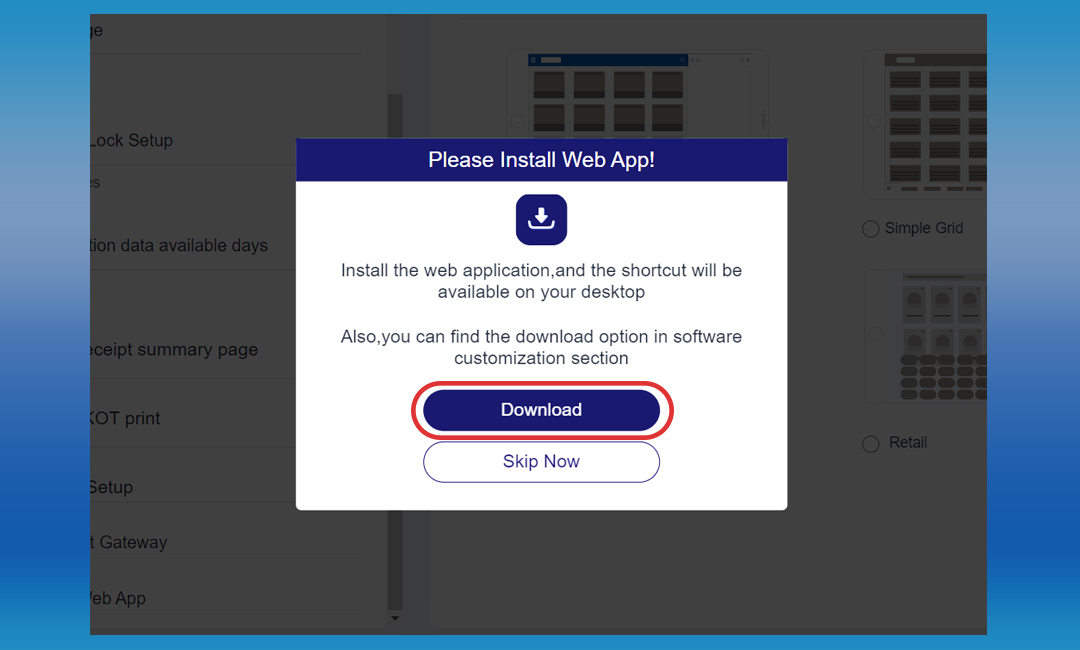
3. Click “Download” and proceed
Was this article helpful? Tell our team what was missing.
Send us feedback