
How to Setup KOT Printers
1. Key considerations
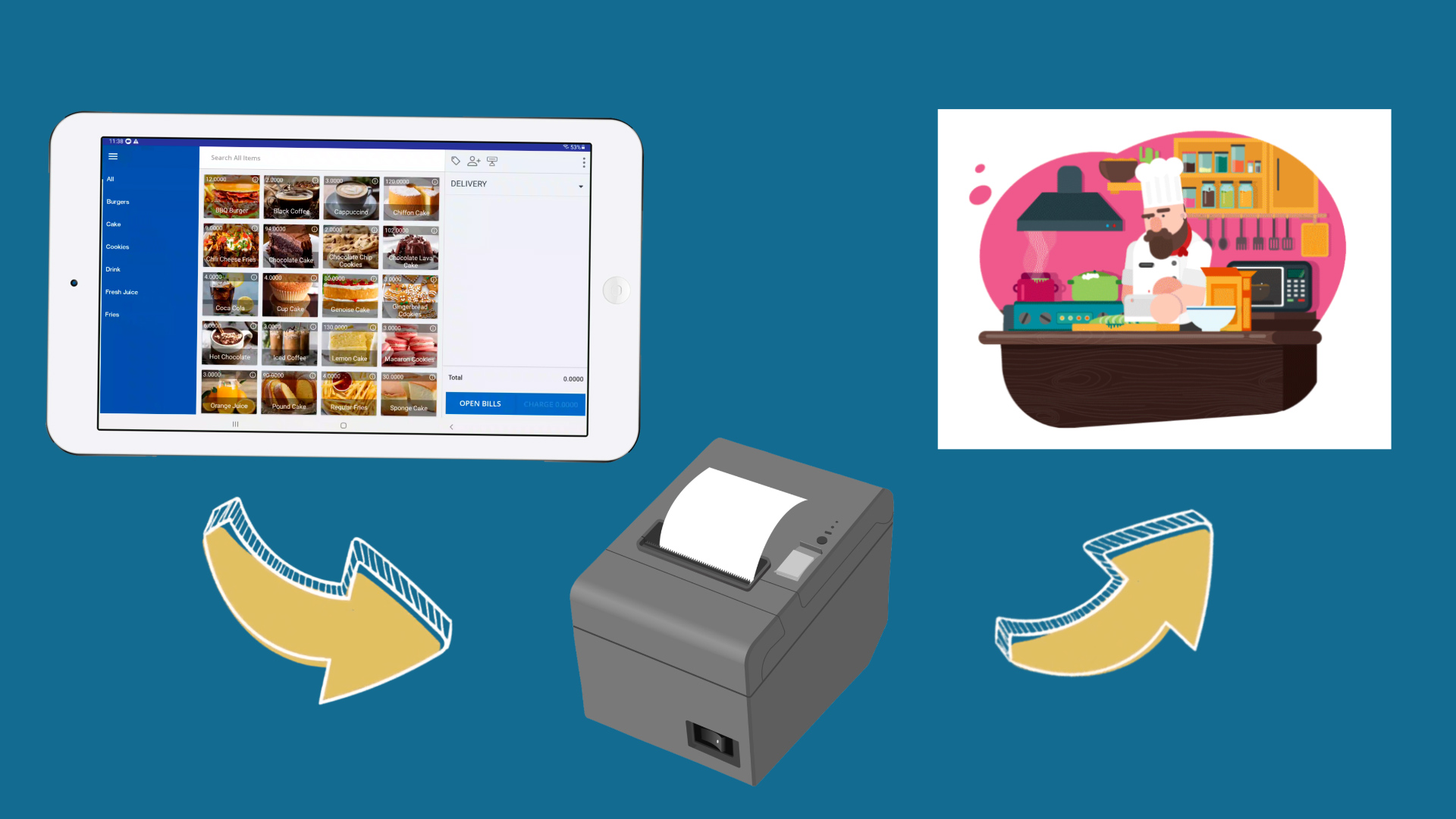
You can setup several Kitchen Order Ticket KOT / BOT Printers in the POS system.
If your business has several POS Terminals, we recommend that you use more than one KOT printers.
You can setup one KOT Printer in the main kitchen and you can set another Printer in the Bar.
Ex: Restaurant is running with two KOT printers, one is in the kitchen and other one is in the bar area.
First you need to create “KOT Groups” correctly via Back Office web portal.
If you want send FOOD categories to the kitchen, you can create a KOT Group as “Foods” and attach all the food items to that group.
If you have liquor and soft drinks, you can create another KOT Group as “Drinks”.
When setup the KOT printer via POS App side, you need to tick on the correct KOT group for correct KOT Printer.
2. Login to Back Office
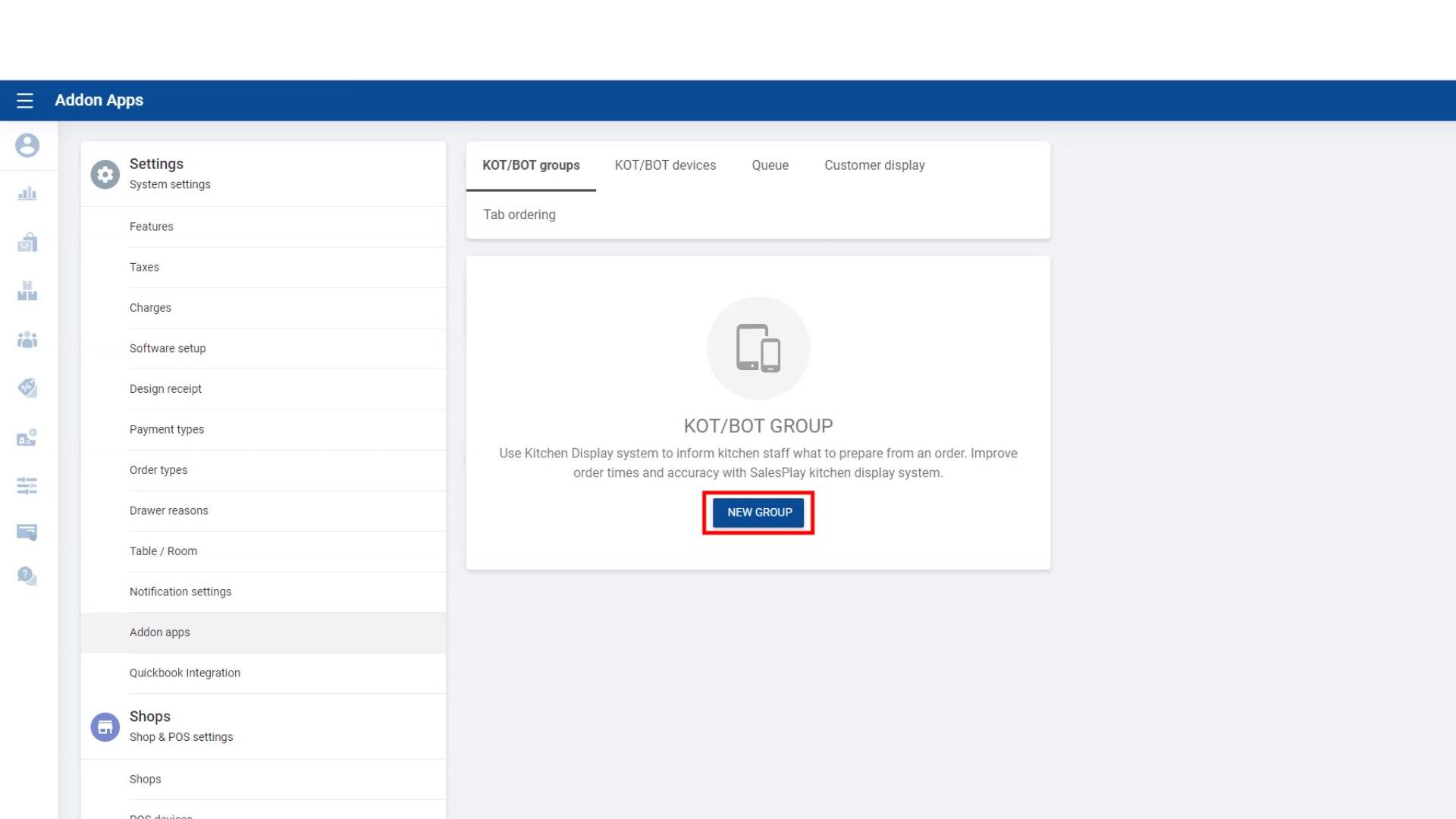
- Select “ Settings ” from main menu
- Click “ Addon Apps” section and select ‘KOT /BOT Groups” tab
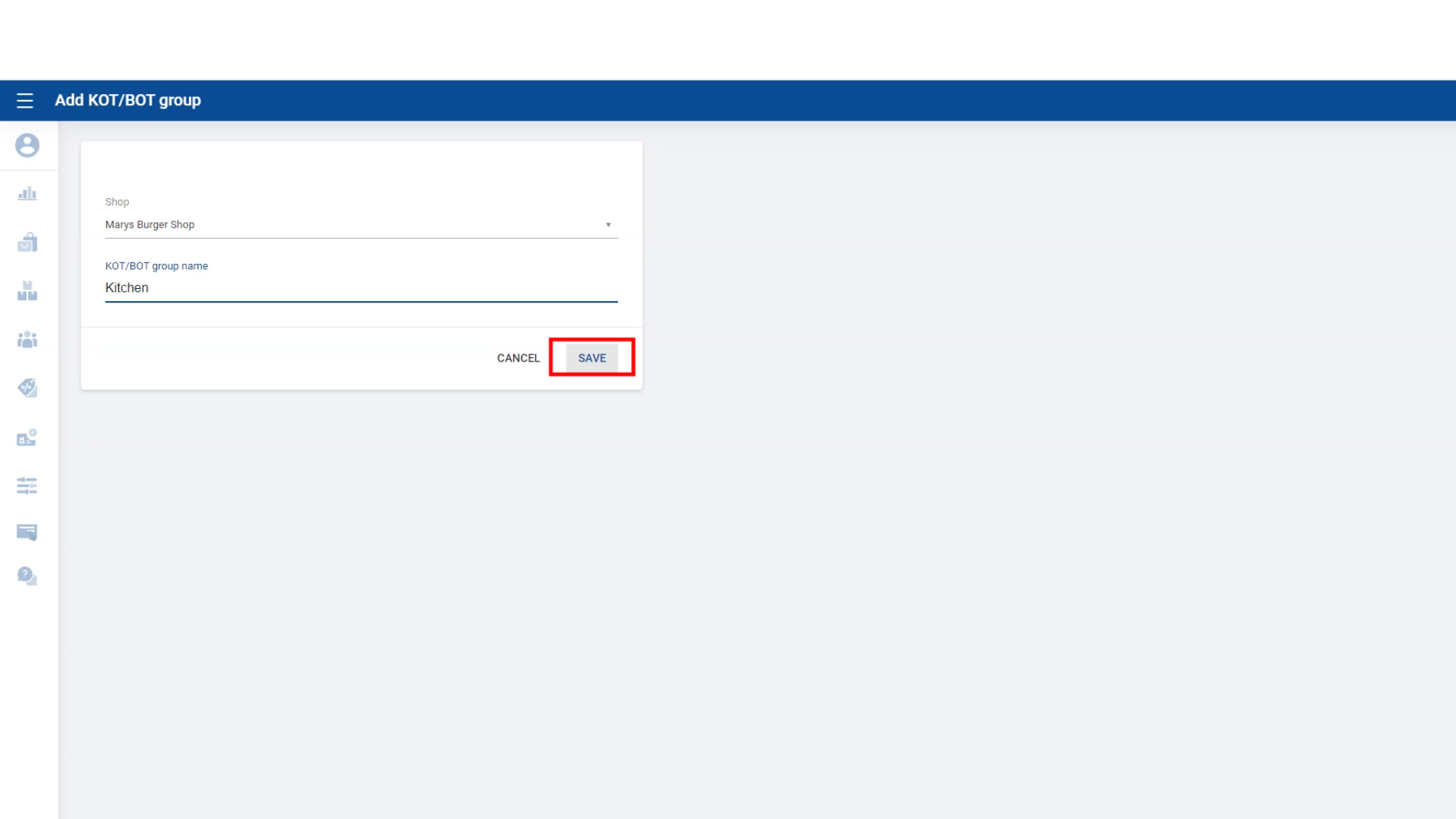
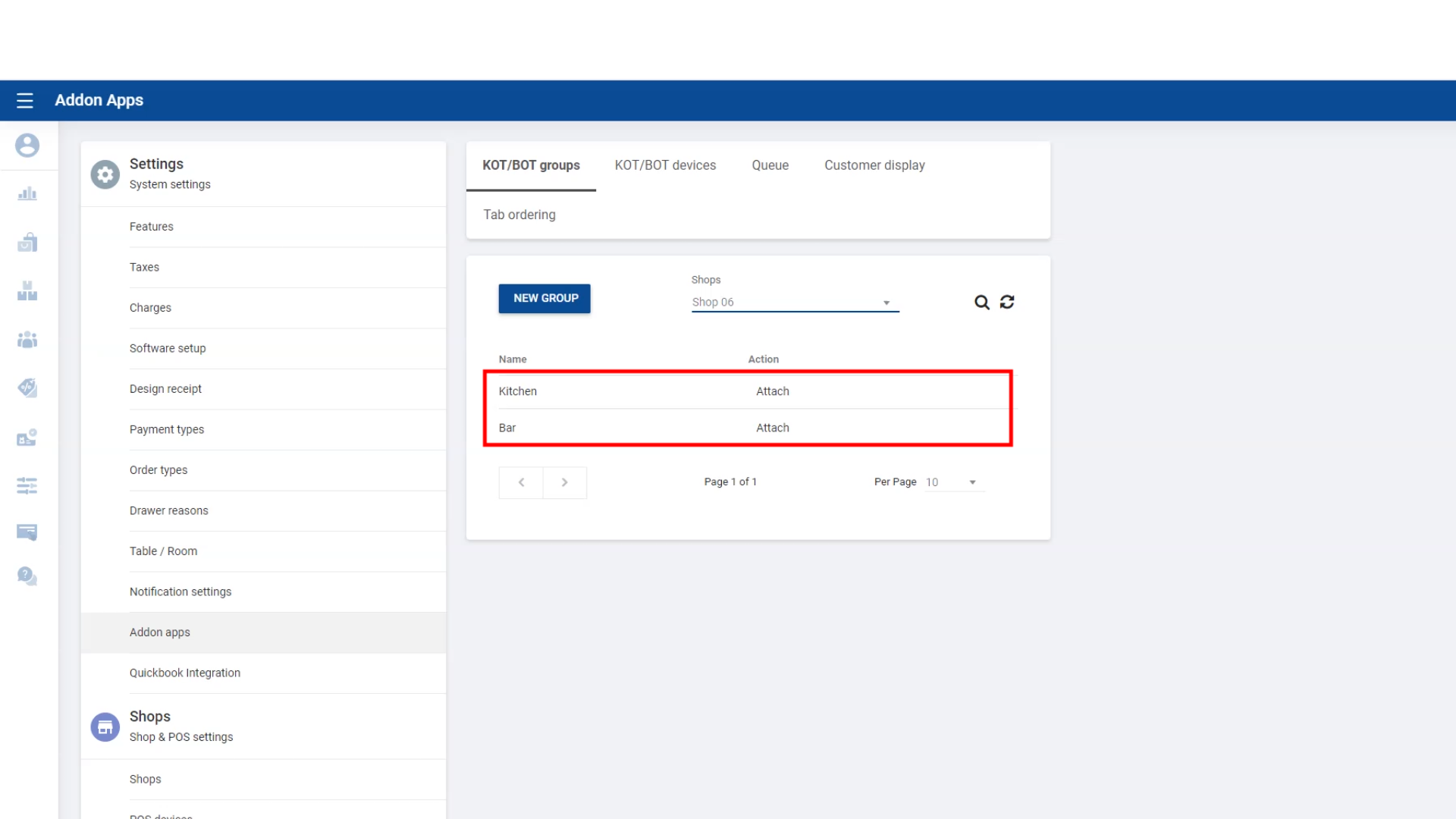
3. Click “New Group” icon and provide a name and Save
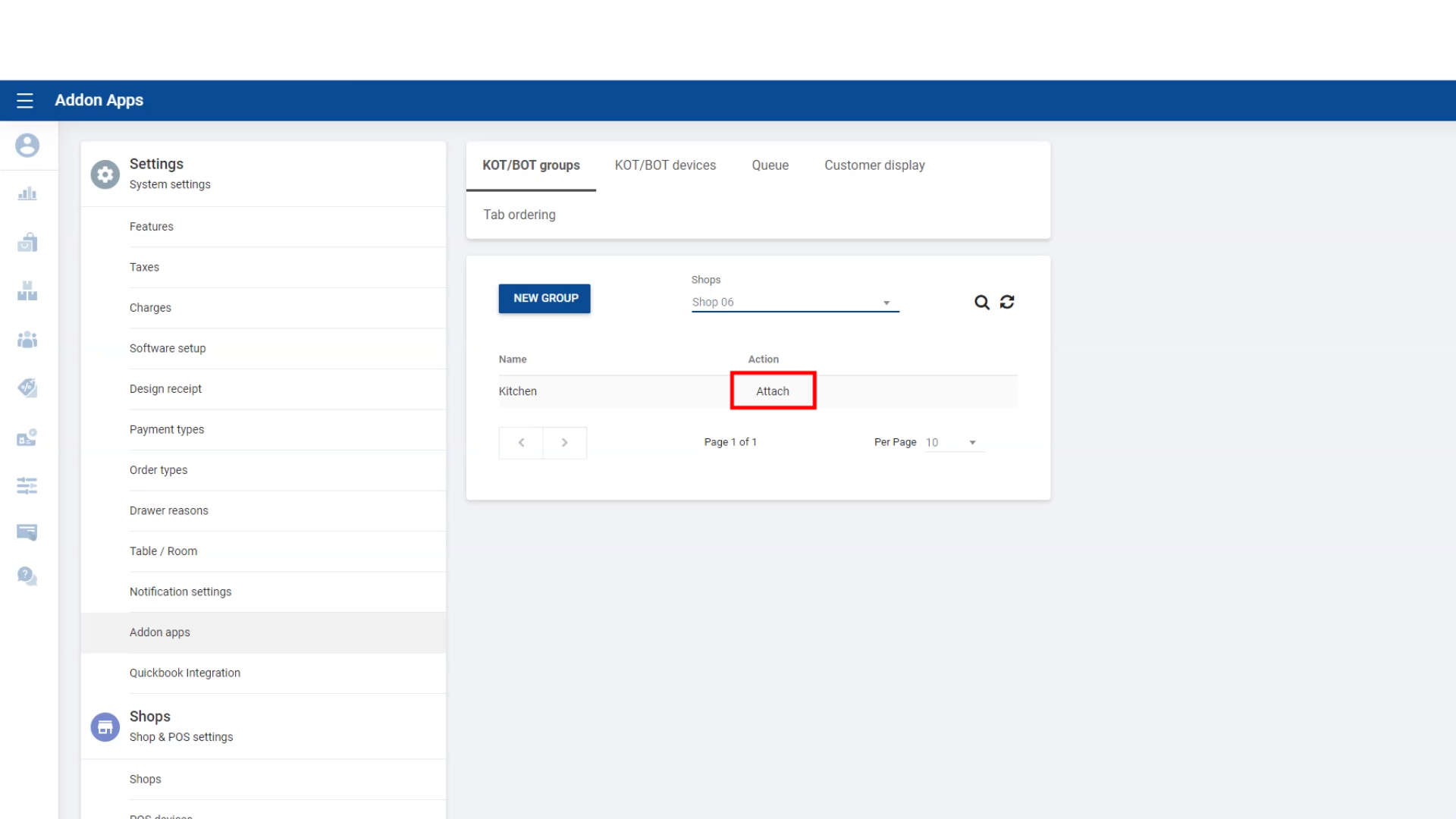
4. Select the created group and click “Attach” button
5. Tick ON categories or products which need to added to KOT/ BOT Group
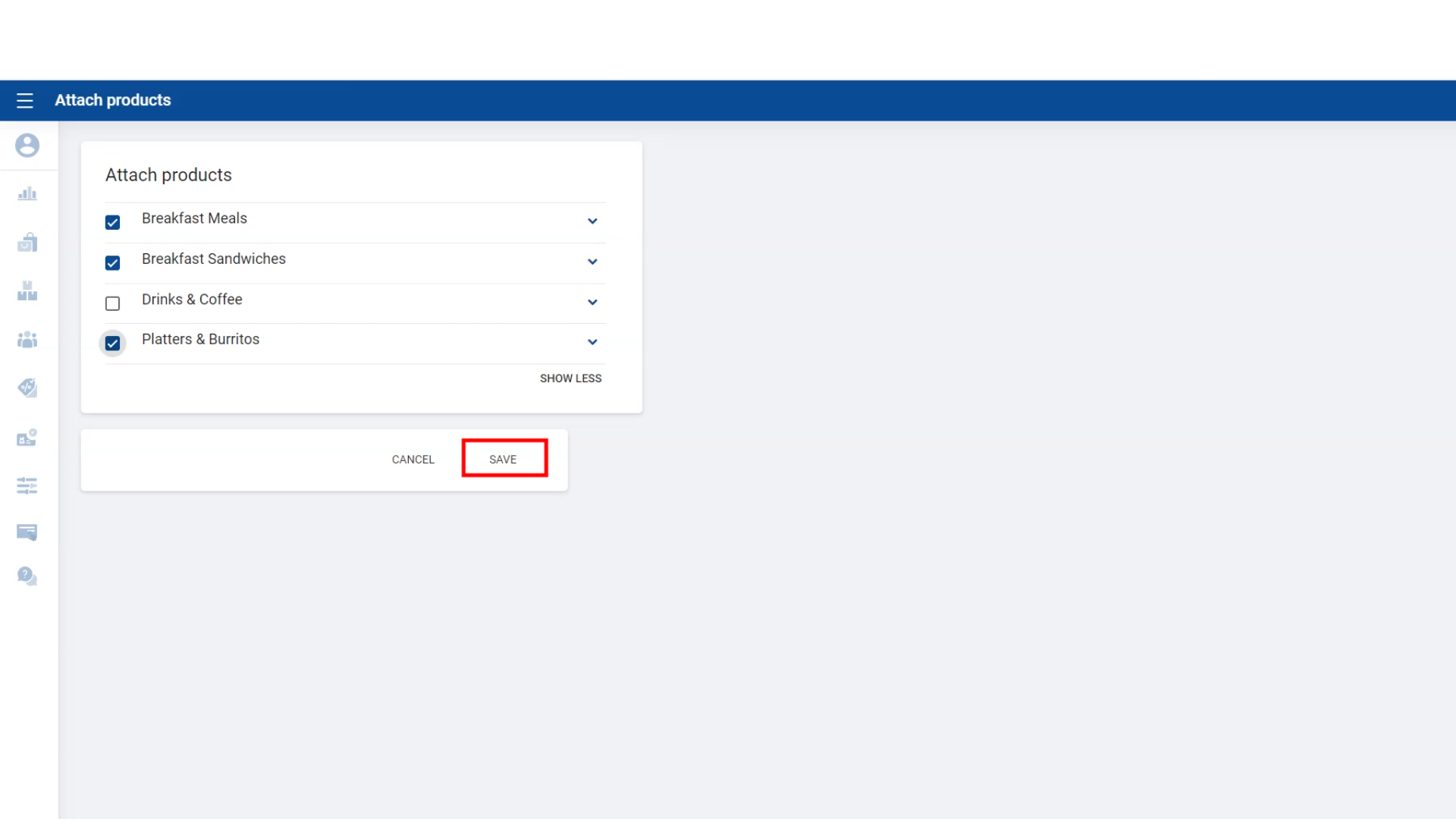
- Click “Save”
6. KOT/BOT group(s) added successfully.
7. POS App Side – KOT Printer Setup : Go to POS App main menu
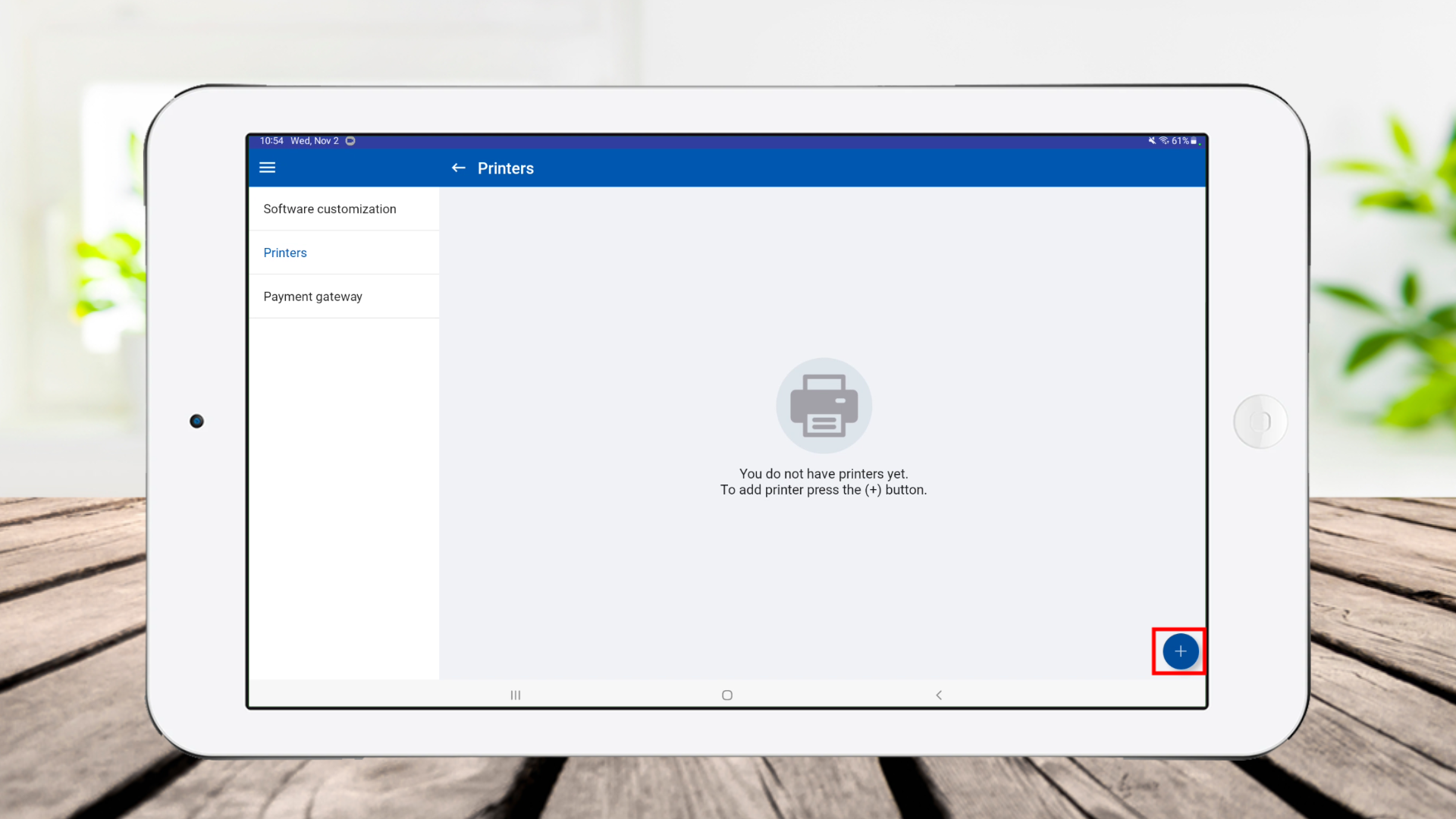
- Select “Settings”
- Click “ Printers”
- Click “Add new' button +
8. Enter printer name and select other printer details
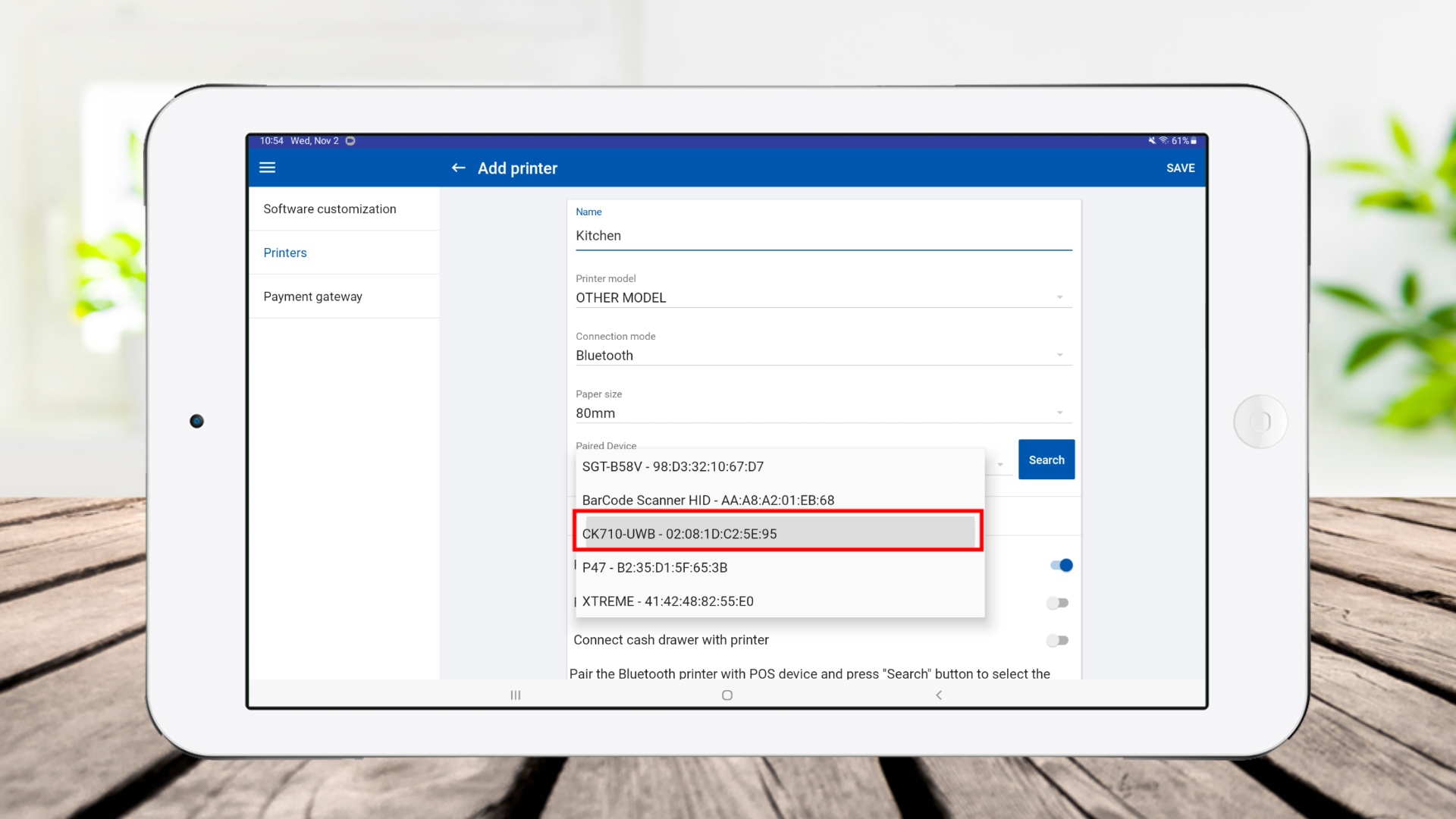
9. Tick ON “Print KOT / BOT” option
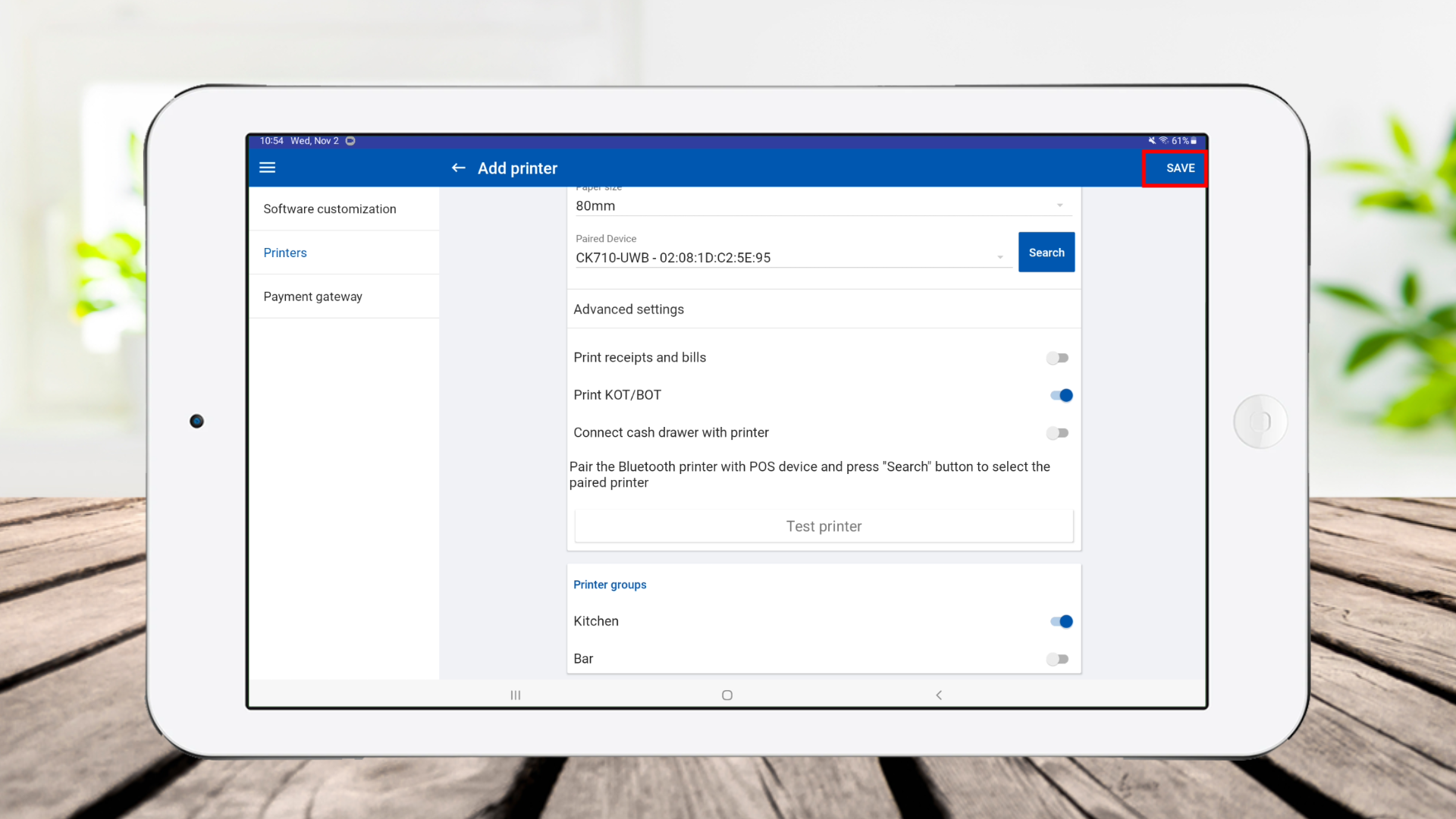
- Tick ON the correct “Printer Groups”
- Click ‘Save”
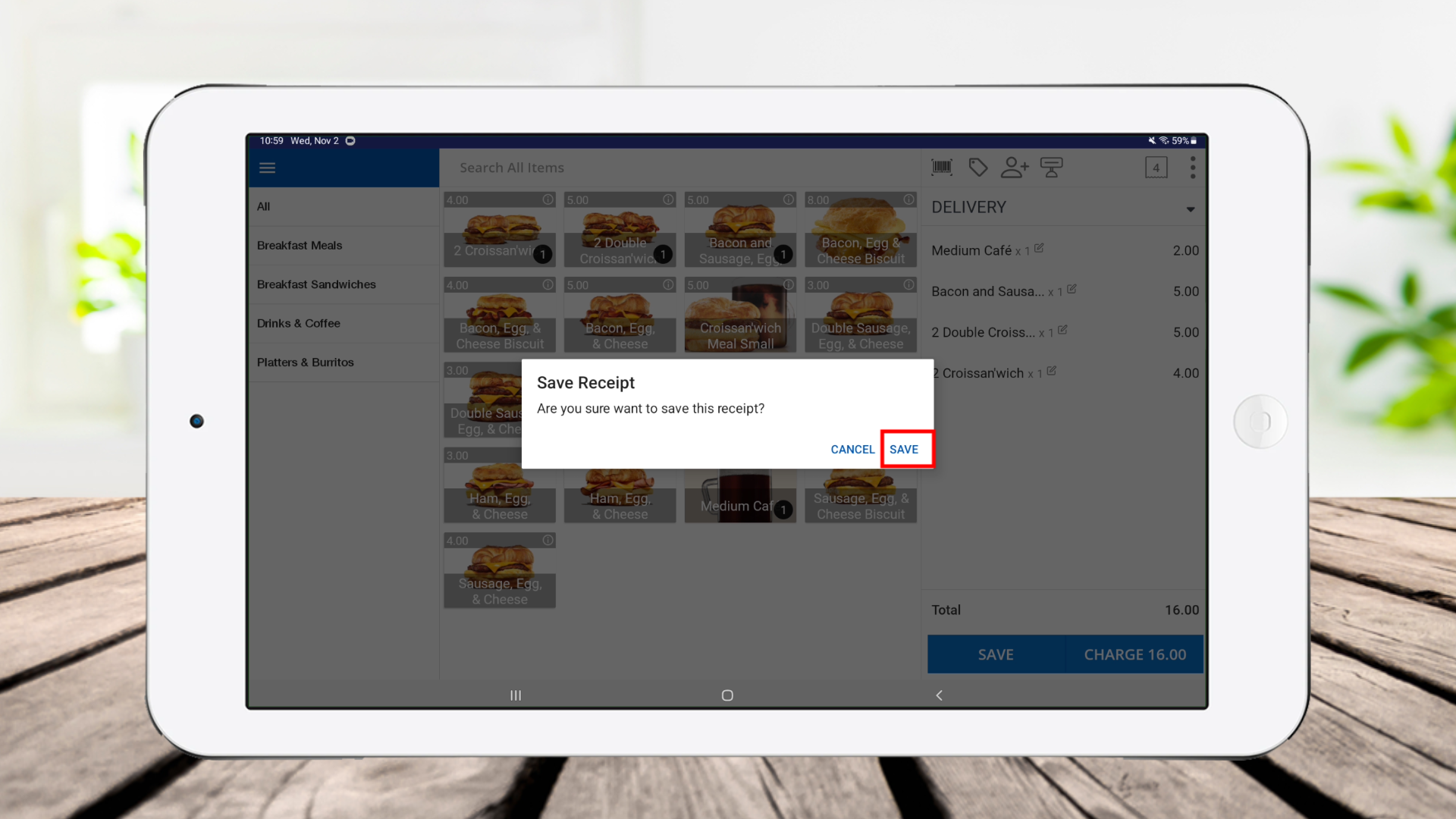
11. Click 'New Sale', select the products and click 'Save'.
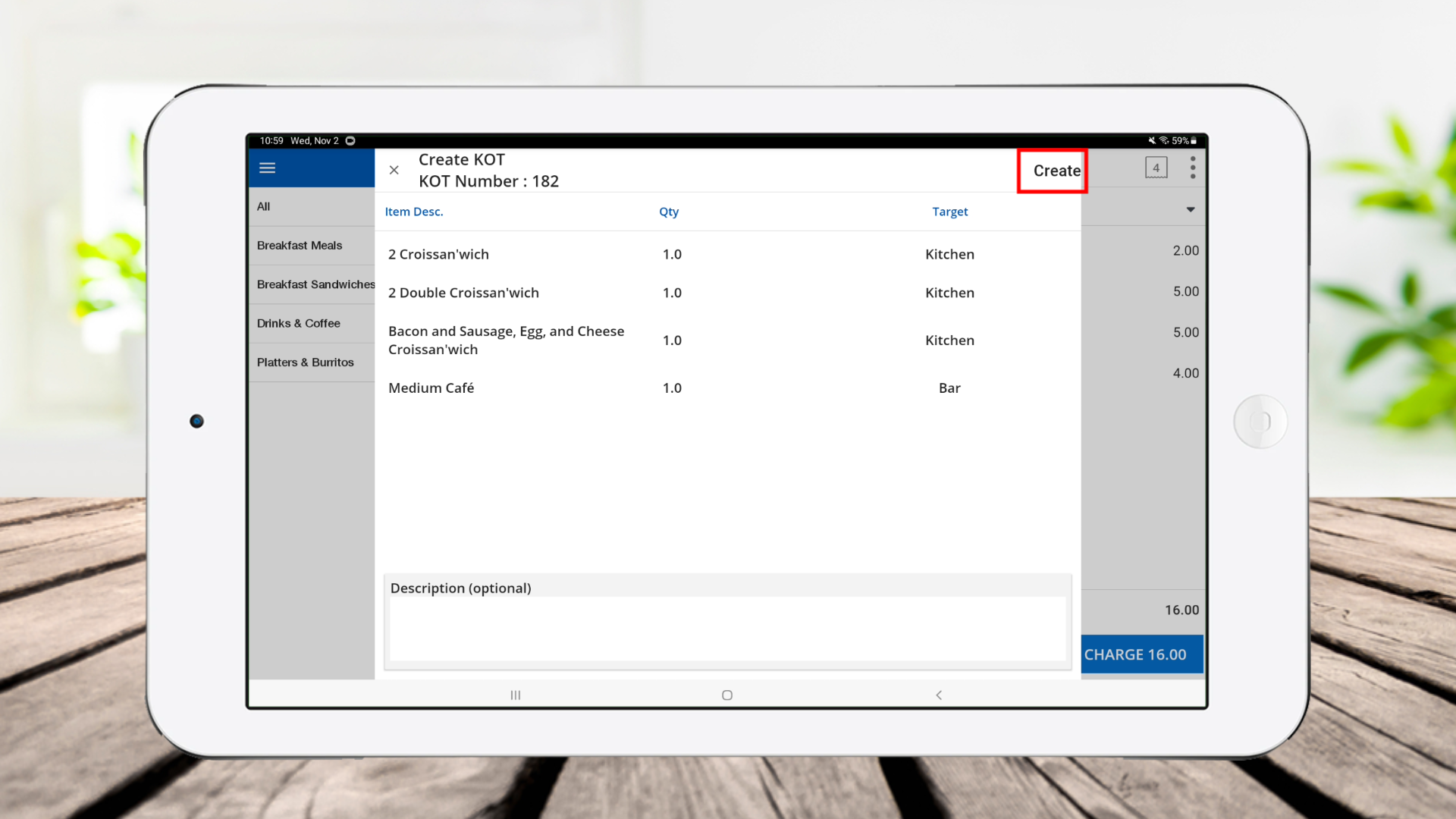
12. Now, you will see the kichen order ticket, add a description if there's any, and click 'Create'.
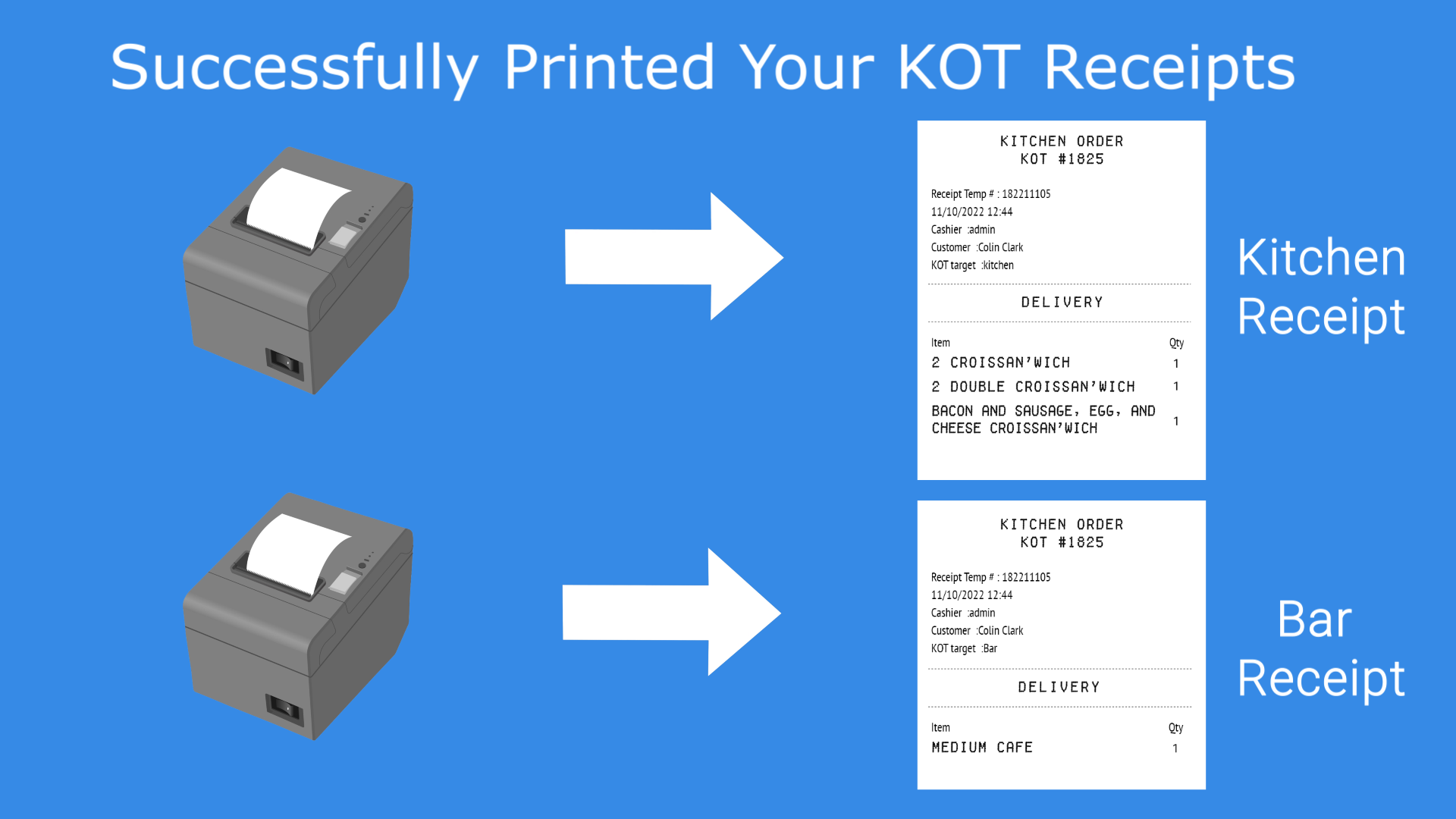
13. Kitchen receipt
How to Get a Large KOT Number and Table Number on the Print
1. Login to POS Back Office and Select “ Settings ” from main menu
- KOT printout gives you a number with a normal font size, now system allows to increase the KOT Printout font size. Once this option is activated the Table Number, Item Name, and Customer Name will be printed with large font size.
2. Go to the “ Software Setup”
3. Tick ON “ Styled KOT Print ” button and click “ Update”
- Once you ON “Styled KOT Print”, KOT number, Item Name, Table Number, Customer Name will appear on the KOT bill with a large fonts size
Reset the KOT number sequence
Easy POS System allows users to reset the Kitchen Order Ticket (KOT) number sequence based on shifts. Now, POS users can opt to start a fresh KOT number sequence at the end of each shift.
When ending a shift, users will see an option to toggle on the "reset KOT number sequence." If this option is enabled, the KOT number will reset at the beginning of the next shift. If the option is not enabled, the KOT numbers will continue in sequence without resetting.
Read More
How to reset the KOT number sequence
• POS App main menu • Select “ Manage Sale ” • Click “Cash Management” • Select “Shift End’ • Tick On the “Reset KOT number sequence” option • Click “Run Shift End Process” • Click “Complete”
( Once you complete, the KOT number will reset at the beginning of the next shift.)
Special Note : To run this process, you need to activate the "Shift" function from the BackOffice. Follow these steps:
Was this article helpful? Tell our team what was missing.
Send us feedback