
How to Setup Kitchen Display (OLD)
Key Features
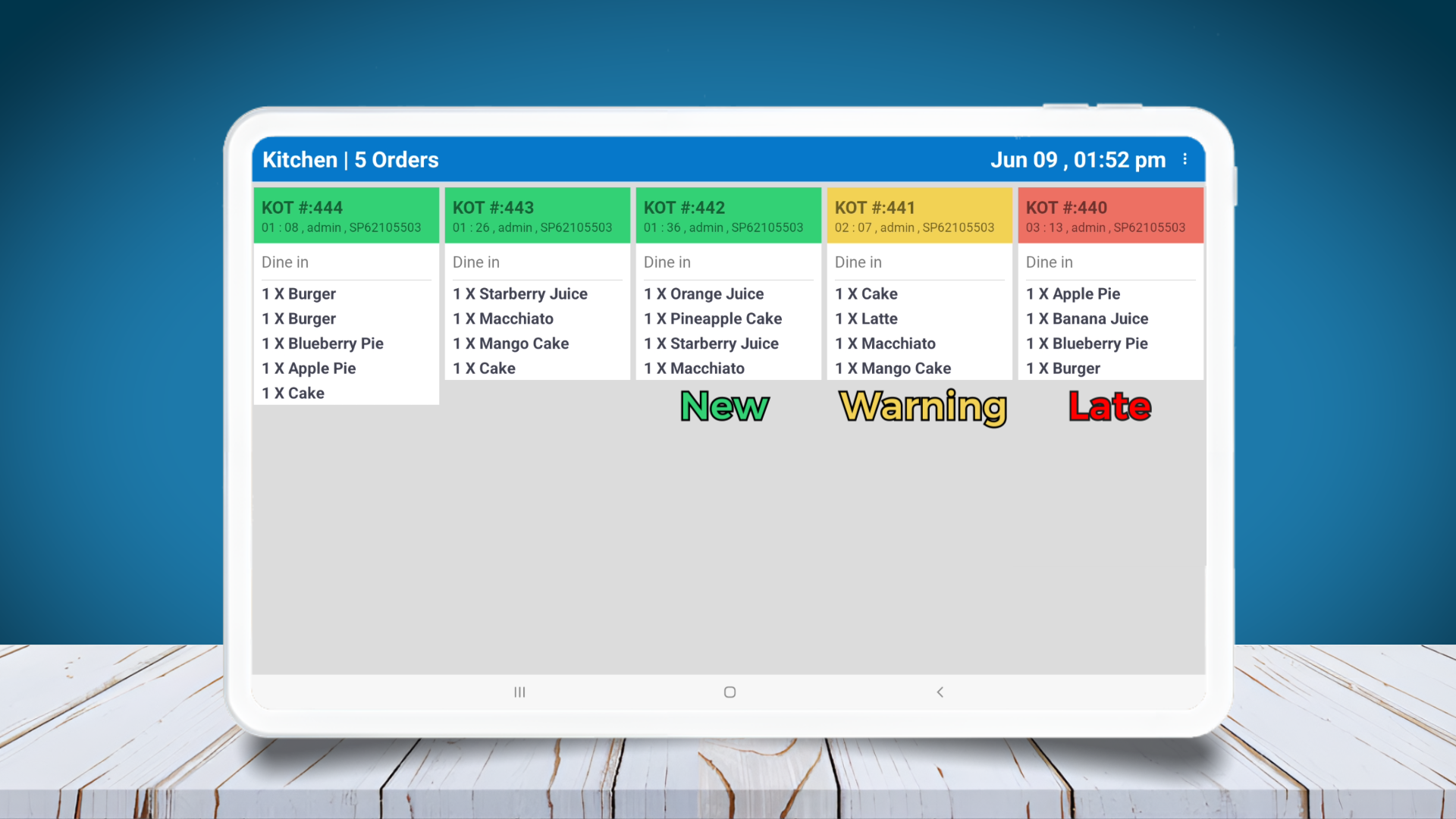
- Shows orders automatically from the POS.
- Displays waiting time for each order.
- Plays a sound when a new order arrives.
- Lets you cancel single items or full orders.
- Works with Easy POS Tablet Ordering System.
- Dark mode support
Download & Install
Download the app on your kitchen tablet: Download KOT / BOT Display App
Note:
The setup for older version is NO longer supported. To continue using the system without issues, you need update both the POS App and the KOT/BOT Display App to the latest versions.
For setup instructions, please refer to this guide: Setup Guide for latest Version– /help/setup/kot-bot-display-app
KOT/ BOT APP - https://play.google.com/store/apps/details?id=com.easypos.kotdisplay
POS App - https://play.google.com/store/apps/details?id=com.retailit.easypos
Key Points to Remember
- Please note that both the KOT display and the POS device must be connected to the same network in order to operate properly.
1. Install & Open Easy POS KOT/BOT Display
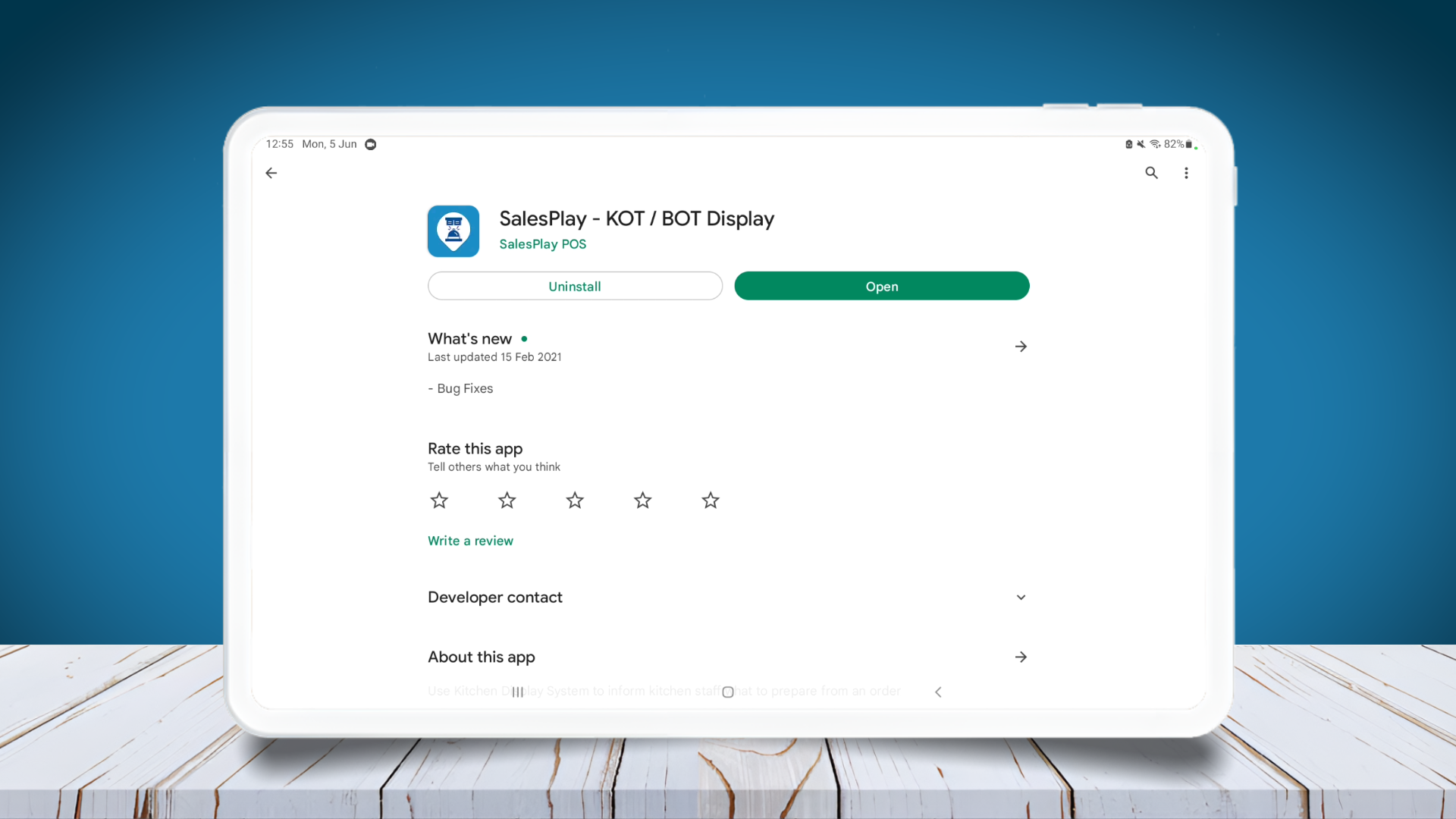
- Install Easy POS KOT/BOT display to your device from Google Play Store. https://play.google.com/store/apps/details?id=com.easypos.kotdisplay&pli=1
2. Note down the IP address of the device
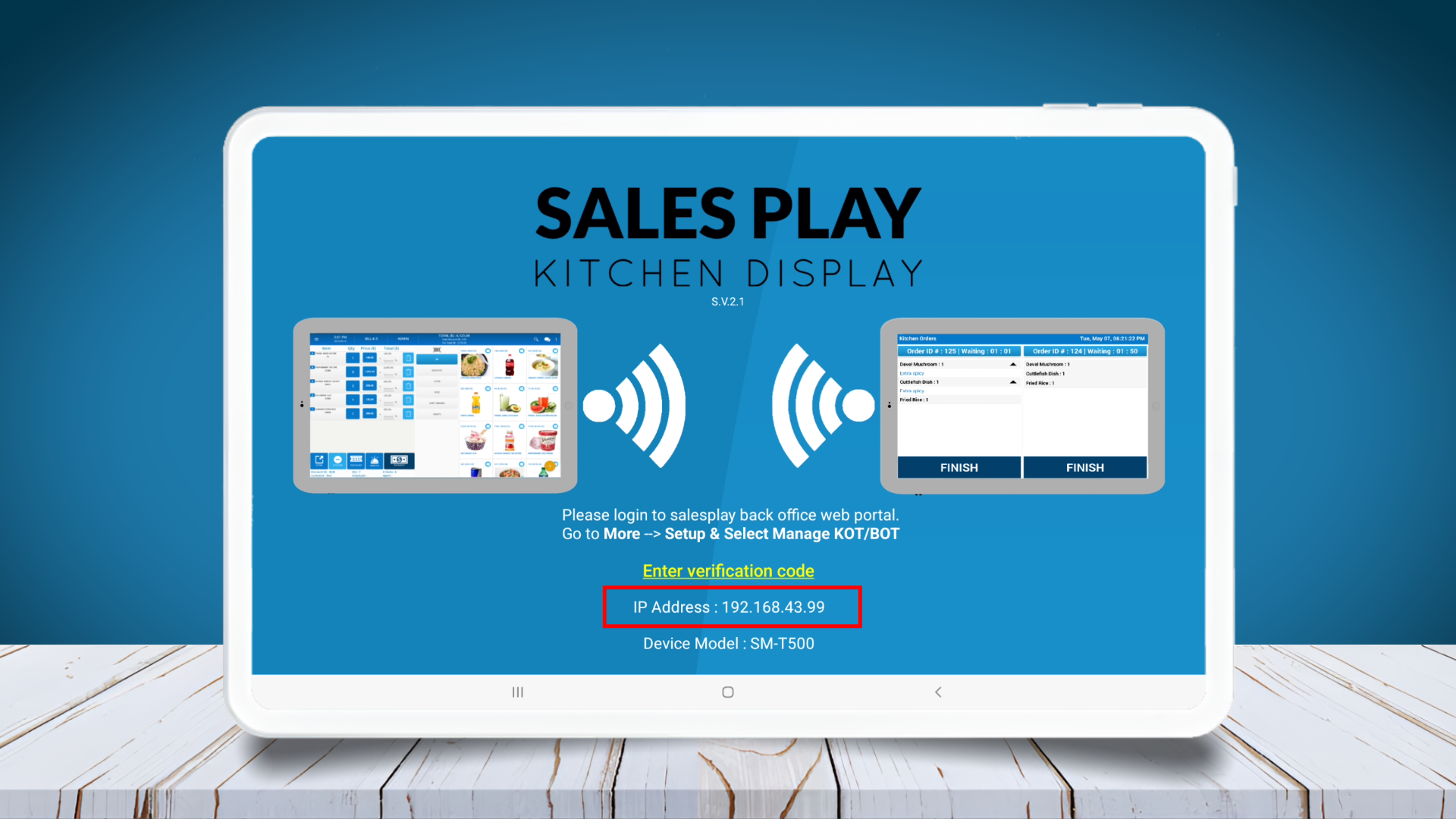
- Please make a note of the IP address of the device as it will be required later.
3. Enable Addon Apps
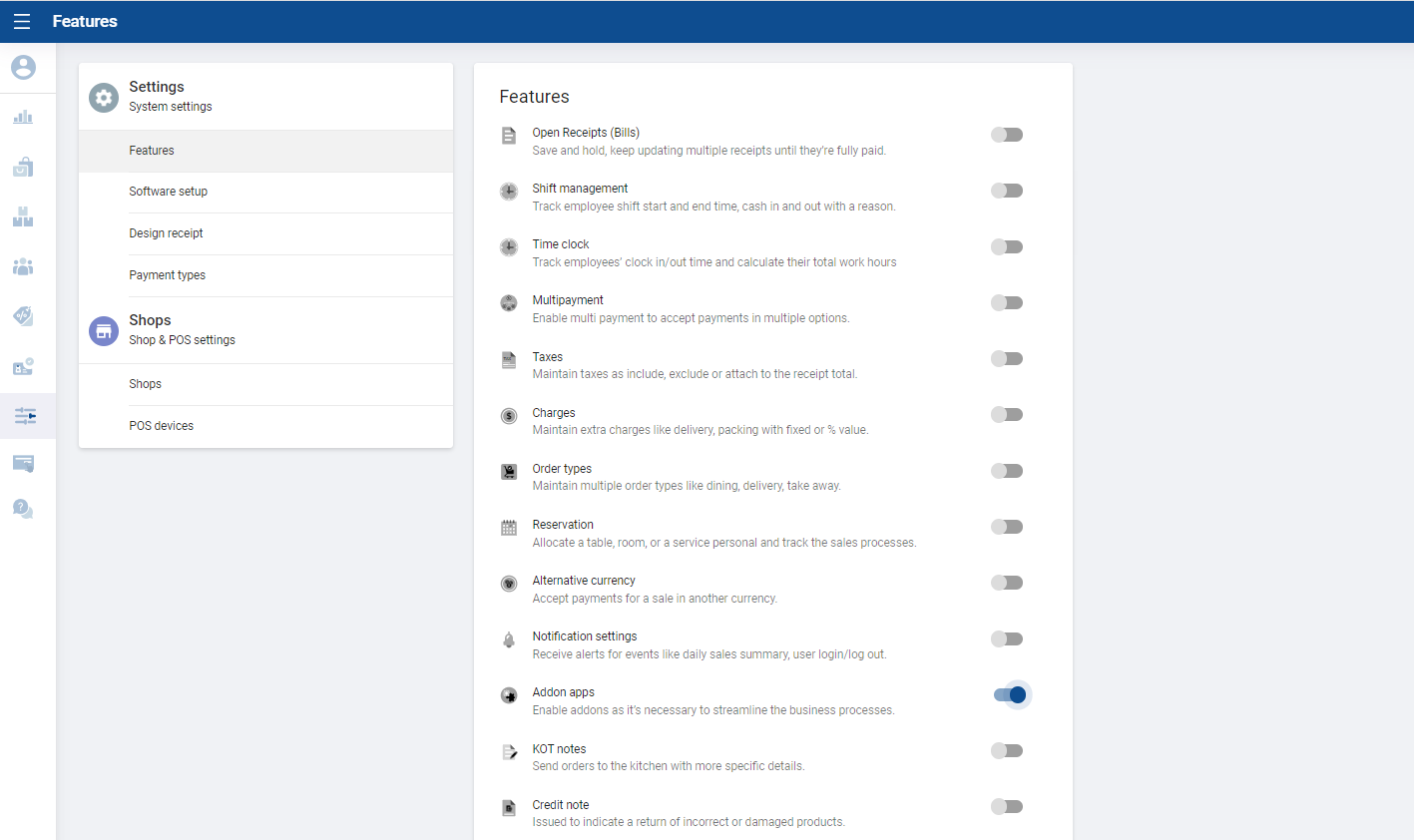
Go to Easy POS Back Office > Main Menu > Settings
Enable 'Addon apps'
Click 'Save'.
Once you enable "Addon apps," it will appear as a subcategory under "Features" in the settings.
4. Register Your Device in Back Office
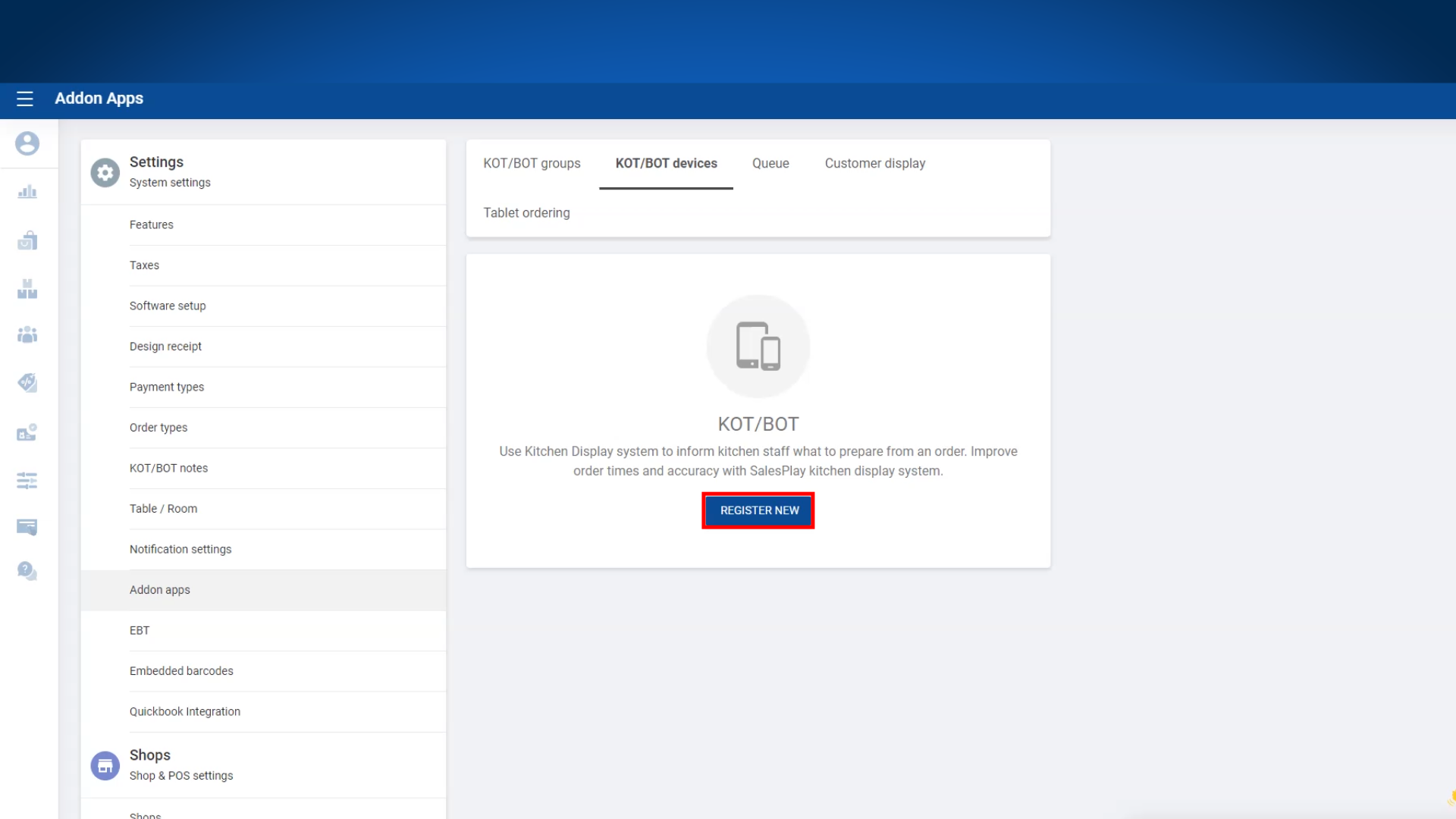
- Go to Features > Addon apps > KOT/BOT devices.
- Click 'REGISTER NEW'.
5.Select/Fill in the Required Information to Register the New Device
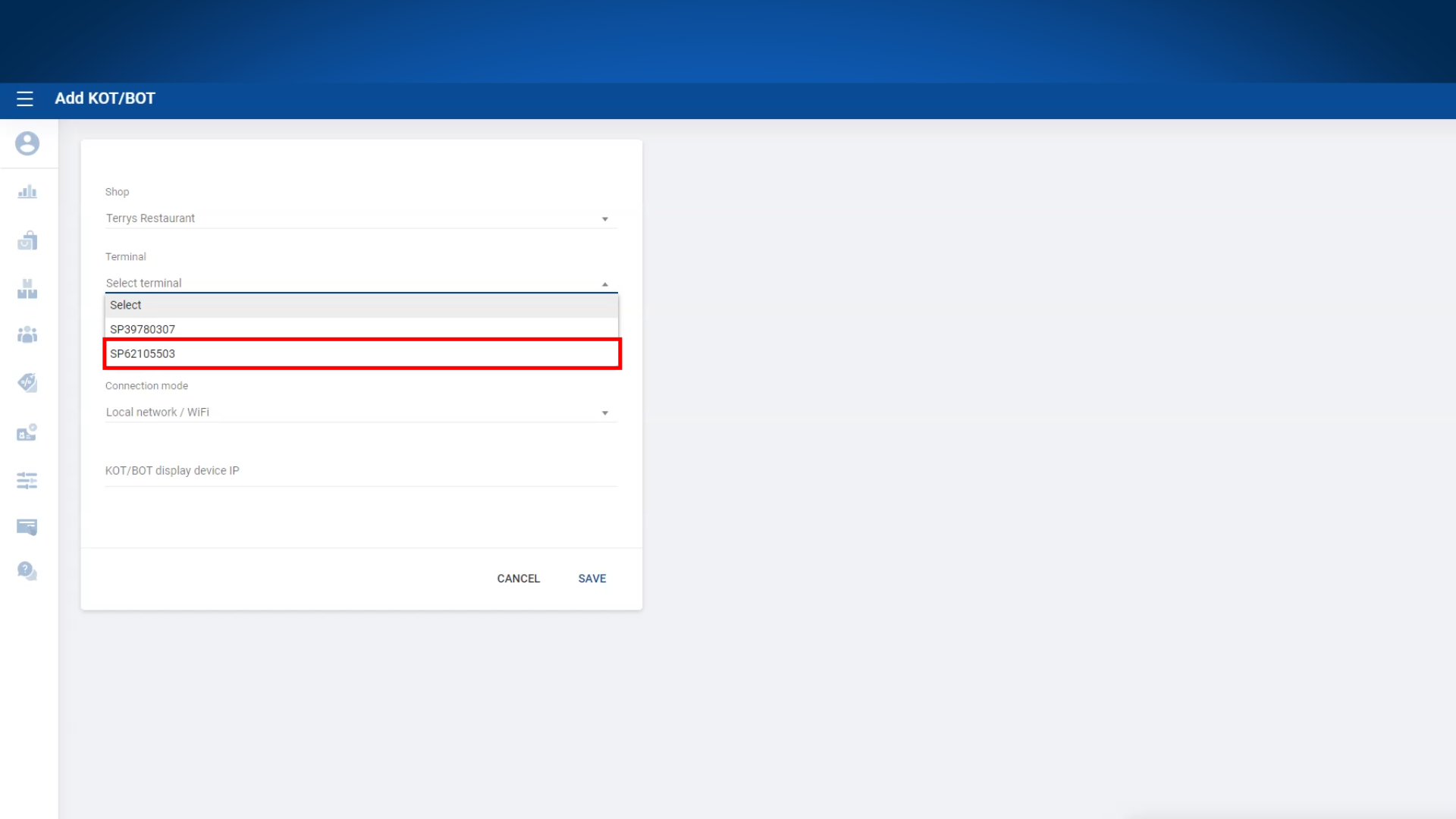
6. Get the Verification Code
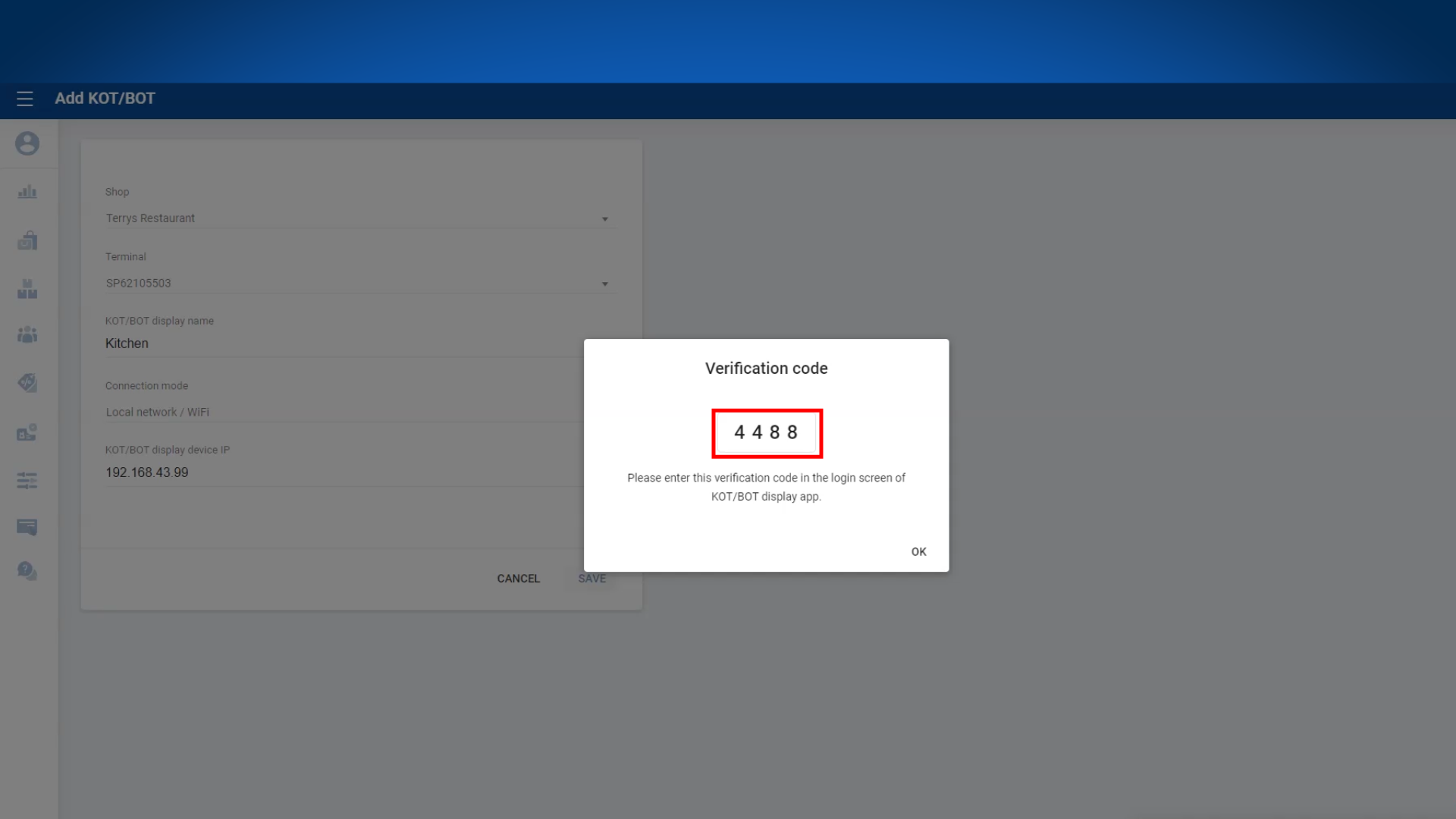
- After you provided and saved the required details, you will a verification code.
- Note it down.
7. Enter Verification Code in the KOT Device
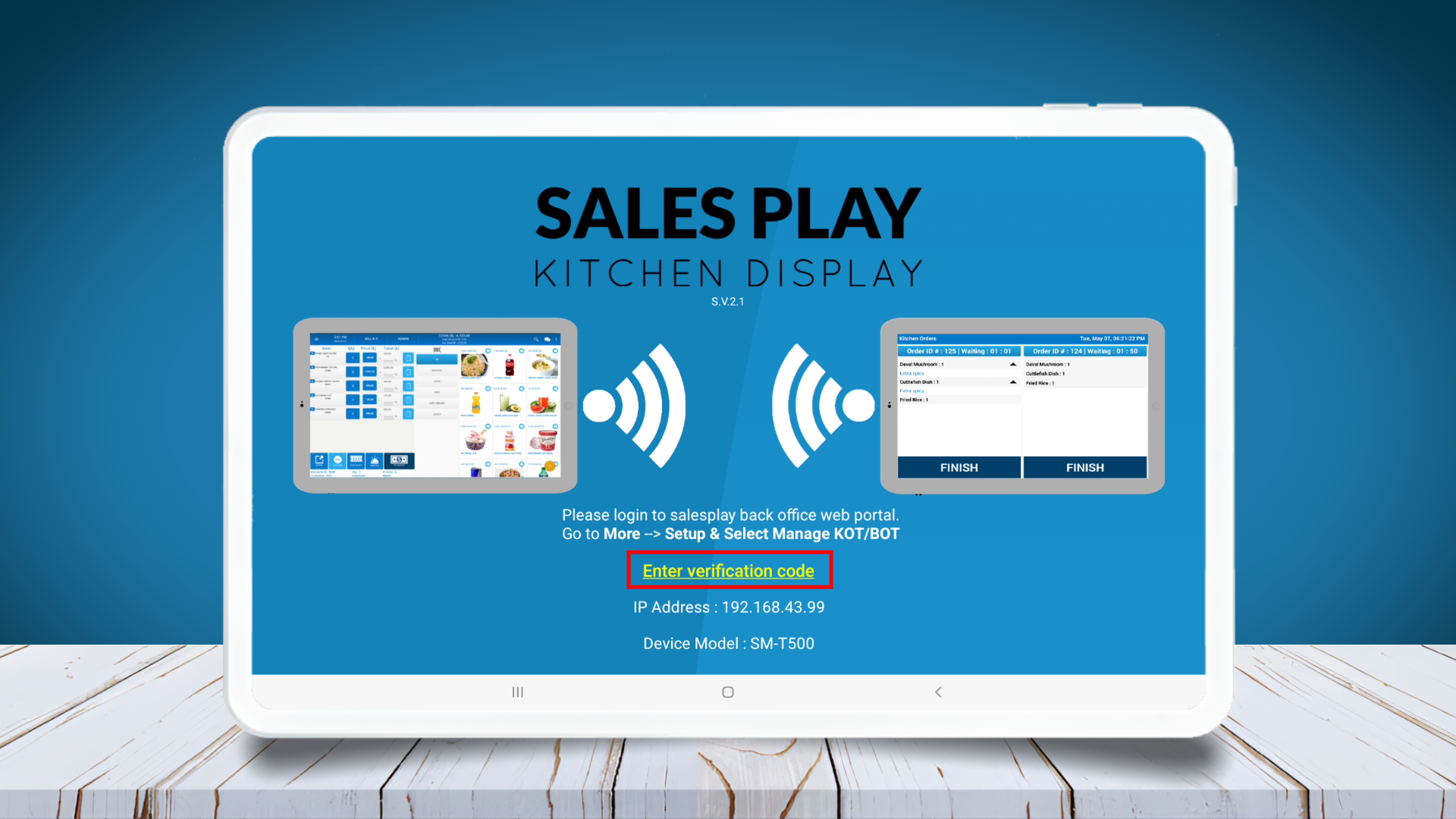
8. Enter Verification Code
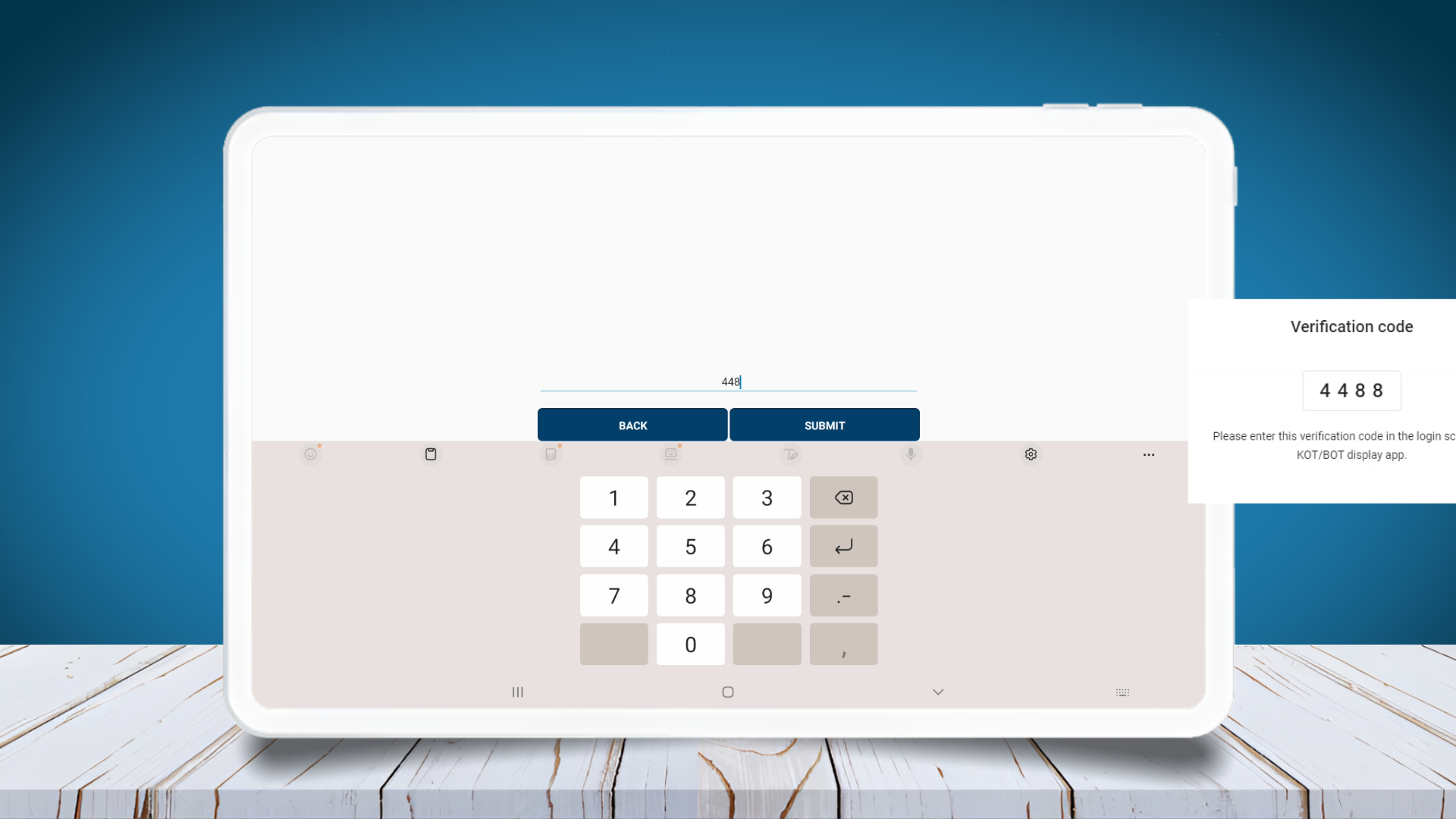
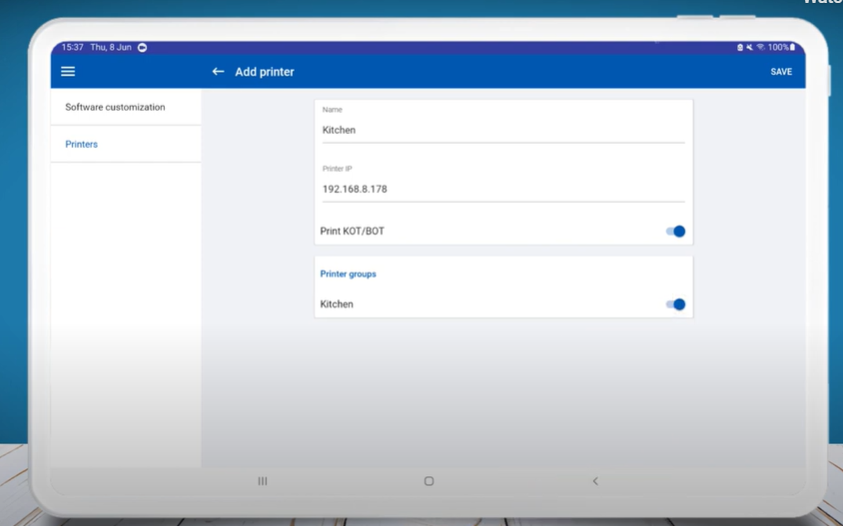
9. Add KOT Groups
10. KOT - Overview
Was this article helpful? Tell our team what was missing.
Send us feedback