
How to Use Variants of Products
Product Variant
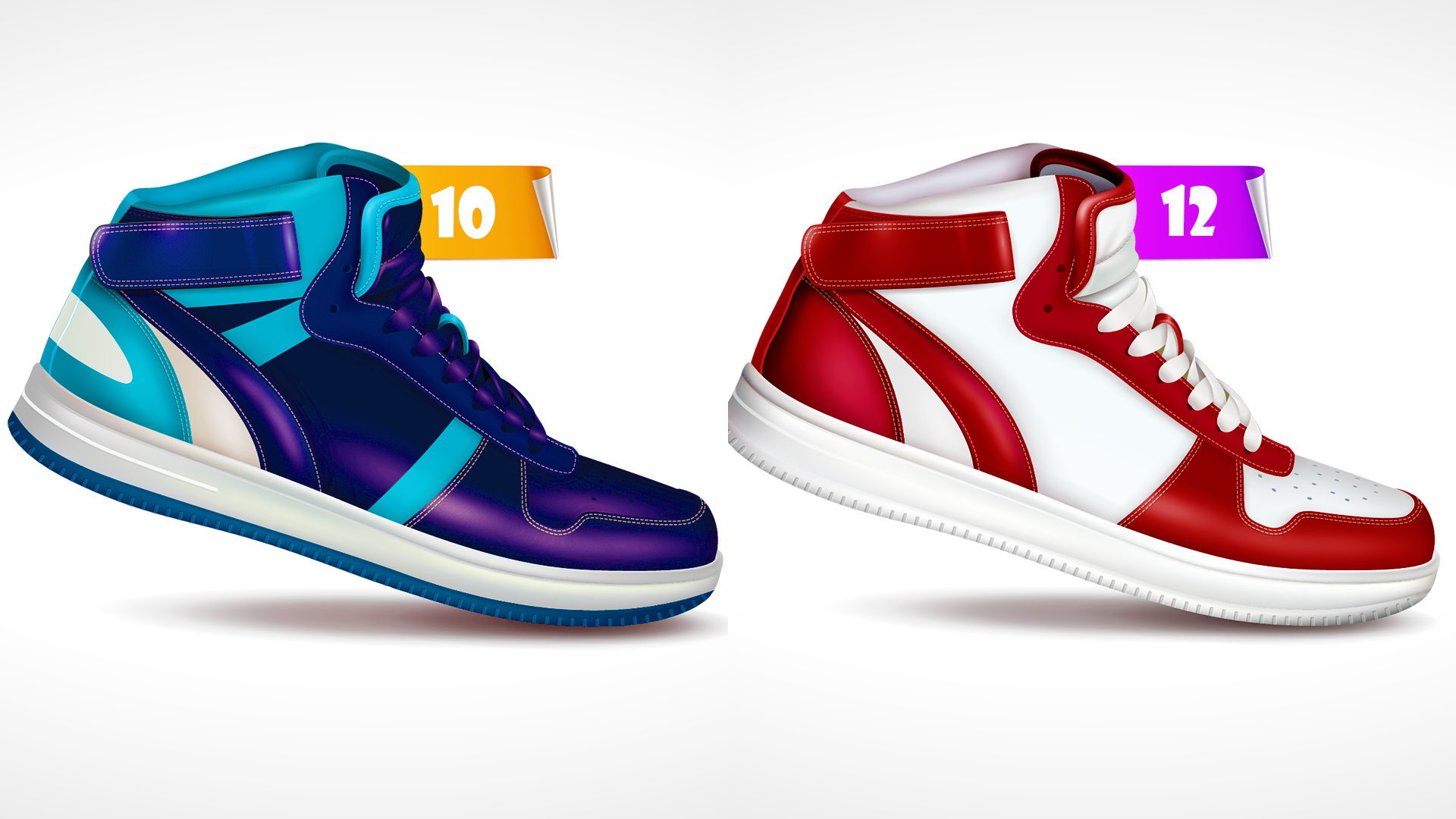
- We can simply define “Product Variant” as the different attributes of a product. Those attributes may be the products’ different sizes or colors. Ex : Textile or clothing store
If you sell the same shirt in 2 colors (Black, White) and 3 sizes (Small, Medium and Large), the POS system able to record those different attributes and stocks for each attribute. POS system allows you to add multiple variations to products such as size, color, the material they’re made of etc..
SPECIAL NOTE:
To create a variant product, you need start by creating it as a new product.
For now, you cannot convert an existing product into a variant product by simply editing it and enabling the "Variant" option. This method will not work at the moment.
1. Login to POS Back Office > Select “ Products” from main menu
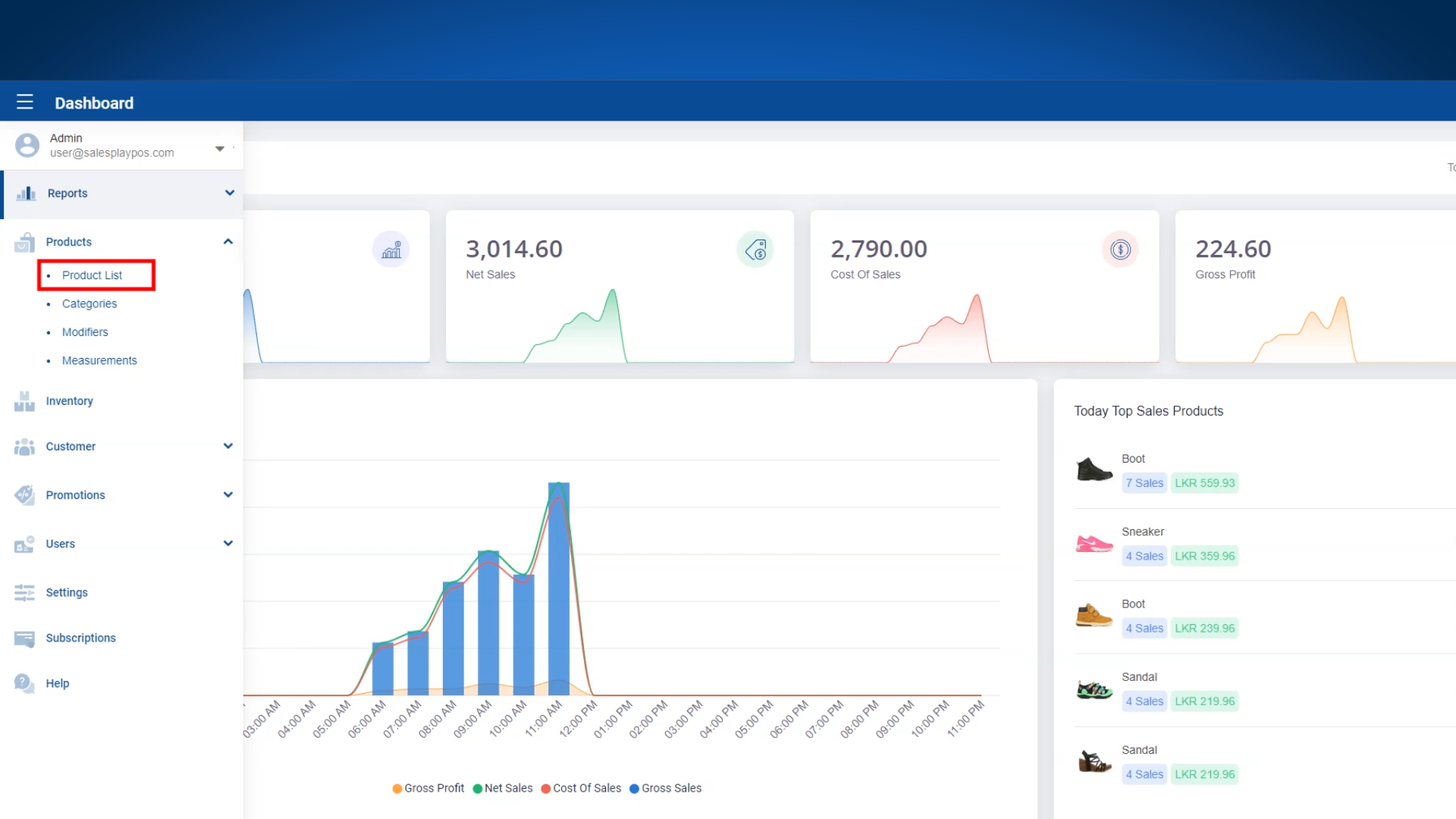
2. Go to the “Product list” > Click “ Add Product” button
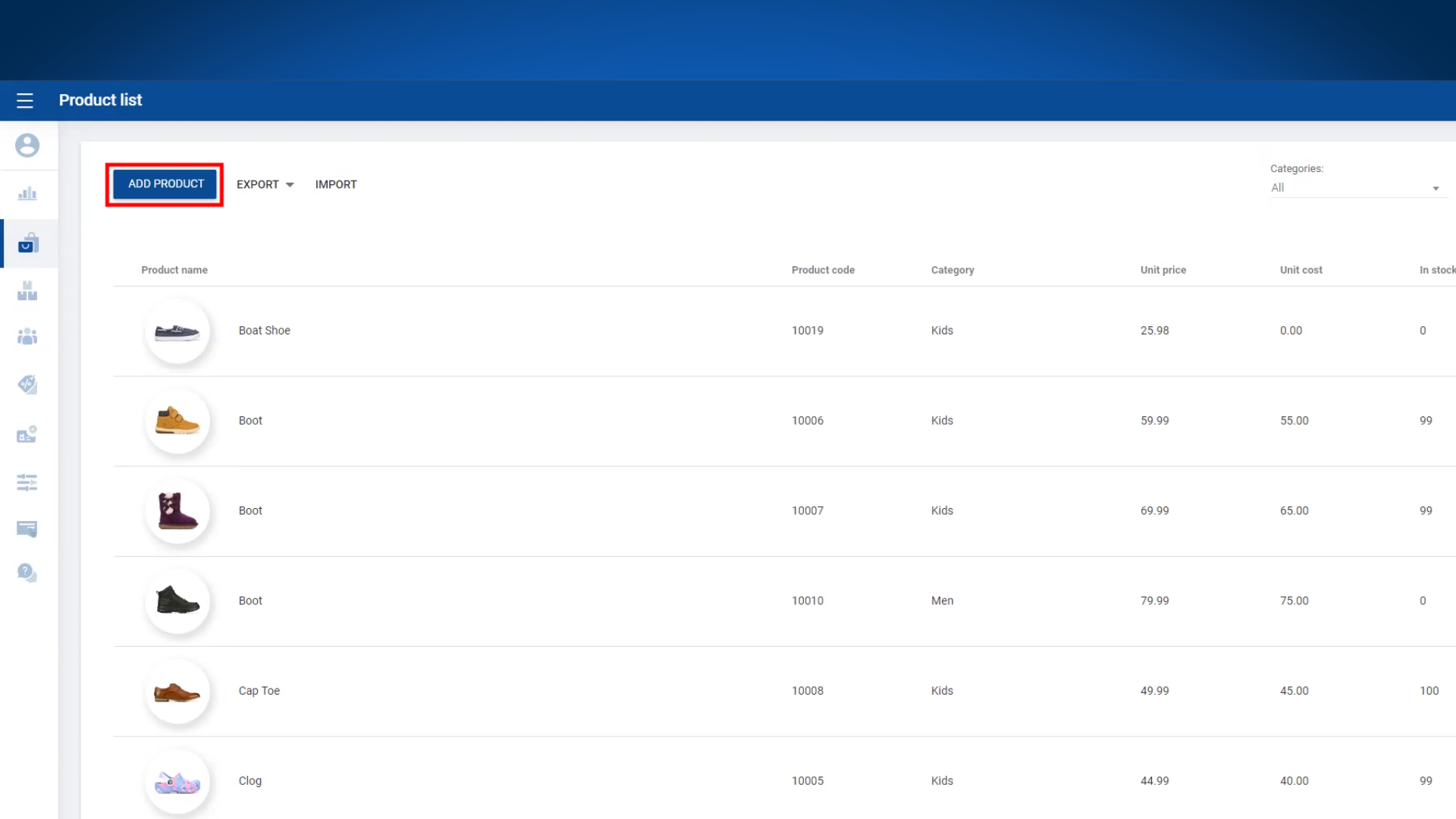
- Enter product name and “regular unit price” and other details
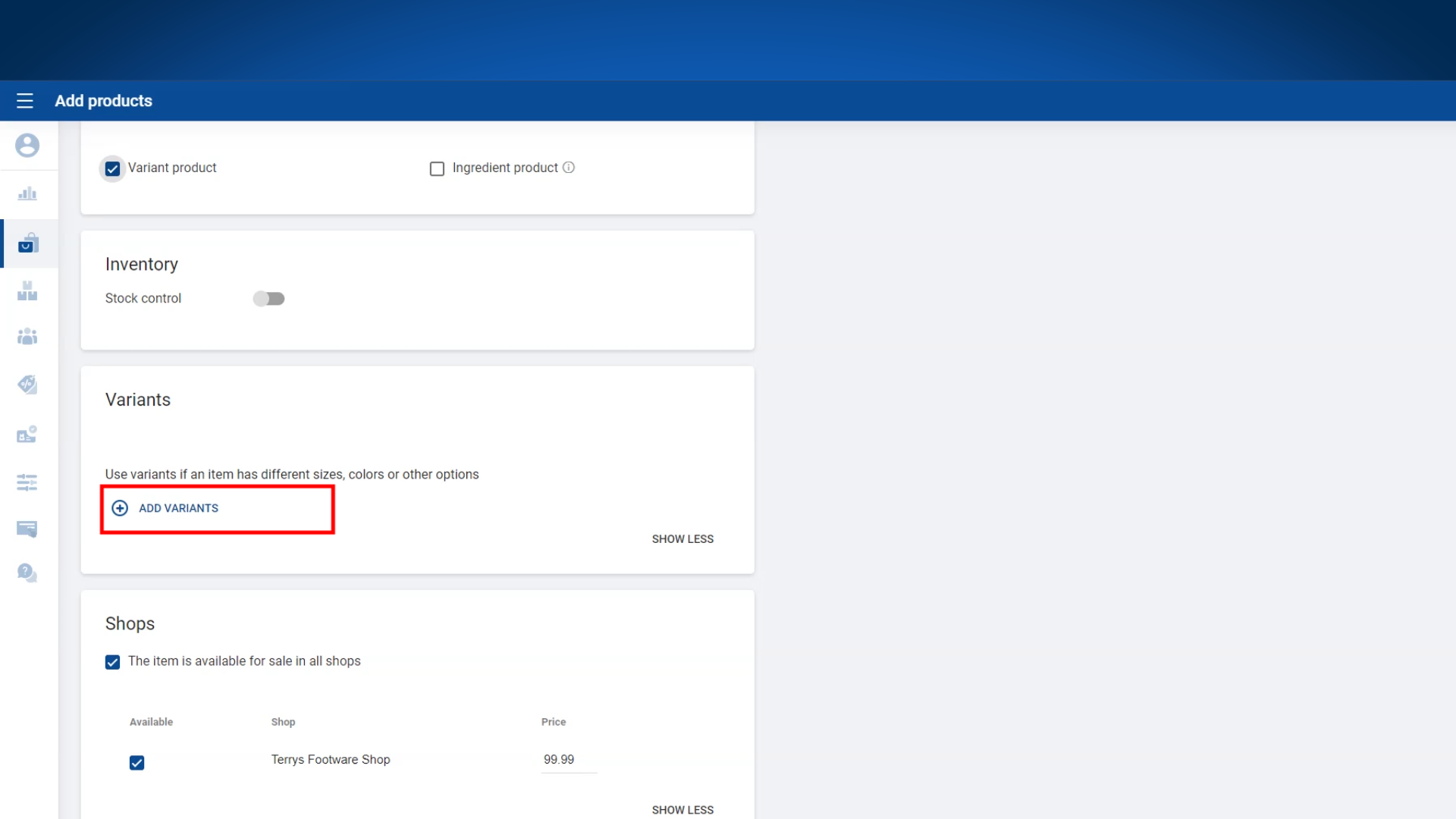
3. Tick ON “variant product” section
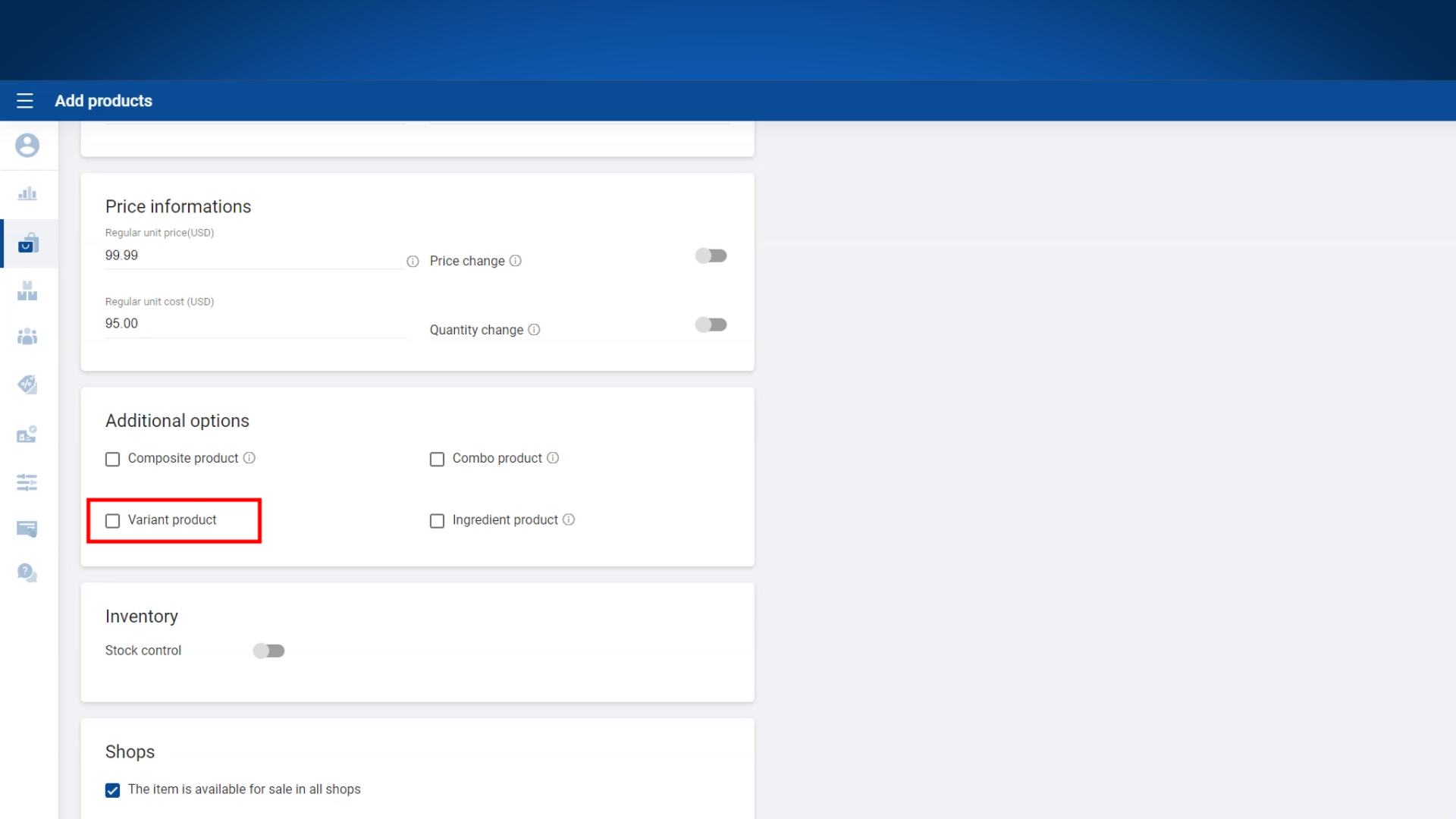
4. Click ‘add variants”
5. Enter attribute name Ex: (Size, colors) > Enter different names of attributes (Ex : Red, Black, Small, Mediam, Large)
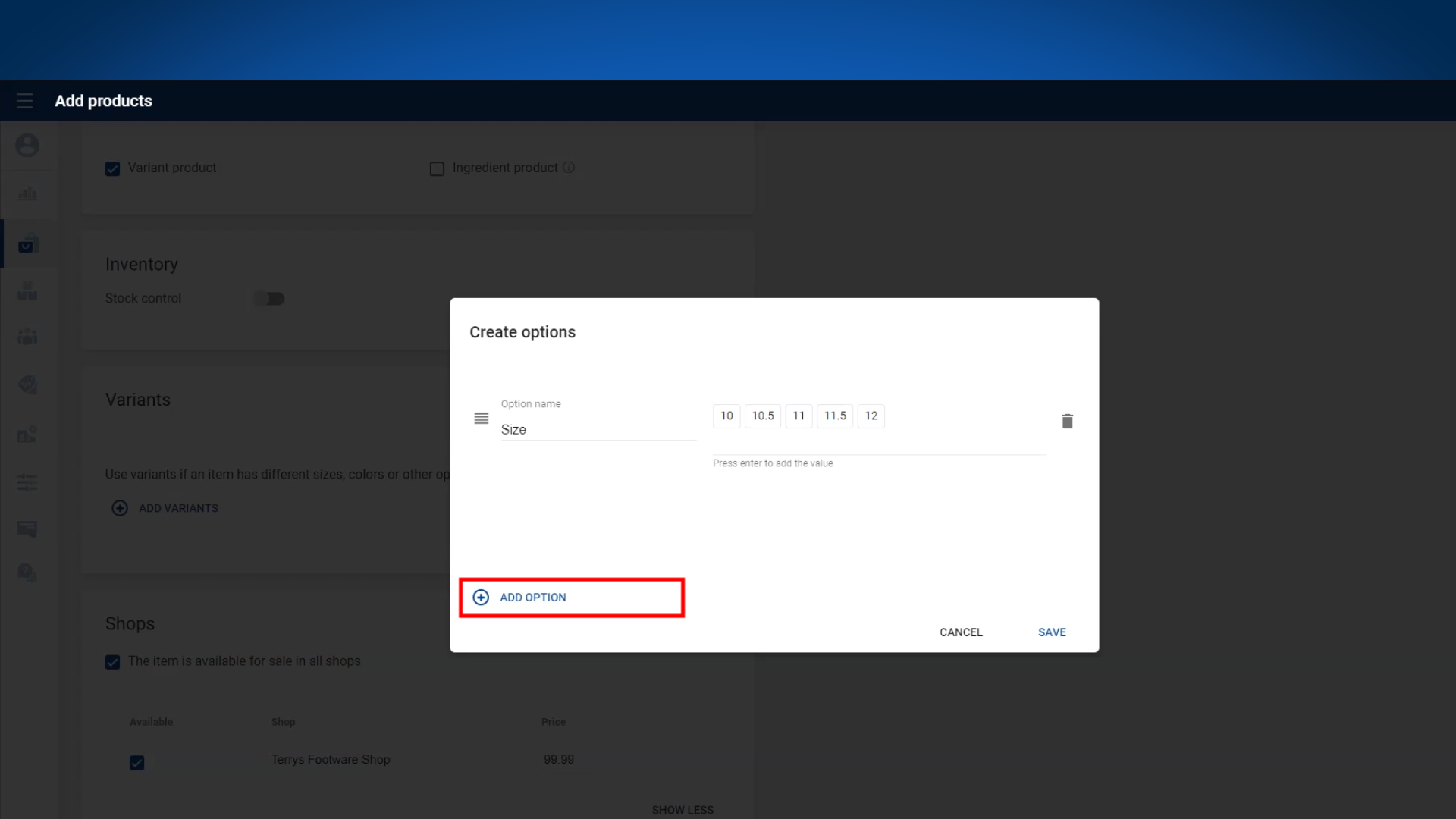
- Click “Save” button
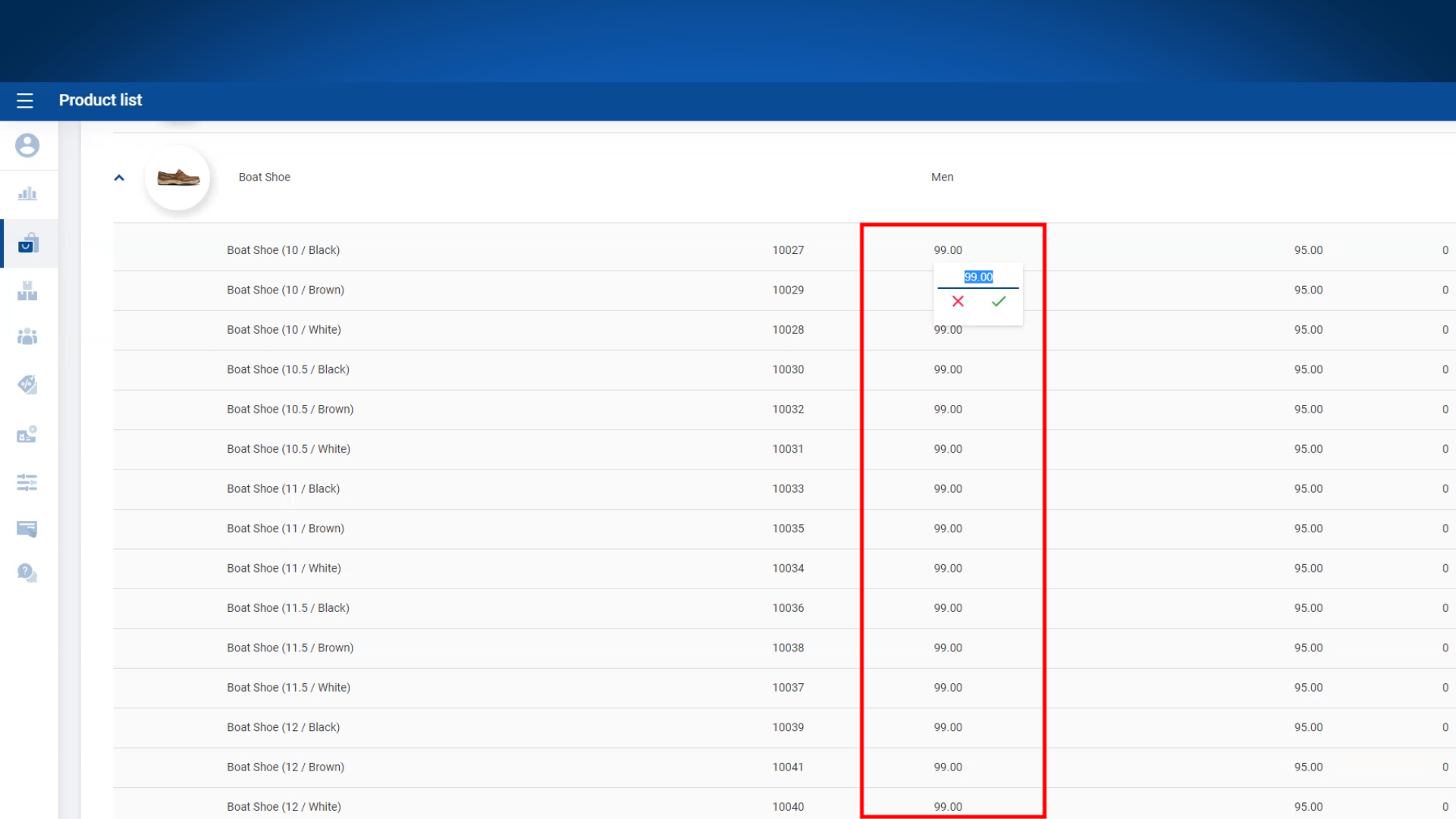
- Enter If variants have barcodes or stocks - Click “Save” button
6. You can apply different prices for the variants.
Was this article helpful? Tell our team what was missing.
Send us feedback