Easy POS

How to Change Category Order

Description
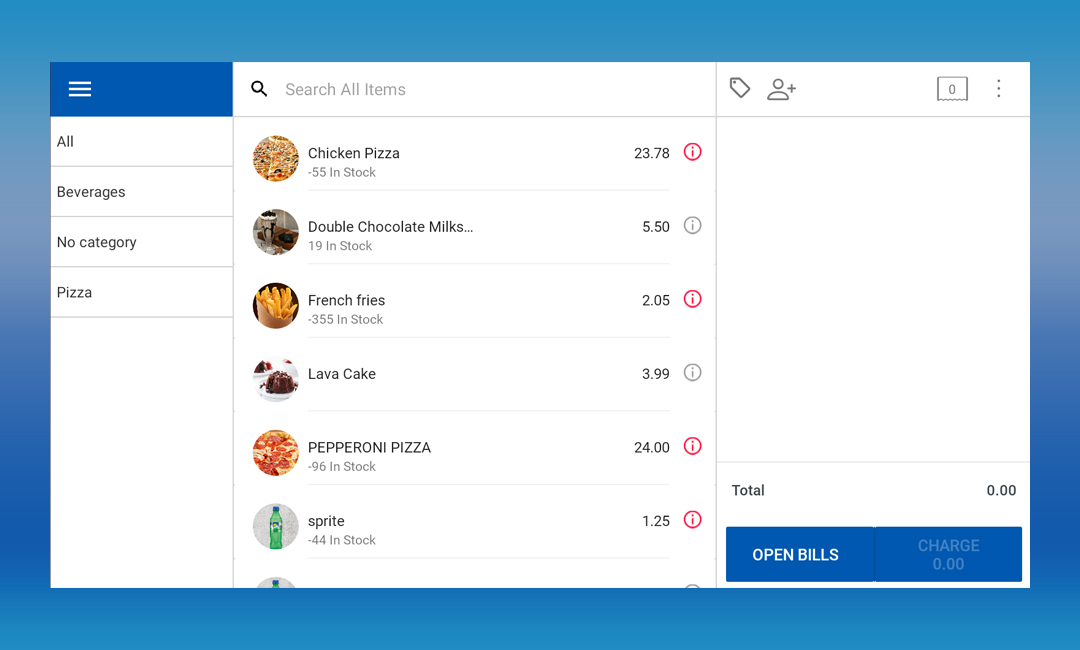
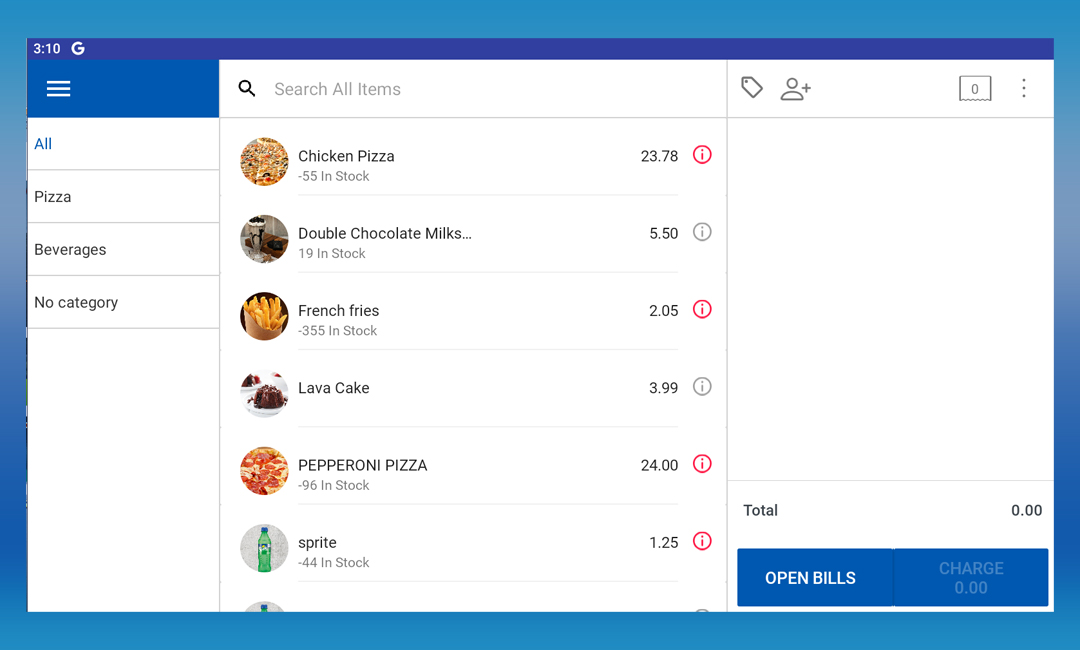
  • Businesses can efficiently tailor their POS interface to showcase their top-selling categories prominently, enhancing the overall user experience and streamlining the checkout process.

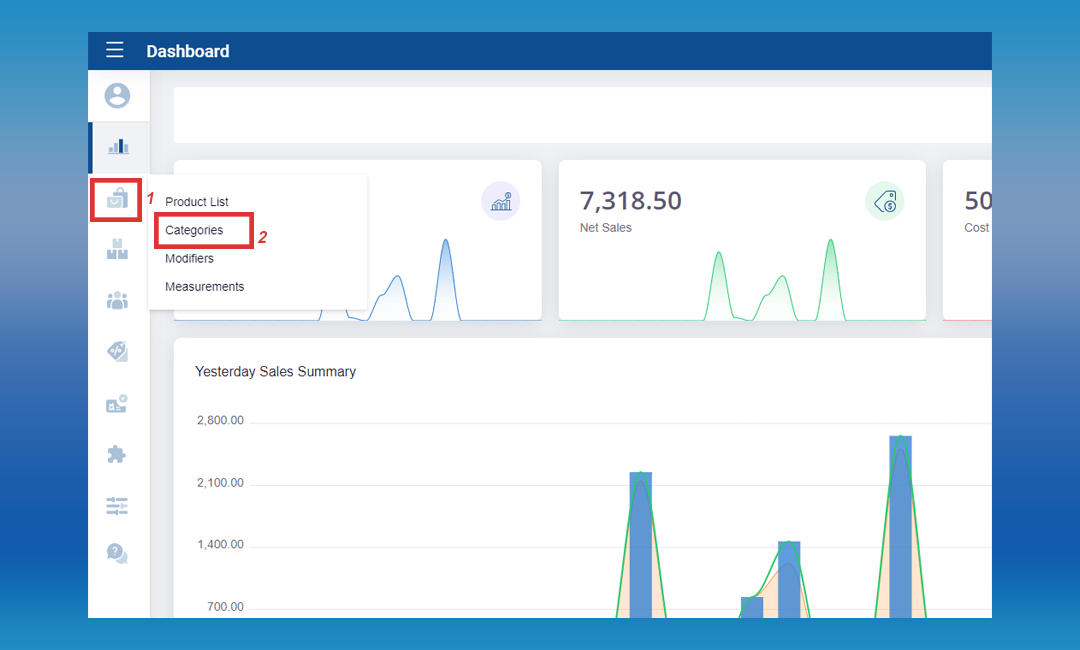
Login to POS Back Office > Select “ Products” from main menu > Go to the “Categories”
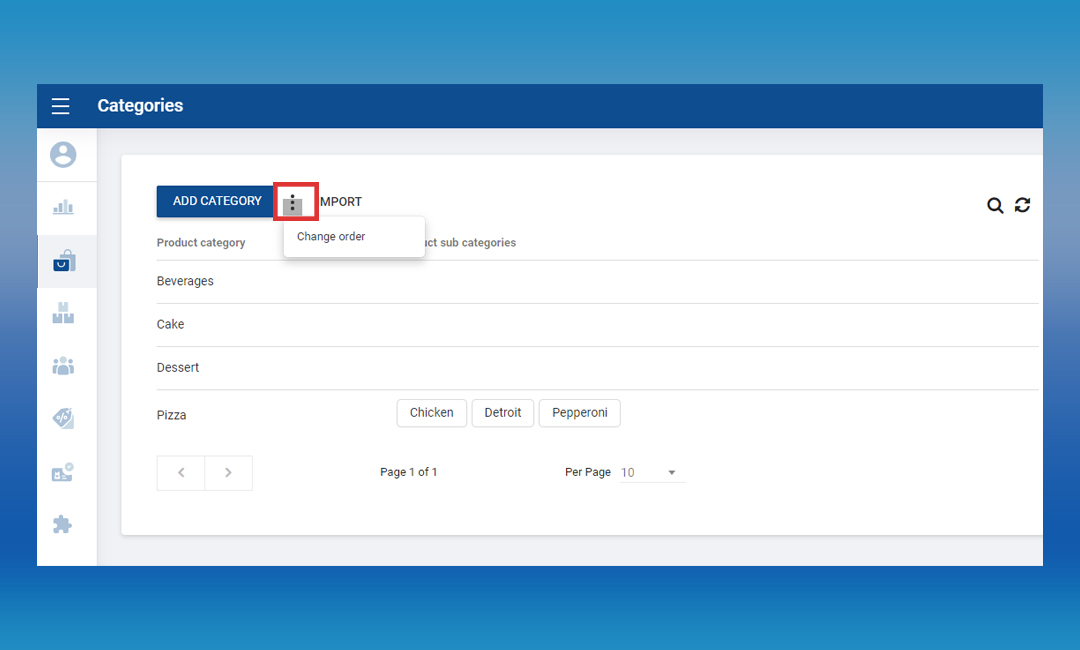
Click the 3-Dot button > Click the “Change Order”
Click the burger mark and DRAG and Drop the category
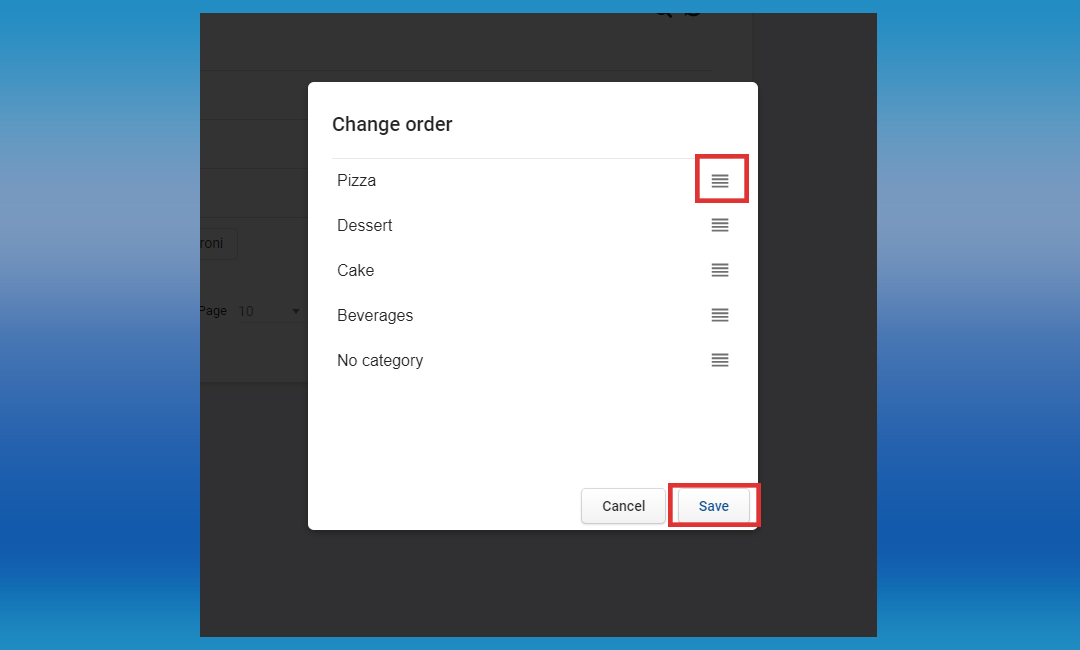
  • Click “Save” button.

Note:

  • This feature is available on both the Android and Web POS versions, providing flexibility and convenience for users.

Related Articles

How to Add Products to the Favorite Category

Was this article helpful? Tell our team what was missing.

Send us feedback

Keep reading

Related articles

Bulk Upload Categories & Products▶ Watch the walkthrough on YouTube ⚠️ Important Guidelines Before Uploading To avoid errors and ensure a smooth upload, please follow these rules: Create categories first – The category names yoRead articleHow to Increase Modifier QuantityWhat is Modifier Quantity Increase? One of the important features in modern POS systems is the Modifier Quantity Increase option. This option allows you to easily adjust the quantity of specific modifRead articleHow to Do a Bulk Products EditIntroducing Enhanced Product Management with Bulk Editing in Back Office Webportal Enhance your product management efficiency with the Backoffice Webportal's Bulk Product Edit feature. When extensive Read articleFavorite Product FeatureFavorite product feature with a customizable product position. The Favorite Products feature in the Easy POS App is available only in portrait mode. If you're using landscape mode, you can access a siRead articleHow to Manage Product Expiry Dates1. How to Enable the Expiry Date Option in the Back Office Login to POS Back Office > Select “ Products” from main menu > Go to the “Product list” Click the “ Add Product” button Enter product name anRead articleHow to Enable Product Quantity Change Option. Login to POS Back Office > Select “ Products ” from main menu Go to the “ Product List” > Select the relevant product and click on the “Product Name” section Tick On “Price Change” option > Click “URead article