
How to Manage Product Expiry Dates
1. How to Enable the Expiry Date Option in the Back Office
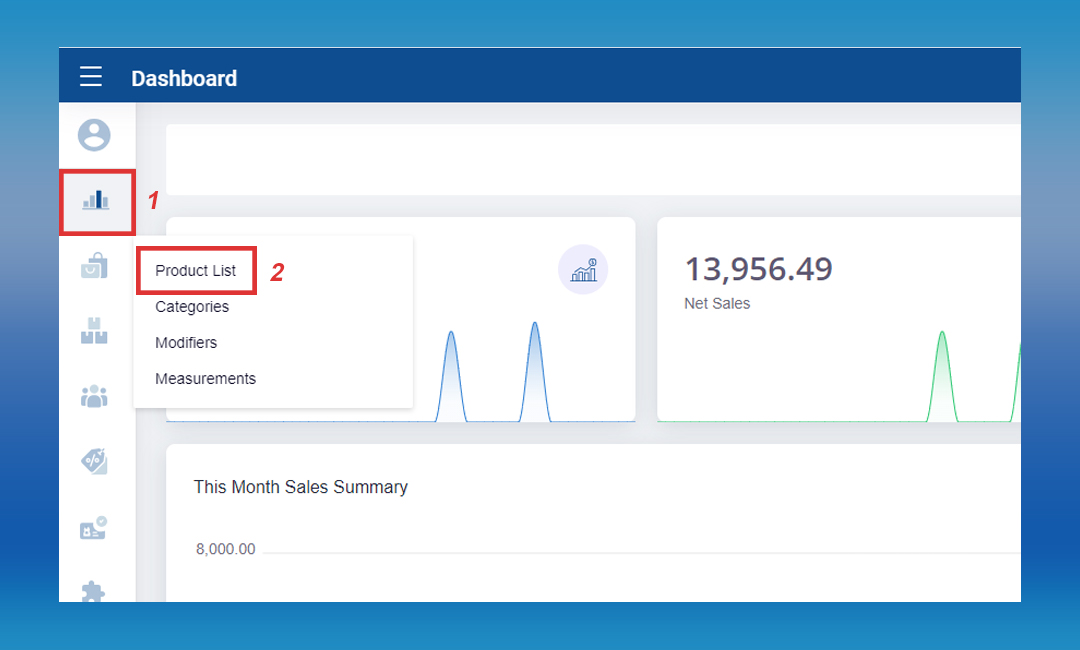
Login to POS Back Office > Select “ Products” from main menu > Go to the “Product list”
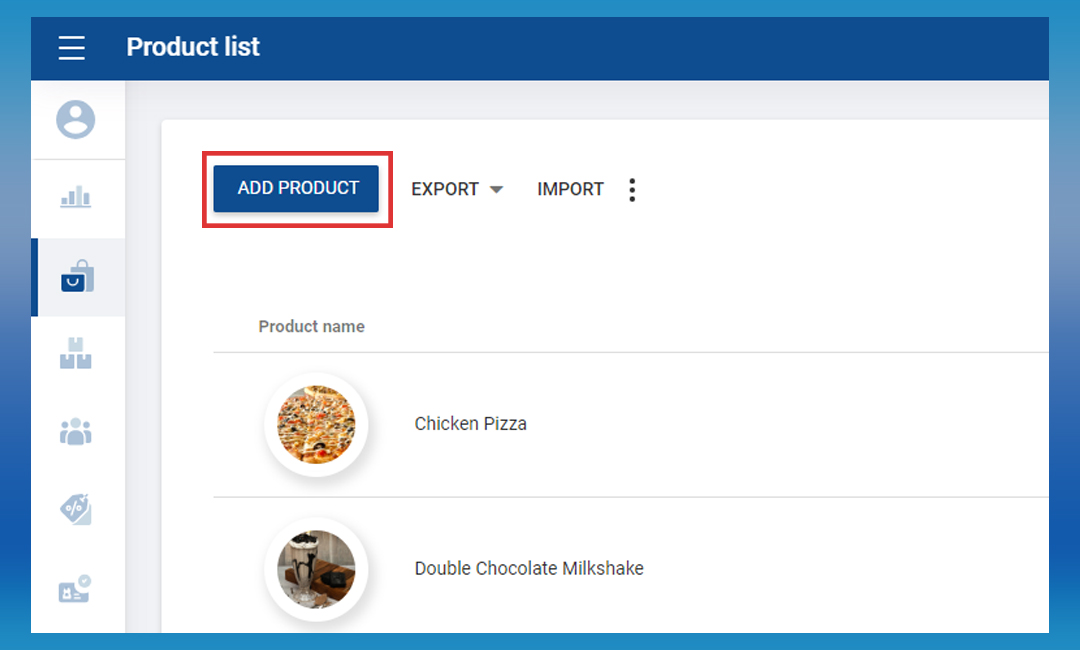
Click the “ Add Product” button
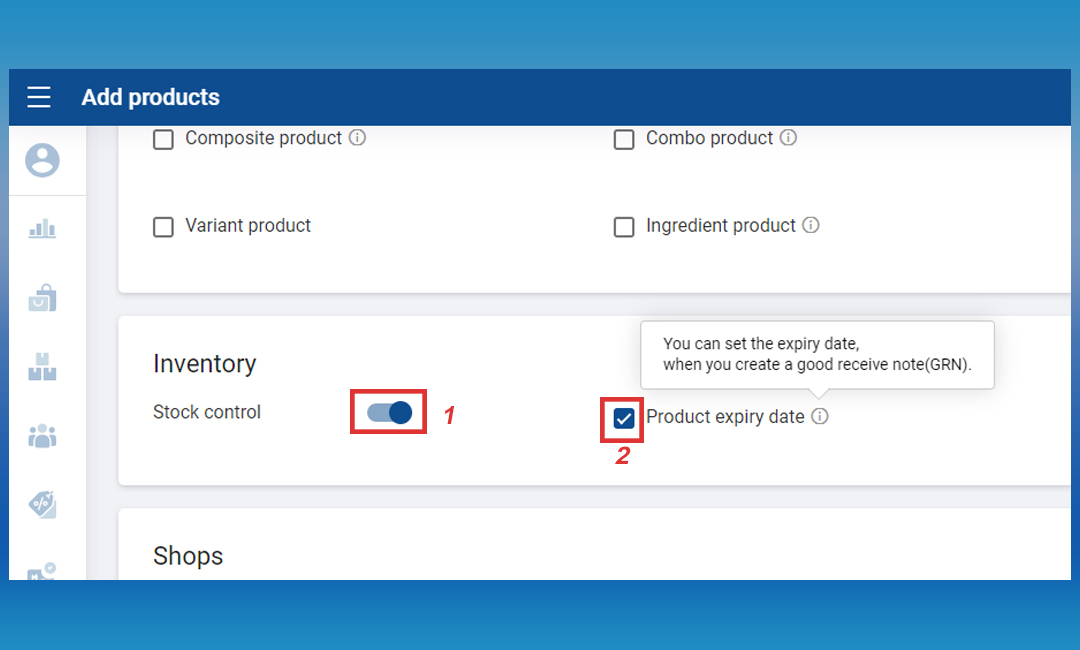
Enter product name and other details > Enable the “Stock control” option > Tick ON the “Product expiry date”
- Click the “Save” button
2. How to Add Stocks (Good Received Notes –GRN) with an Expiry Date
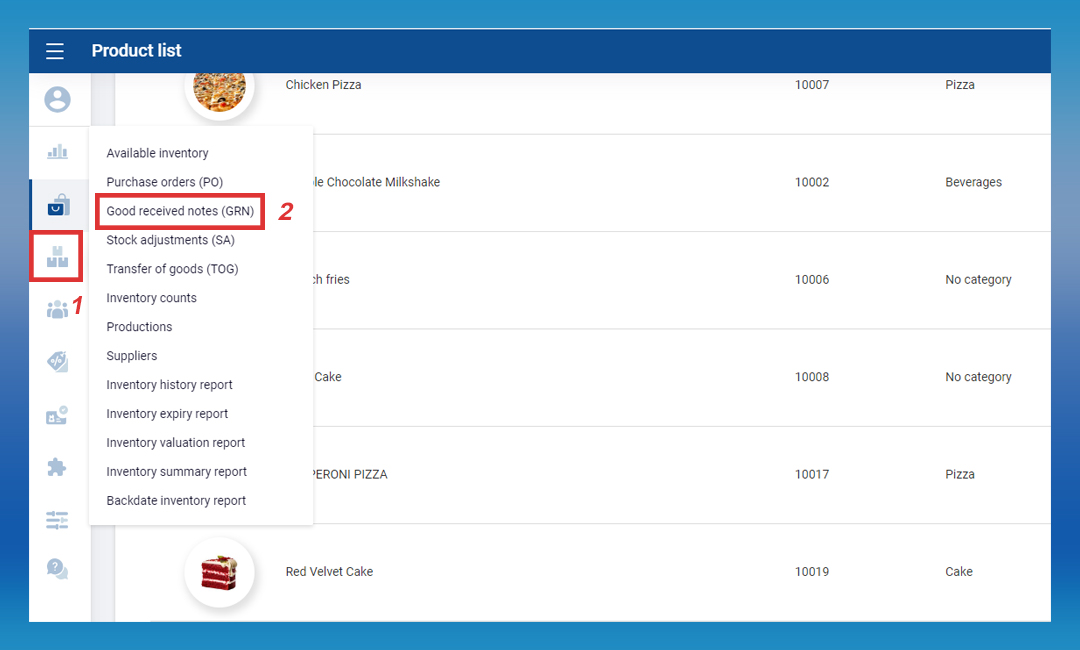
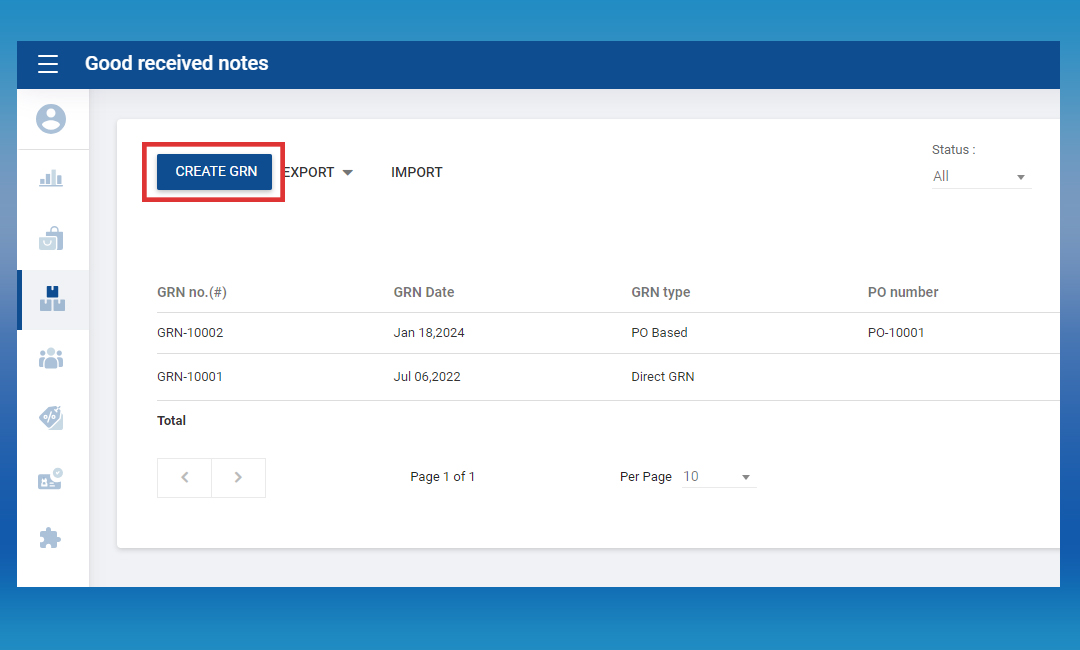
Login to Back Office > Select “ Inventory ” from main menu > Go to the “Good Received Notes”
Click the “ Create GRN ” button
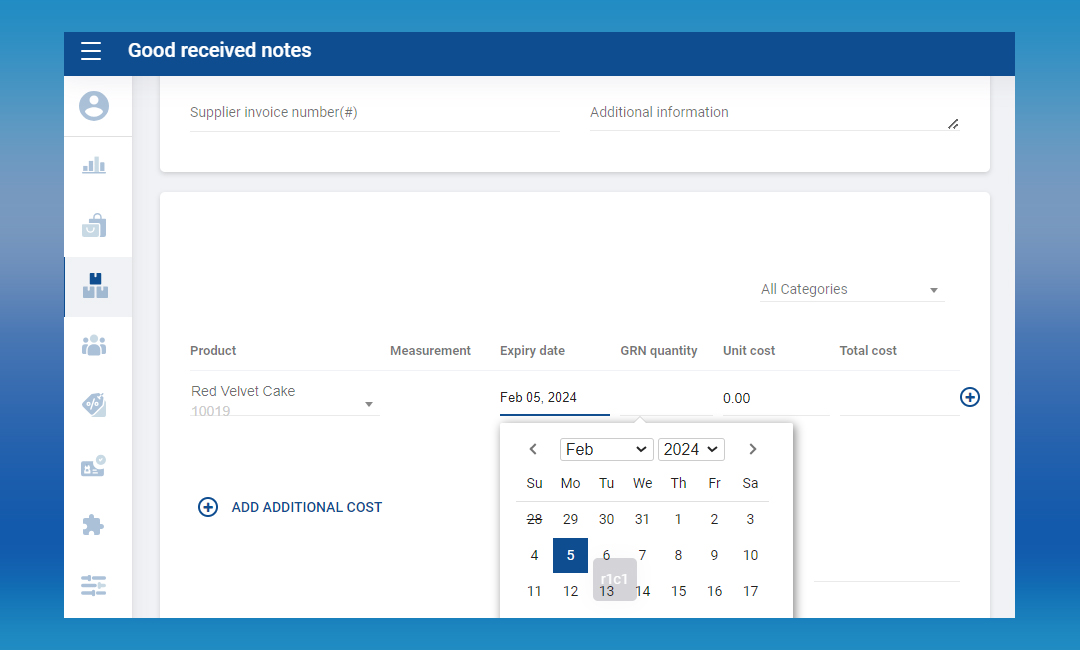
Select a relevant product from the drop down menu > Click on the “Expiry date” and select the date from the calendar
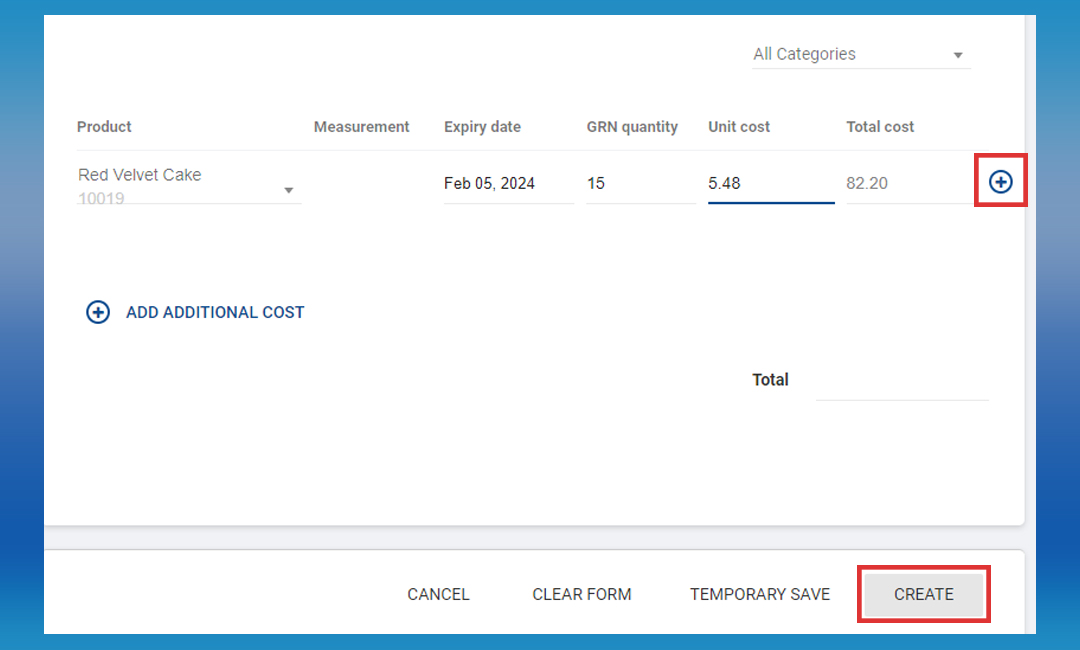
Enter GRN Quantity > Click ( +) button > Click “ CREATE ” button
3. How to Check Inventory Expiry Report
Login to Back Office > Select “ Inventory ” from main menu > Go to the “Inventory expiry report”
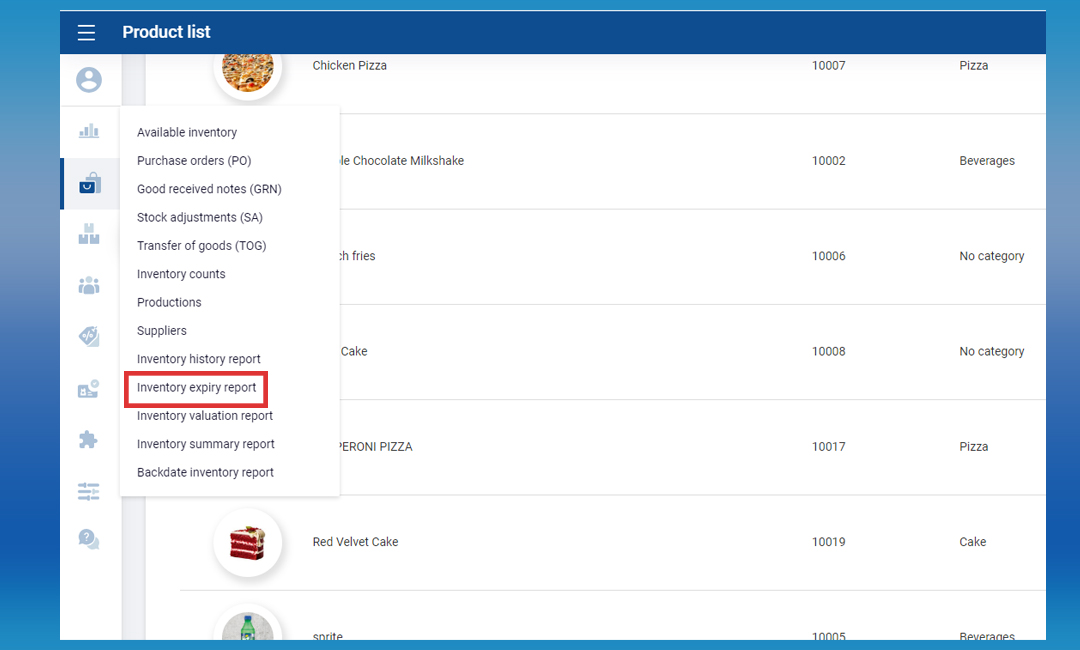
Click “ Export ” button if you want to download PDF or CSV file
Was this article helpful? Tell our team what was missing.
Send us feedback