
How to Quickly Add an Customer to the Receipt
1. How to Quickly Add an Customer to the Receipt ?
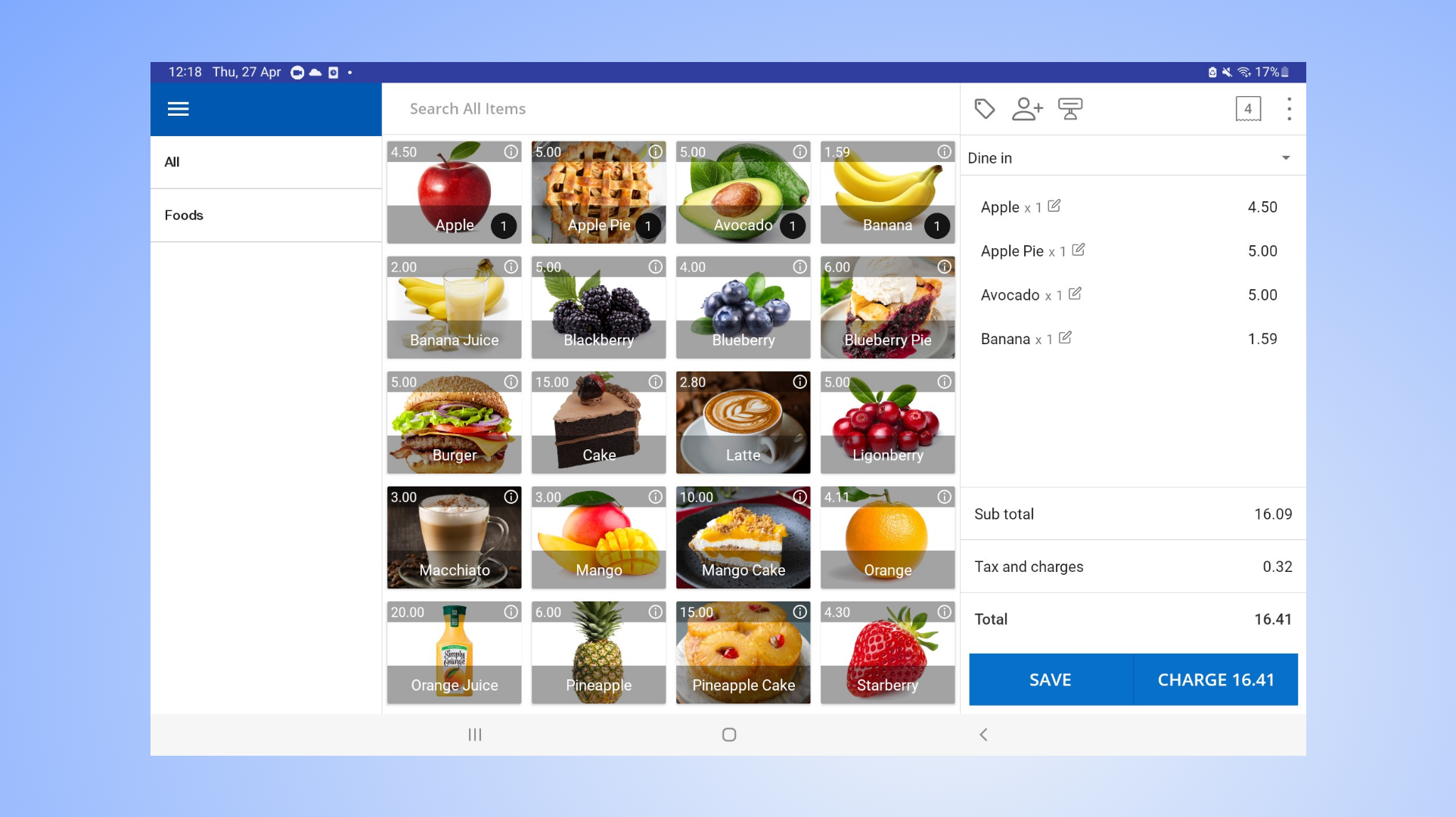
In order to assign an employee to the receipt, it is necessary to have set up 'Other staff' profiles within the POS system.
Open POS app
Add products to the cart
2. How to Quickly Add an Customer to the Receipt
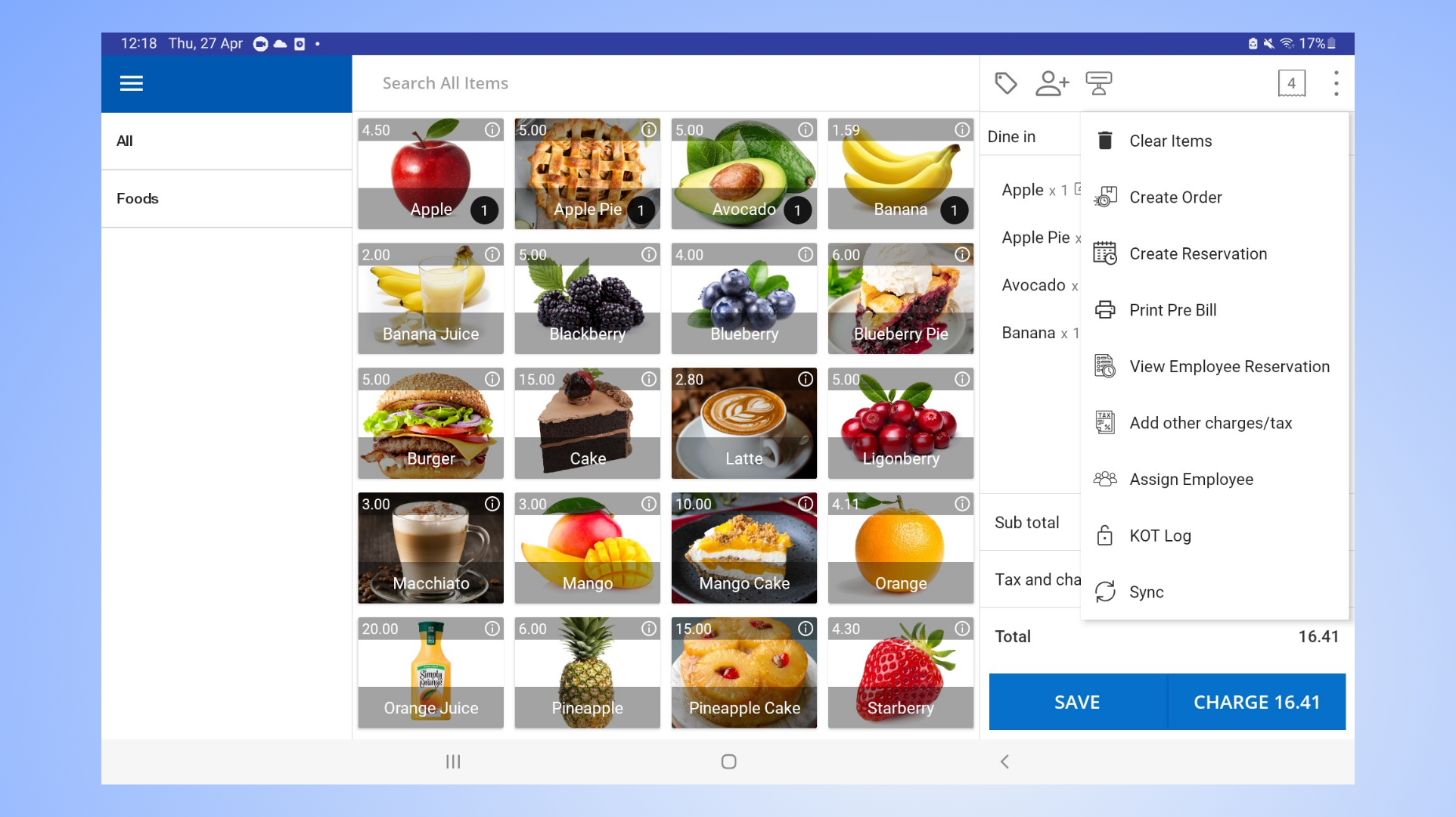
- Click the 3-dot button in the top right corner
- Select 'Assign employee'
3. How to Quickly Add Customer to the Receipt
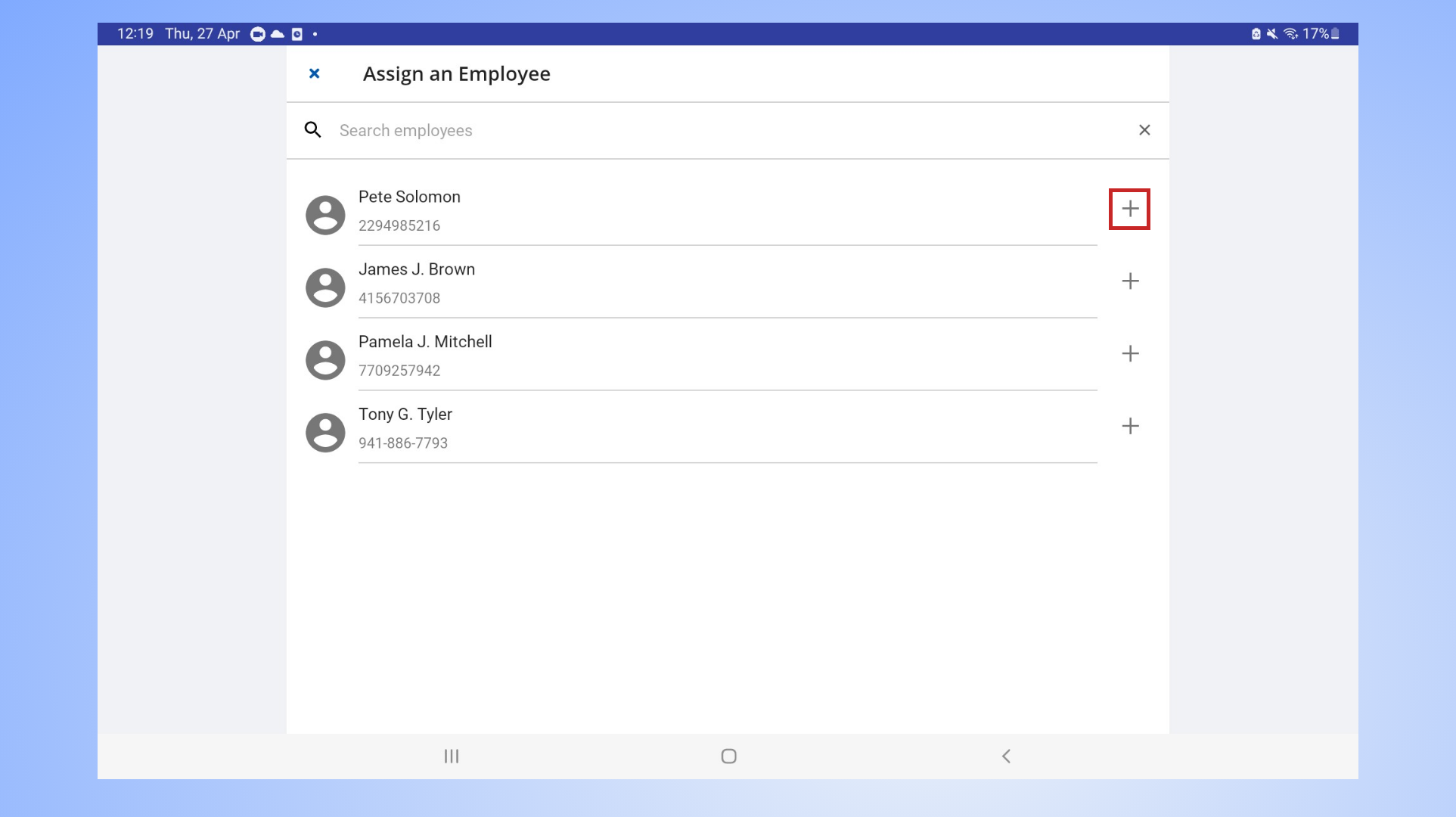
- Select employee name
- Click the plus (+) icon
4. How to Quickly Add Customer to the Receipt
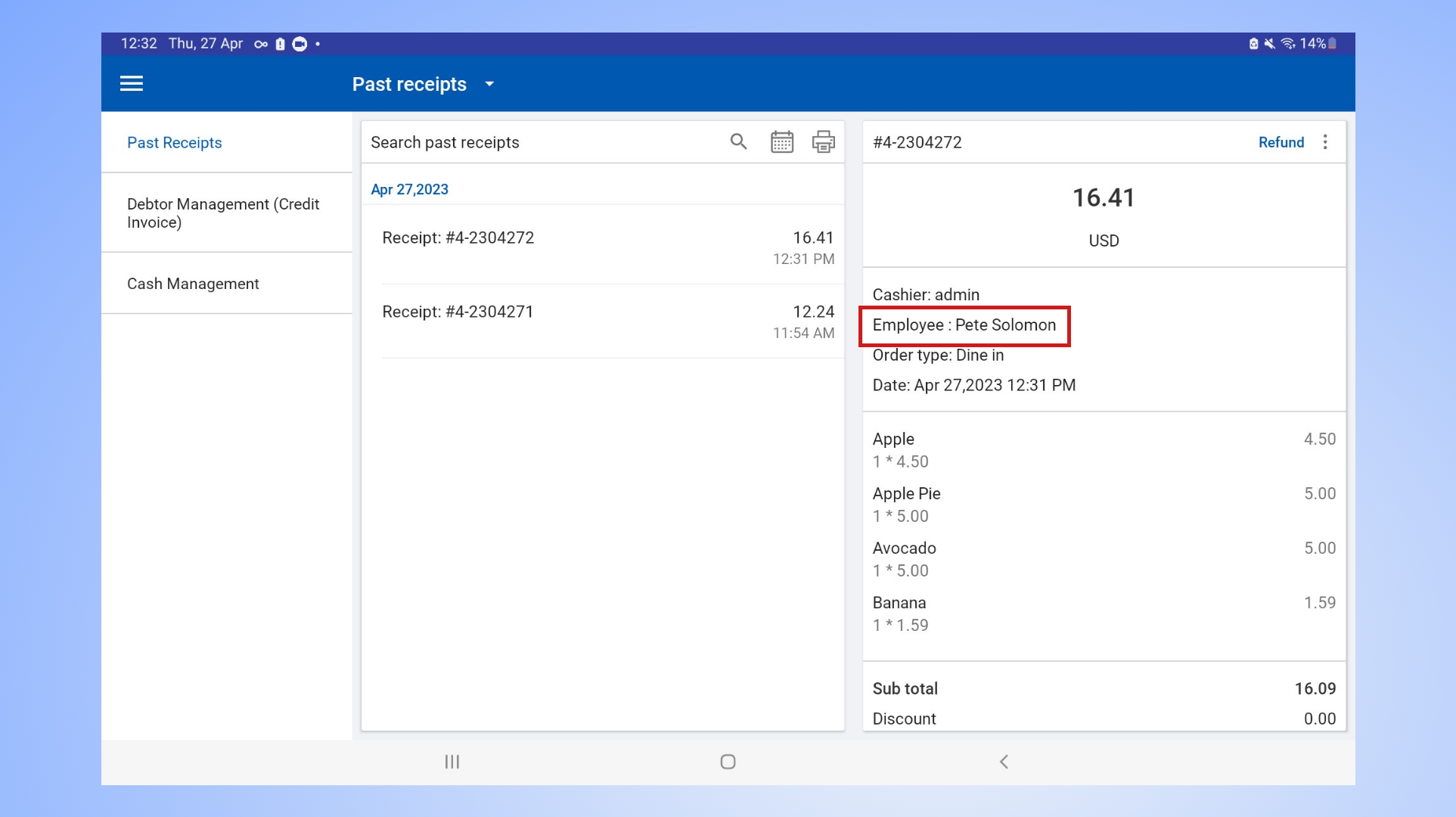
- Employee, now has been successfully added to the receipt.
- To check the receipt Main menu > Manage sales > Past receipts
Was this article helpful? Tell our team what was missing.
Send us feedback