
How to Delete Receipts
1. Easy POS allows you to delete receipts in case of billing mistakes. To perform this task, you need the Admin Password and the user approval level
2.1 POS App main menu Manage Sales Select “Receipts”.
2.2 Select the relevant receipt via Search or Calendar and click on it
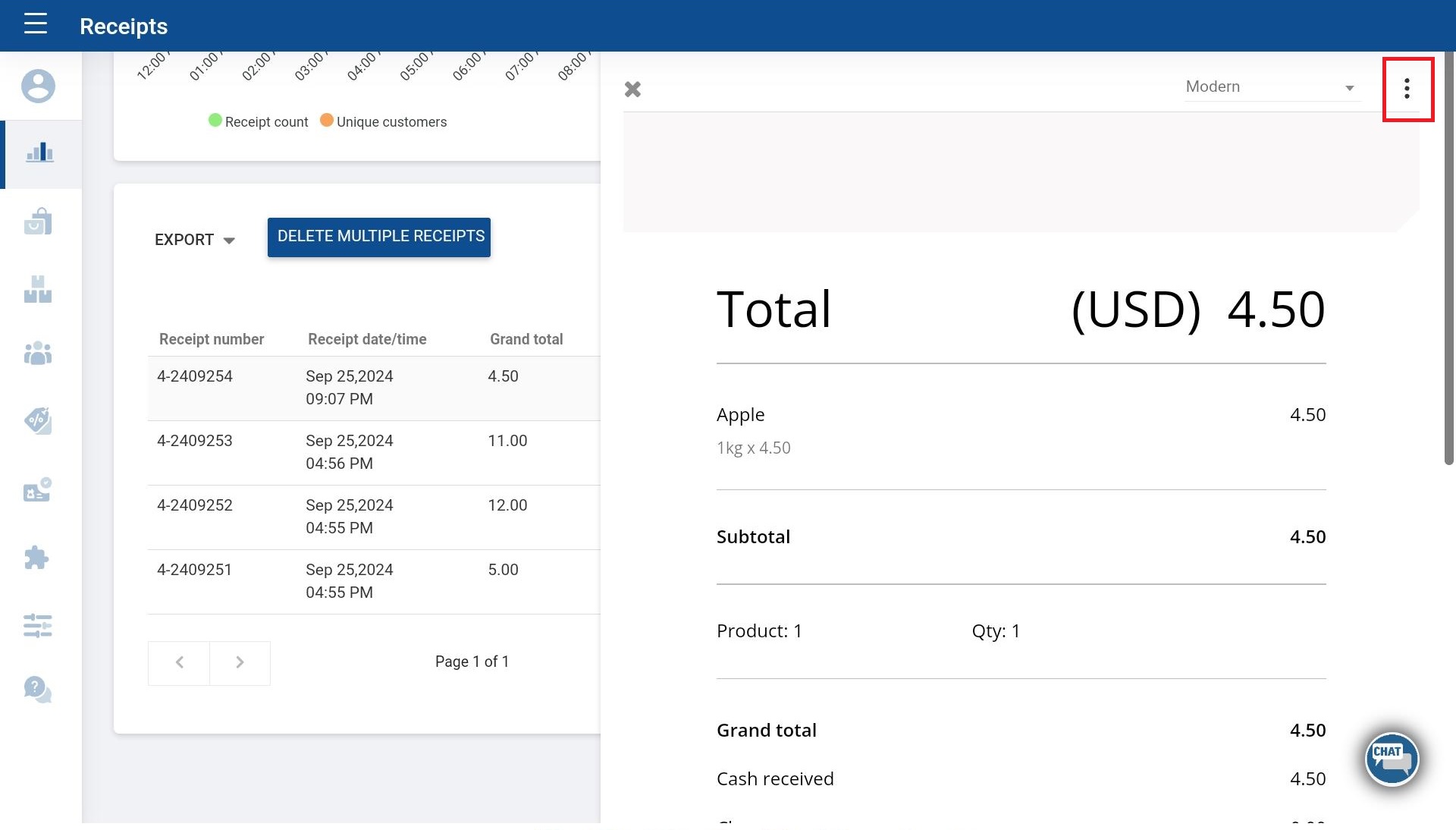
2.3 Click the three-dot button on right-hand upper section Click “Delete” section
2.4 Enter “Admin Password” > Click delete confirmation
- A separate reports about deleted receipts can be view via backoffice webportal under advanced sales reports section as ‘Deleted Receipts”.
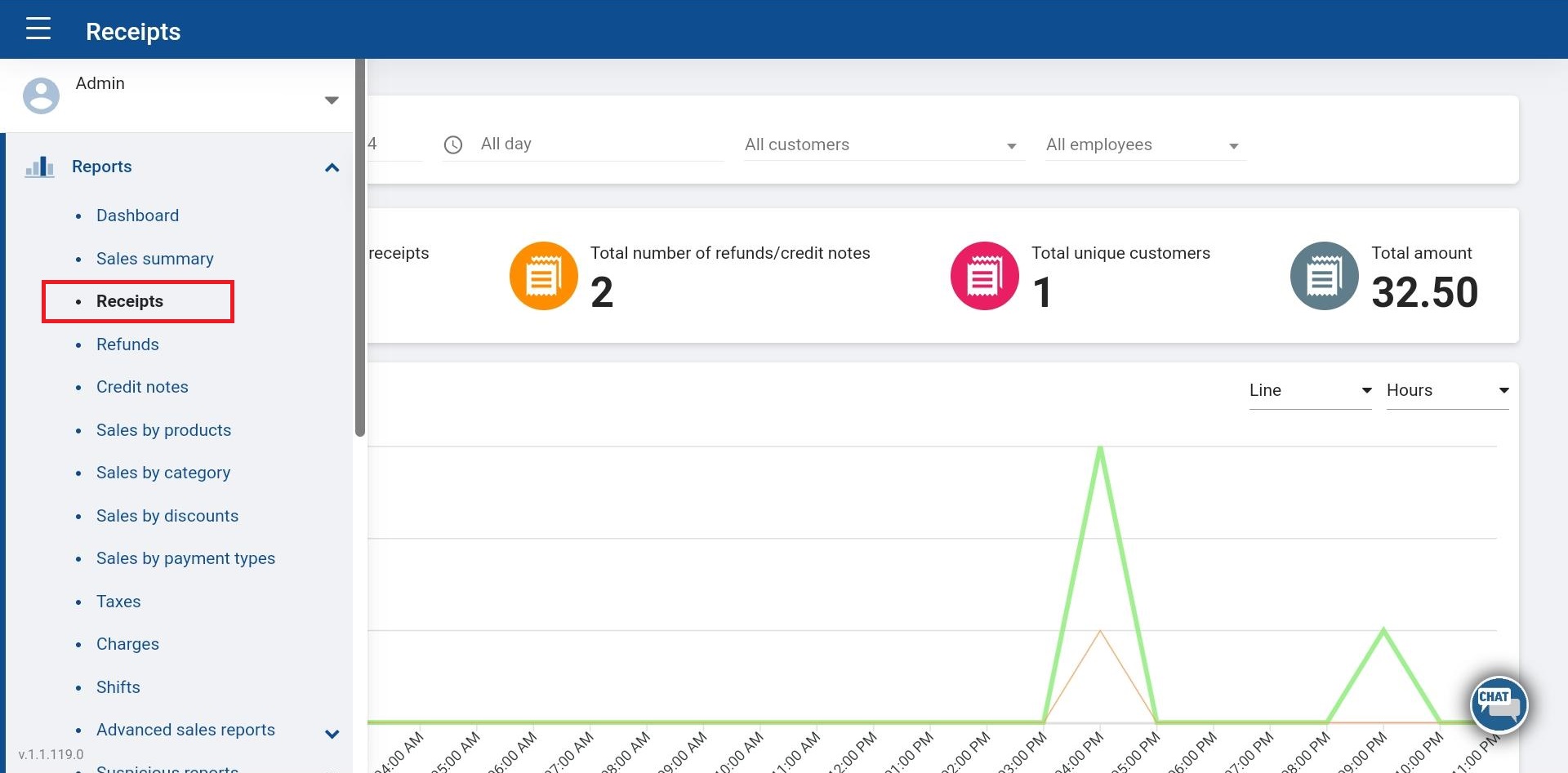
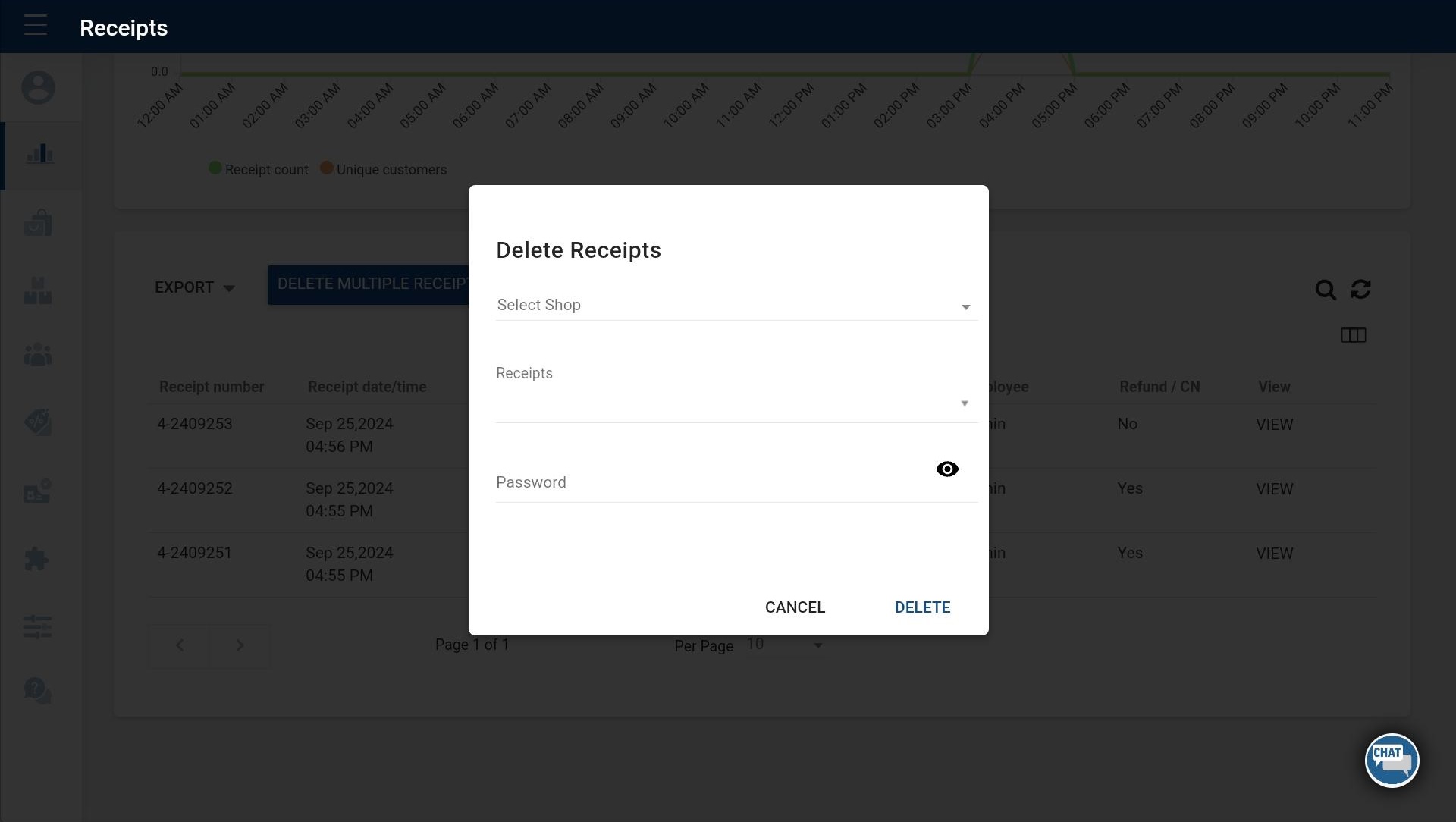
3.1 Login to POS Back Office > Select “ Reports ” from main menu > Go to the “ Receipts”
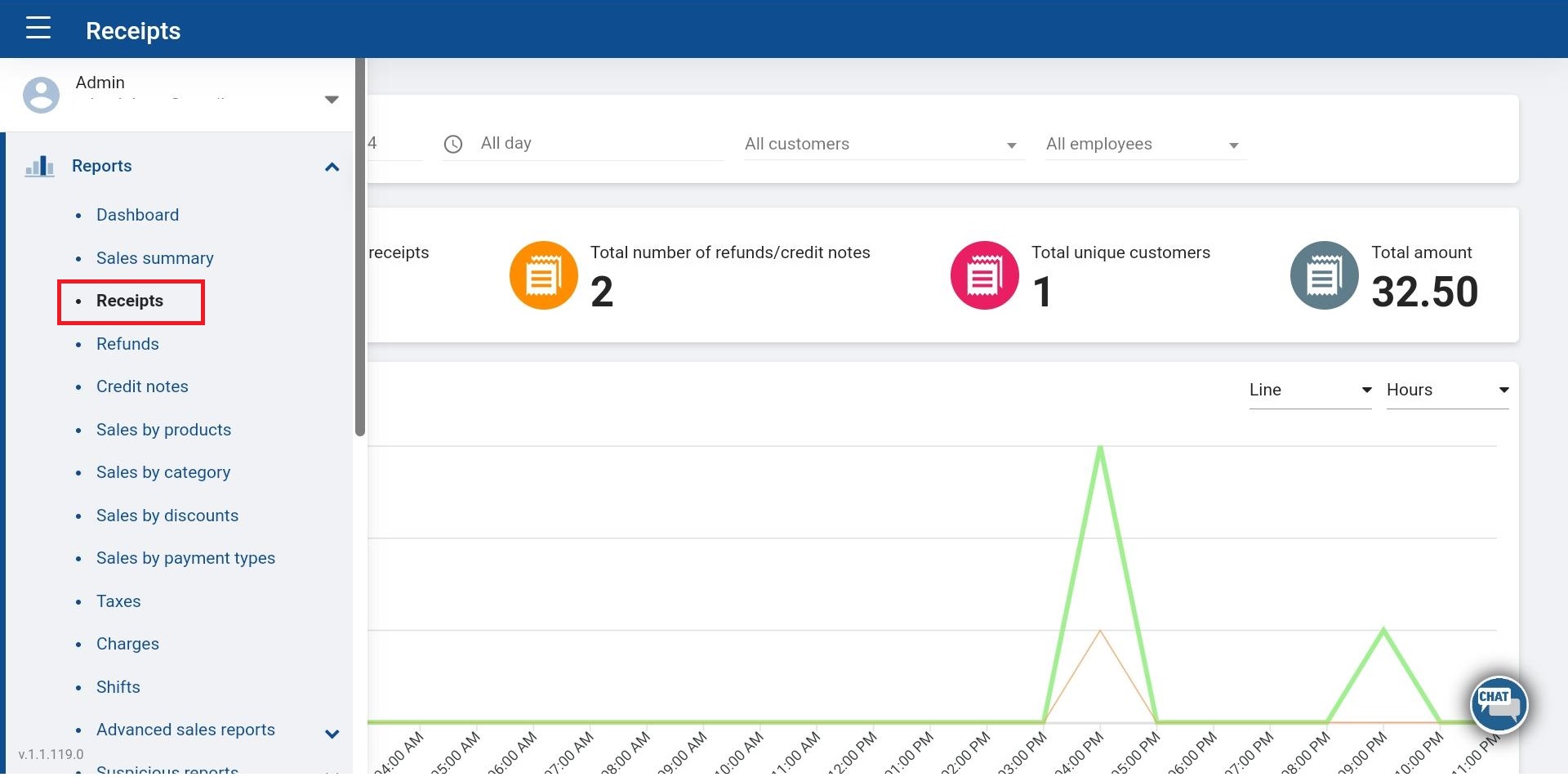
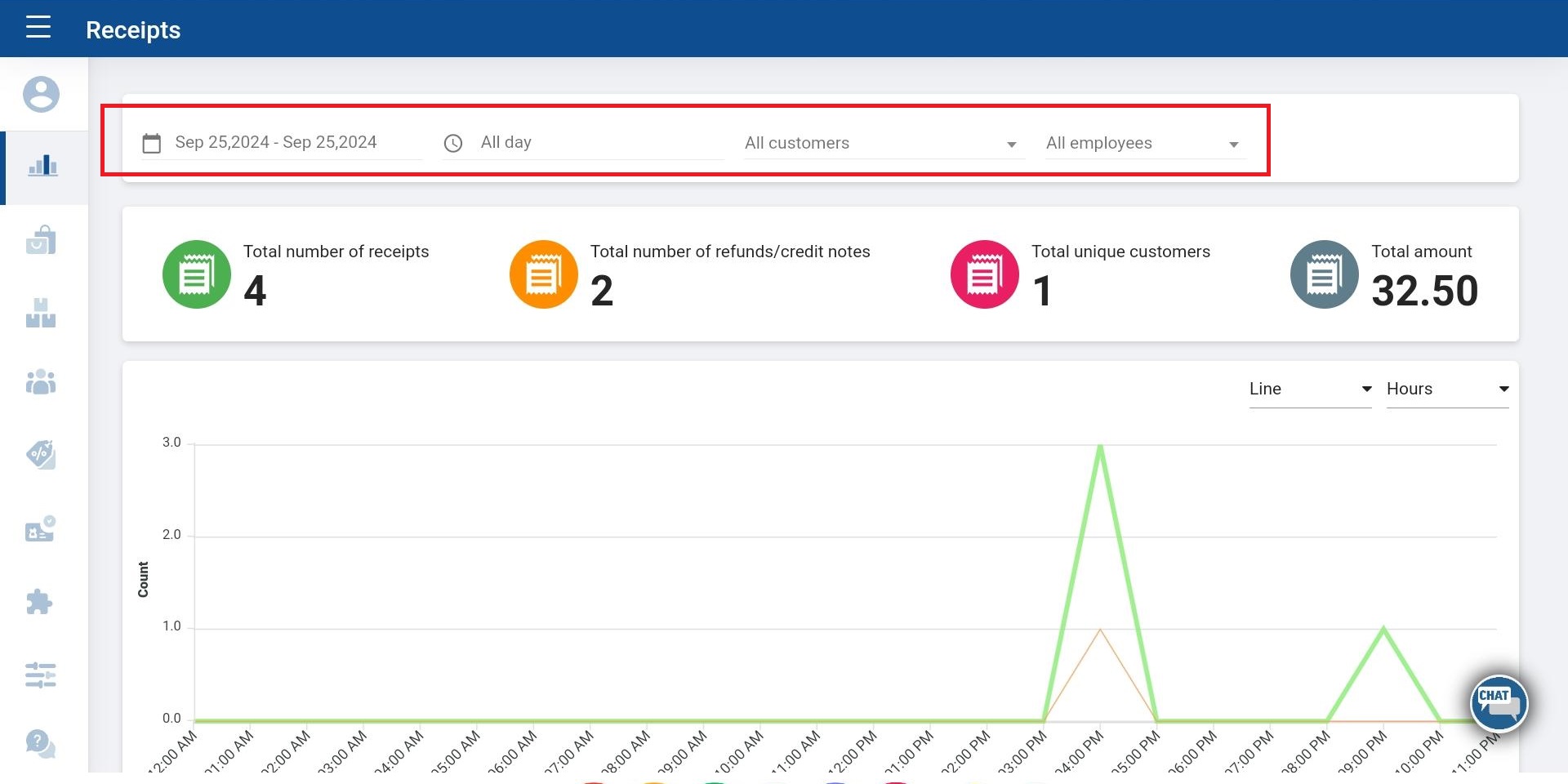
3.2 Select the relevant receipt via Search or Calendar > Click “Delete Multiple Receipts” button
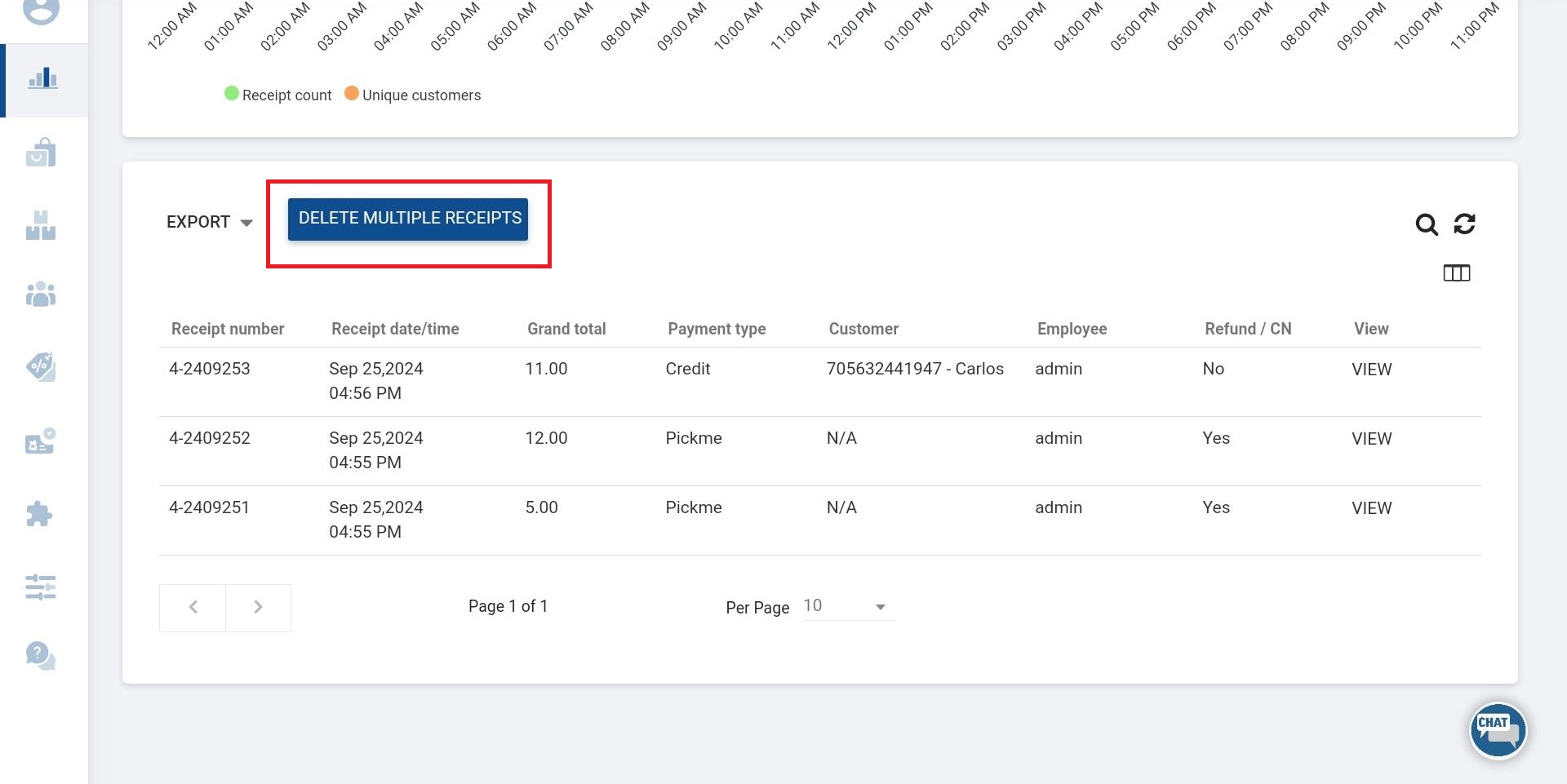
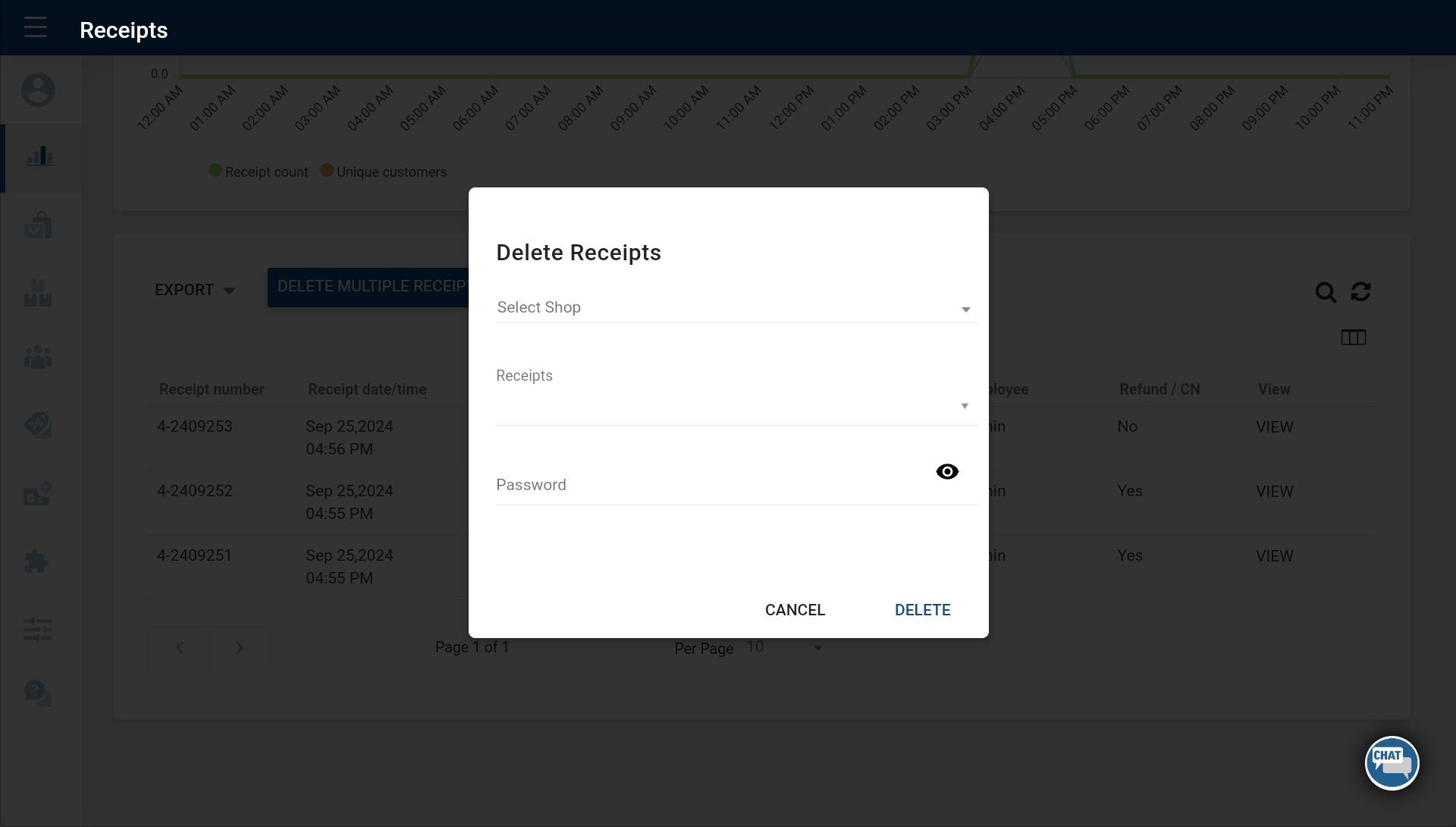
3.3 Select the correct SHOP and tick the receipt or multiple receipts Enter the Back Office password Click “Delete” button
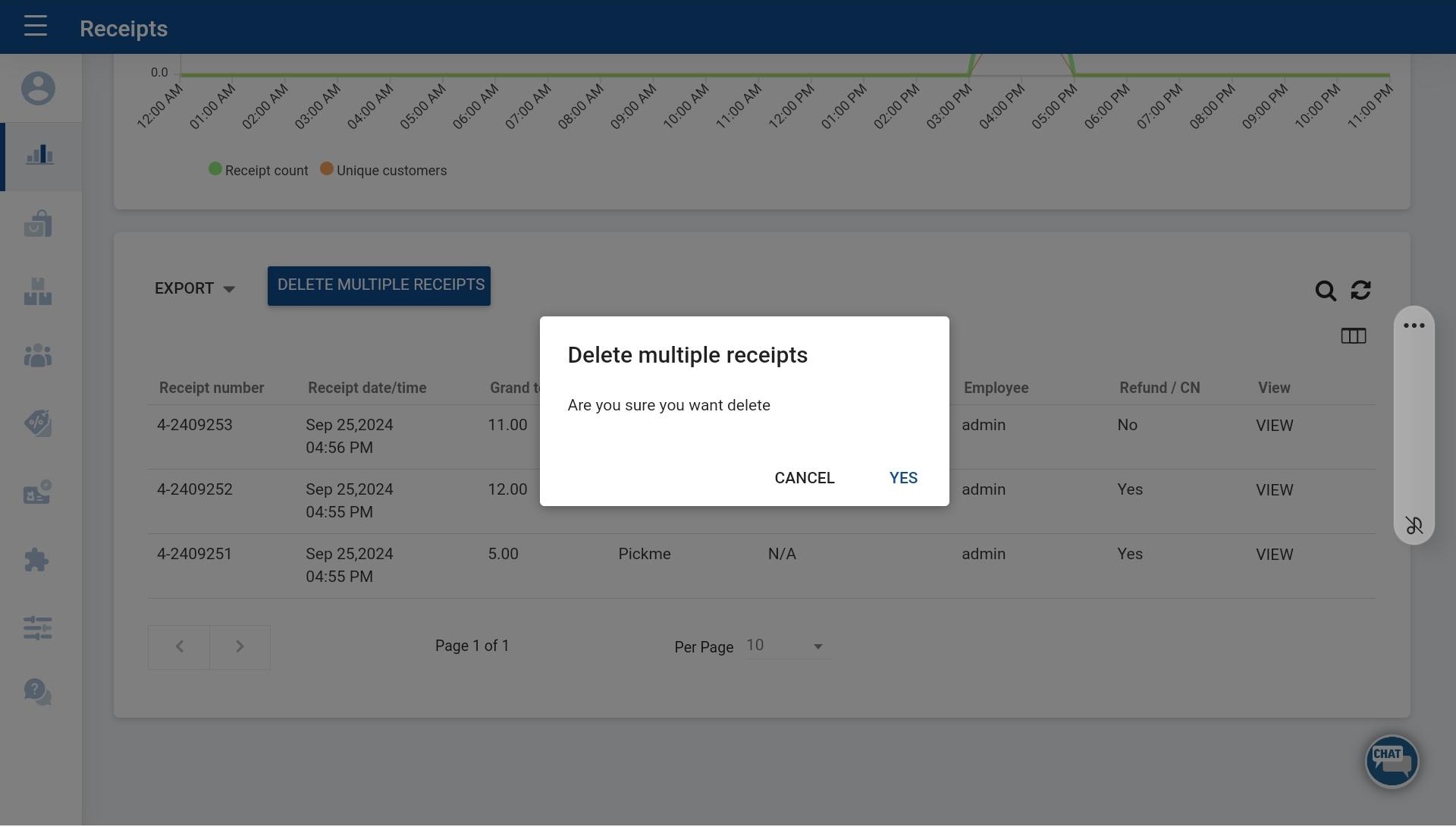
- Once you deleted the receipts, those receipts will be deleted both backoffice and POS app side.
Was this article helpful? Tell our team what was missing.
Send us feedback