
How to Create Pricing Plans
Special Note
- With the updated method, clicking on a Price Plan item will open an item customization dialog box in POS App, where users can conveniently select the pricing plan and also add quantities, and apply discounts all within the same dialog box. This streamlined approach simplifies the process for users.
1. You can handle multiple prices for a particular product with pricing plans
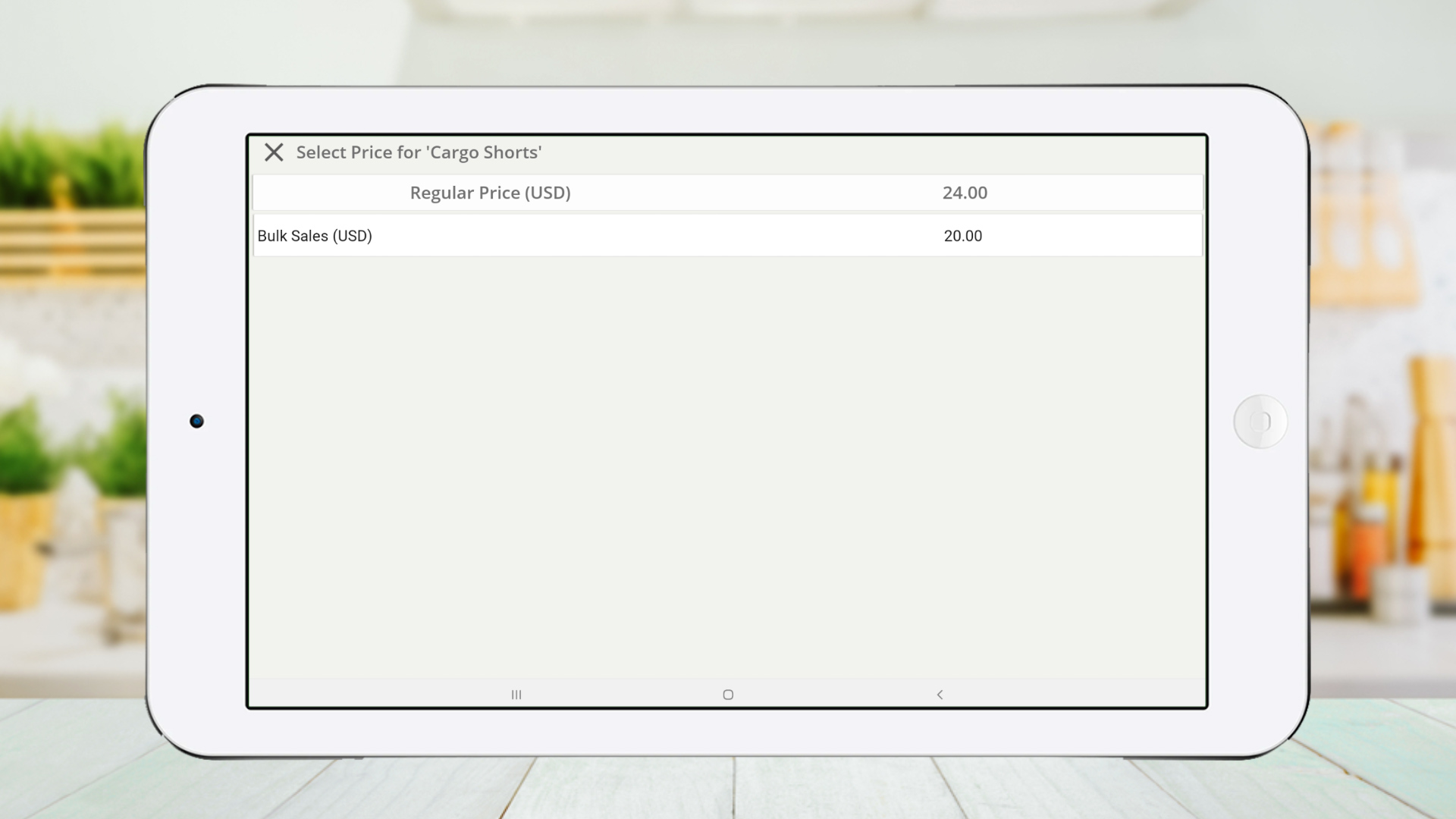
- Some business maintain several selling prices for a single product. Ex: Wholesale Price, Retail Price
2. Login to Easy POS Back Office> Select “ Promotions ” from main menu >Go to “ Pricing Plans”
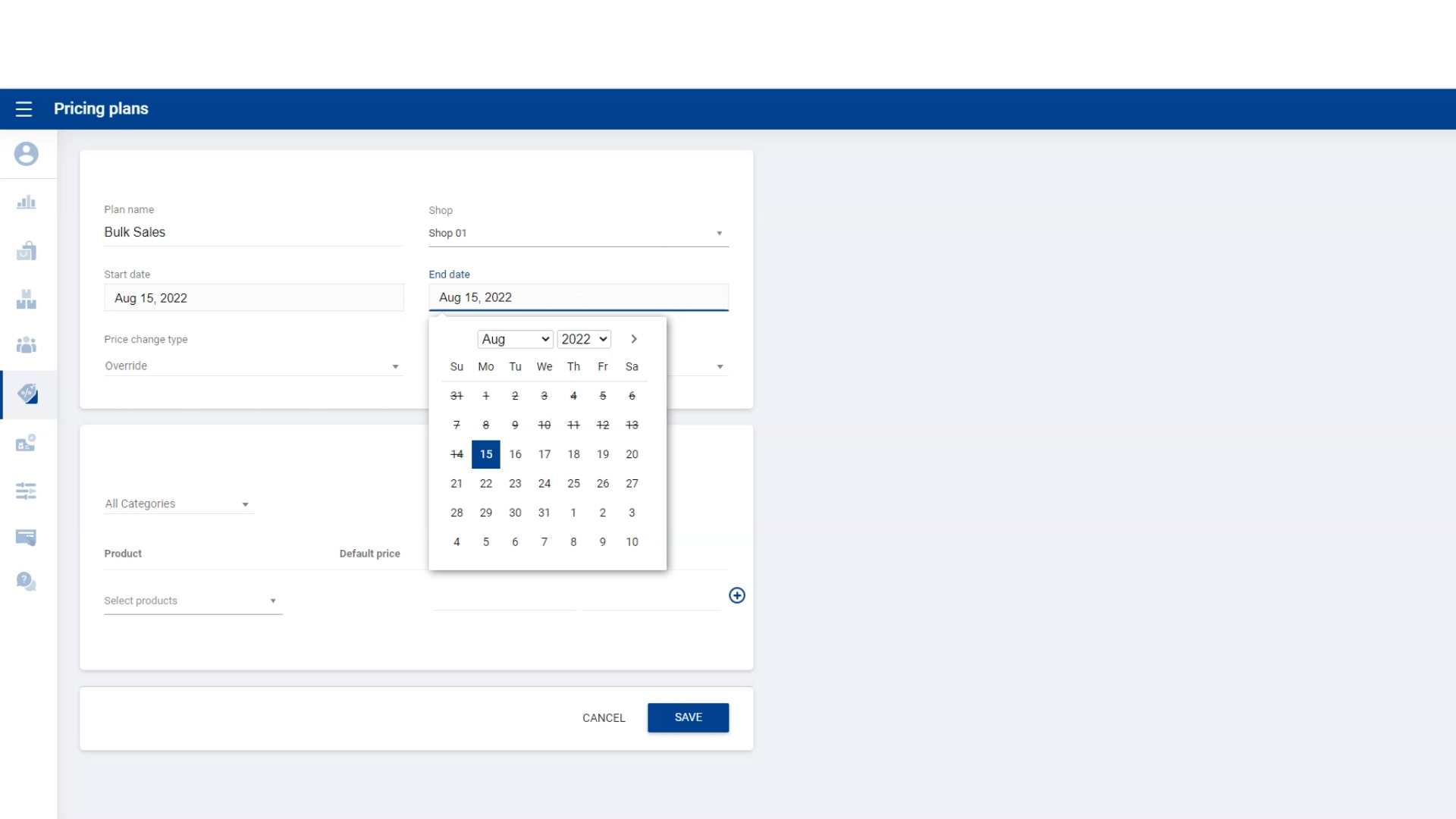
- Click “ Create Pricing Plan”
- Provide plan name, effective date etc.
3. Select the price change
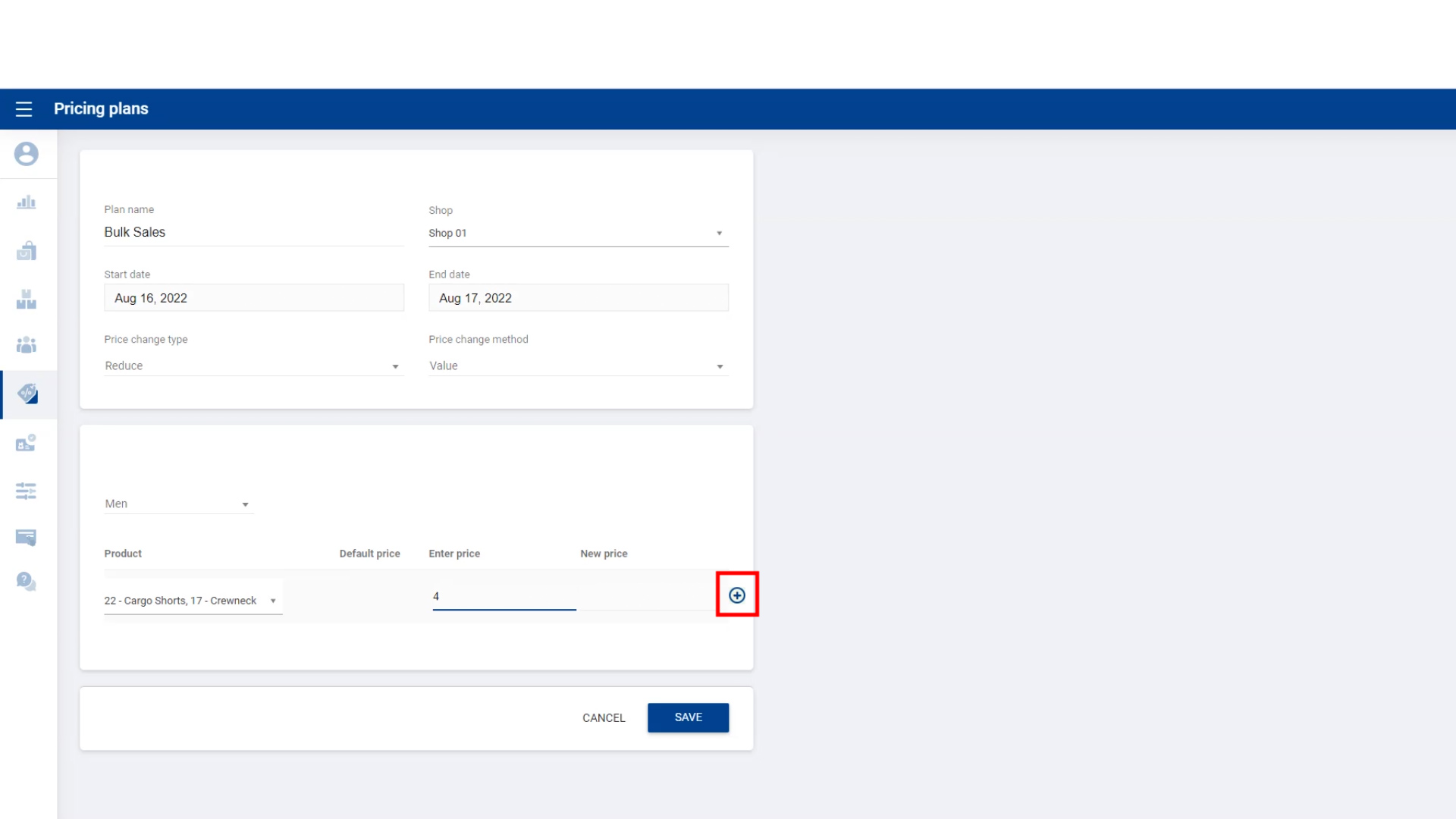
Select “ Add” Price change type if you wish to increase the selling price than regular price
Select “ Reduce” Price change type if you wish to decrease the selling price than regular price
Enter the correct addition / reduction amount and click ( +) button
Click “Save”
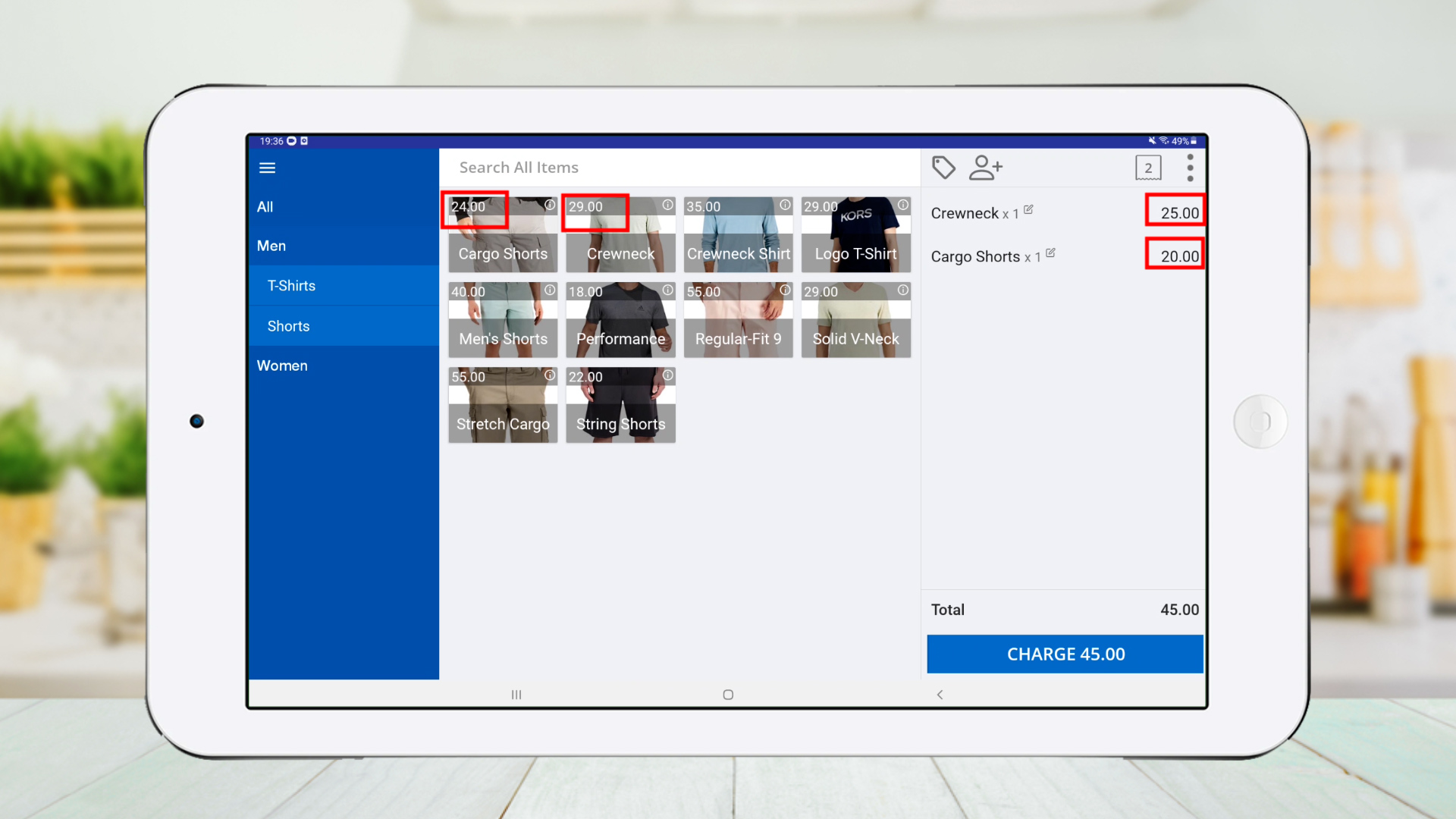
4. Easy POS Pricing Plans
Was this article helpful? Tell our team what was missing.
Send us feedback