
How to Create Customer Orders with Advance Payment
Special Note
- To activate the "Create Order" option in POS App, users must enable the "Open Receipts (Bills)" feature in the Back Office settings. Back Office > Settings > Feature > Open Receipts (Bills) > Save
1. Create Customer Orders with Advance Payment
- You can create and manage customer orders when customers are willing to pay an ‘Advance” amount. Ex: A customer inside a shop wants to order products today by paying an “Advance” amount and customer wants to pick them up on a later date.
2. Create Customer Orders with Advance Payment
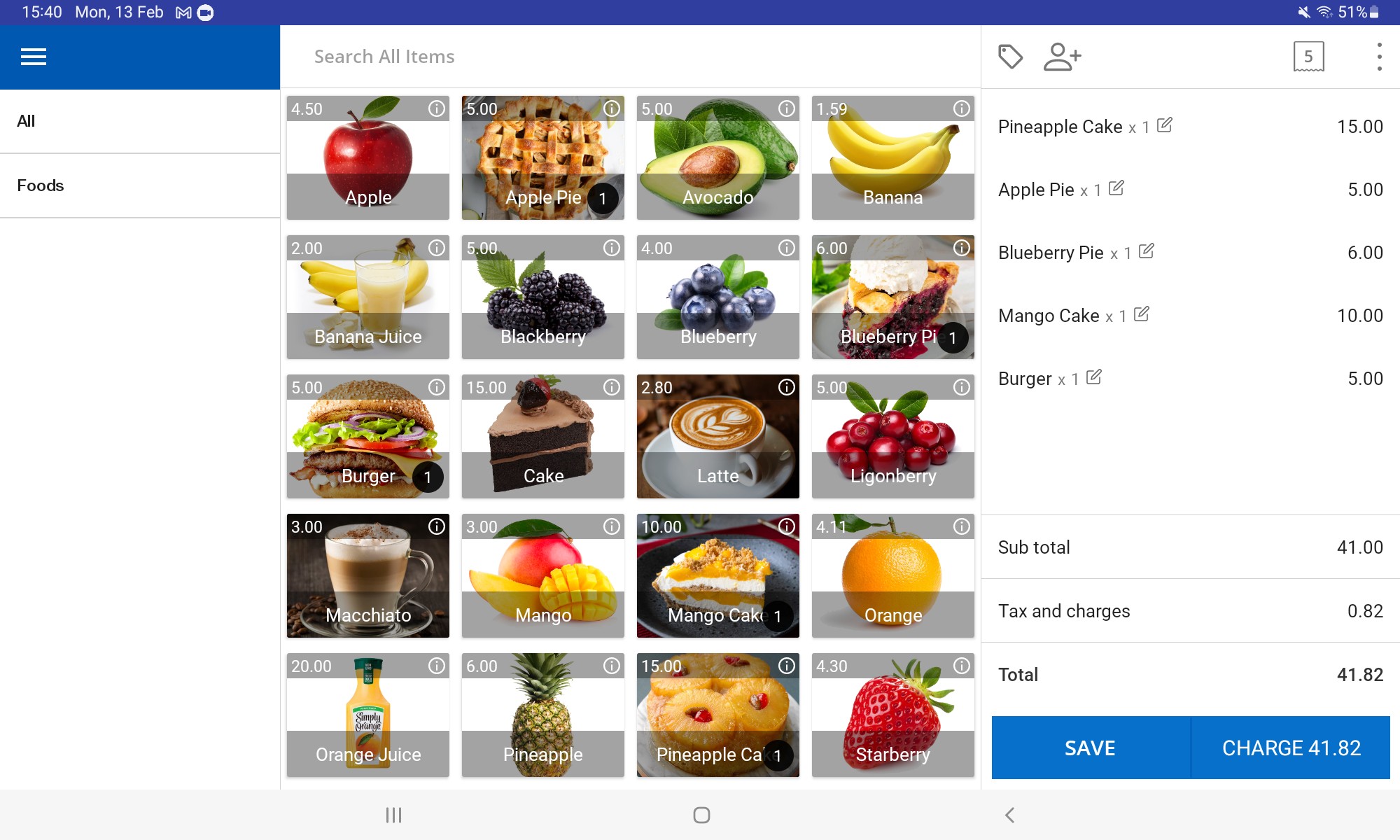
- POS App main menu
- Select “ New Sale ”
3. Create Customer Orders with Advance Payment
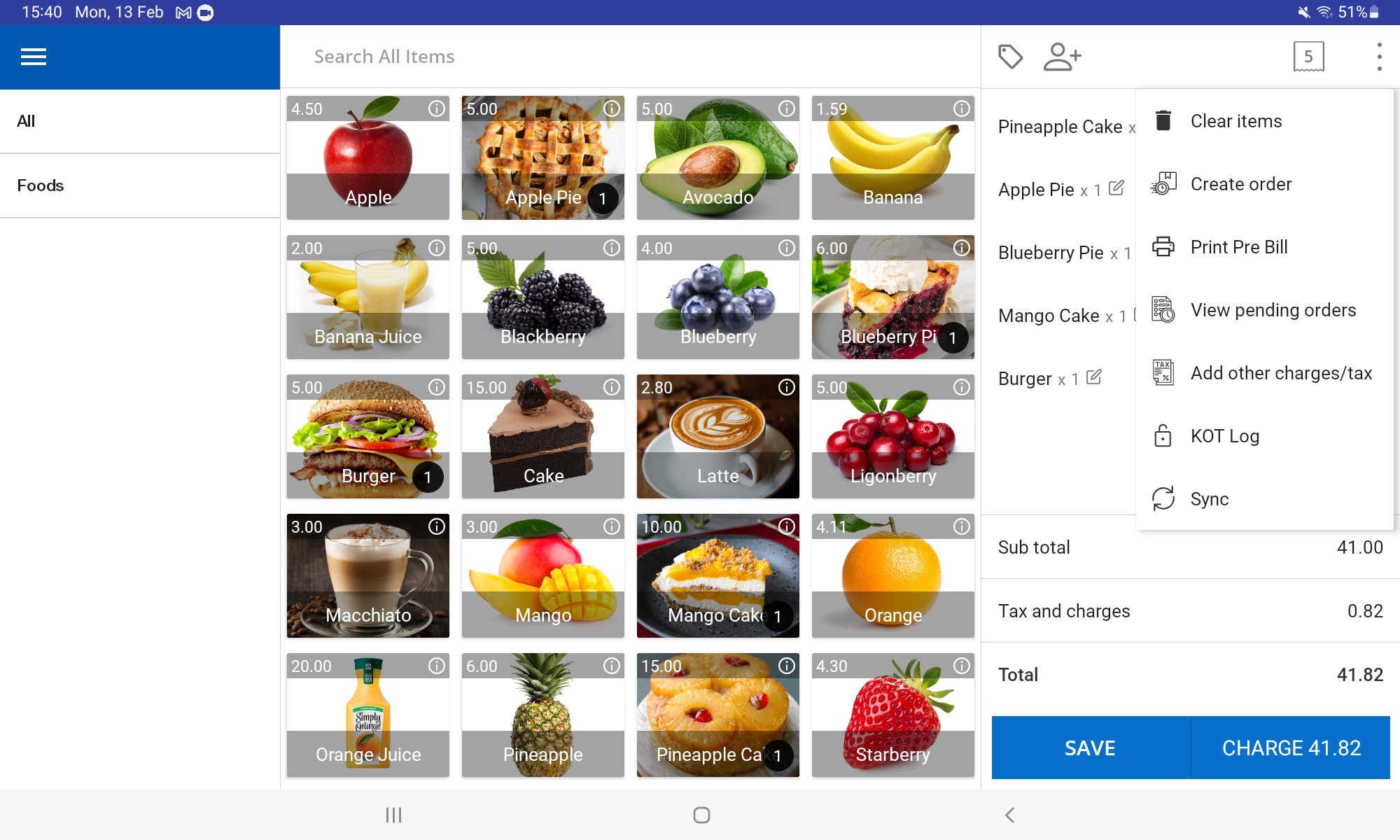
- Click 3-dot button on right-hand upper section
- Click “Create Order”
4. Create Customer Orders with Advance Payment
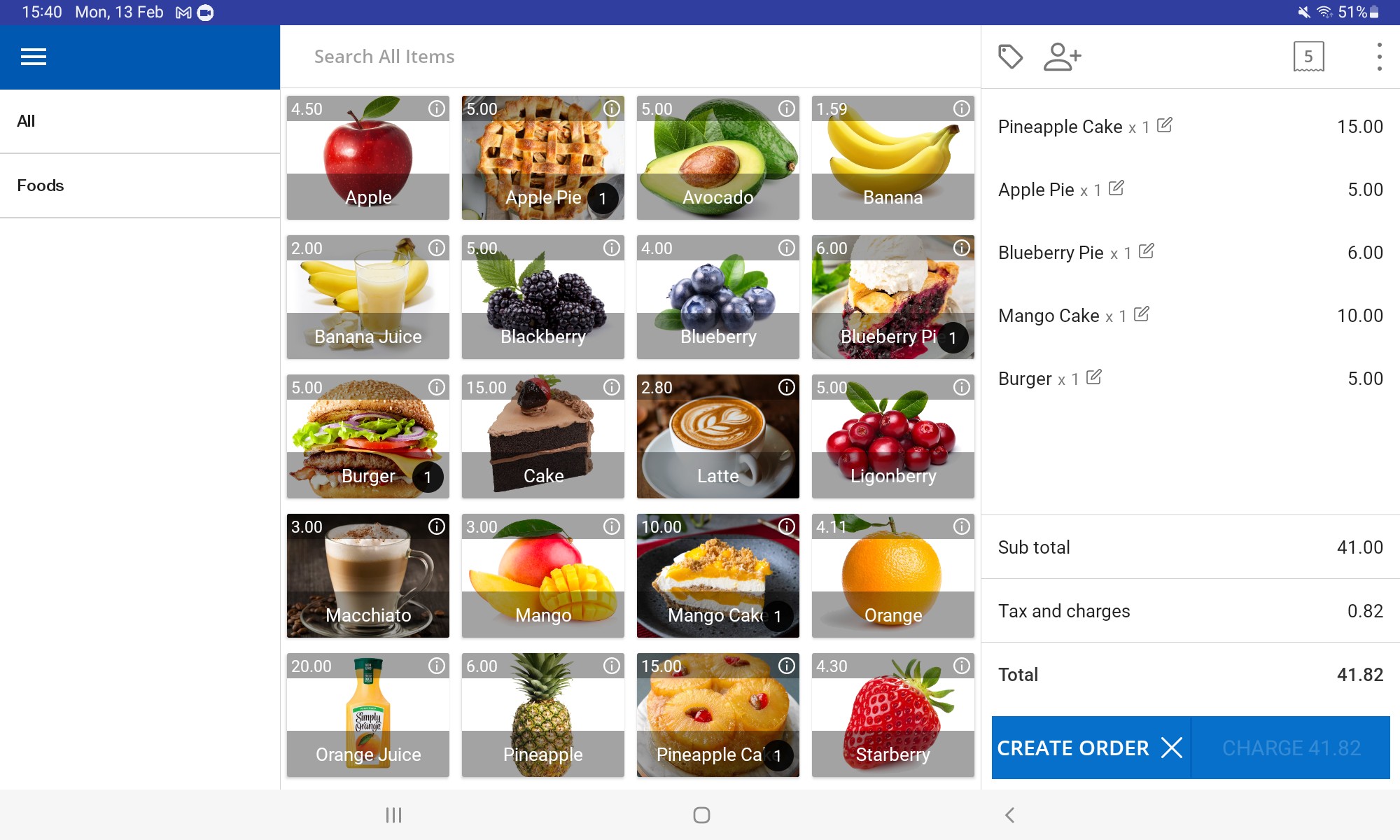
- Select items customer wants and click “Create Order” button
5. Create Customer Orders with Advance Payment
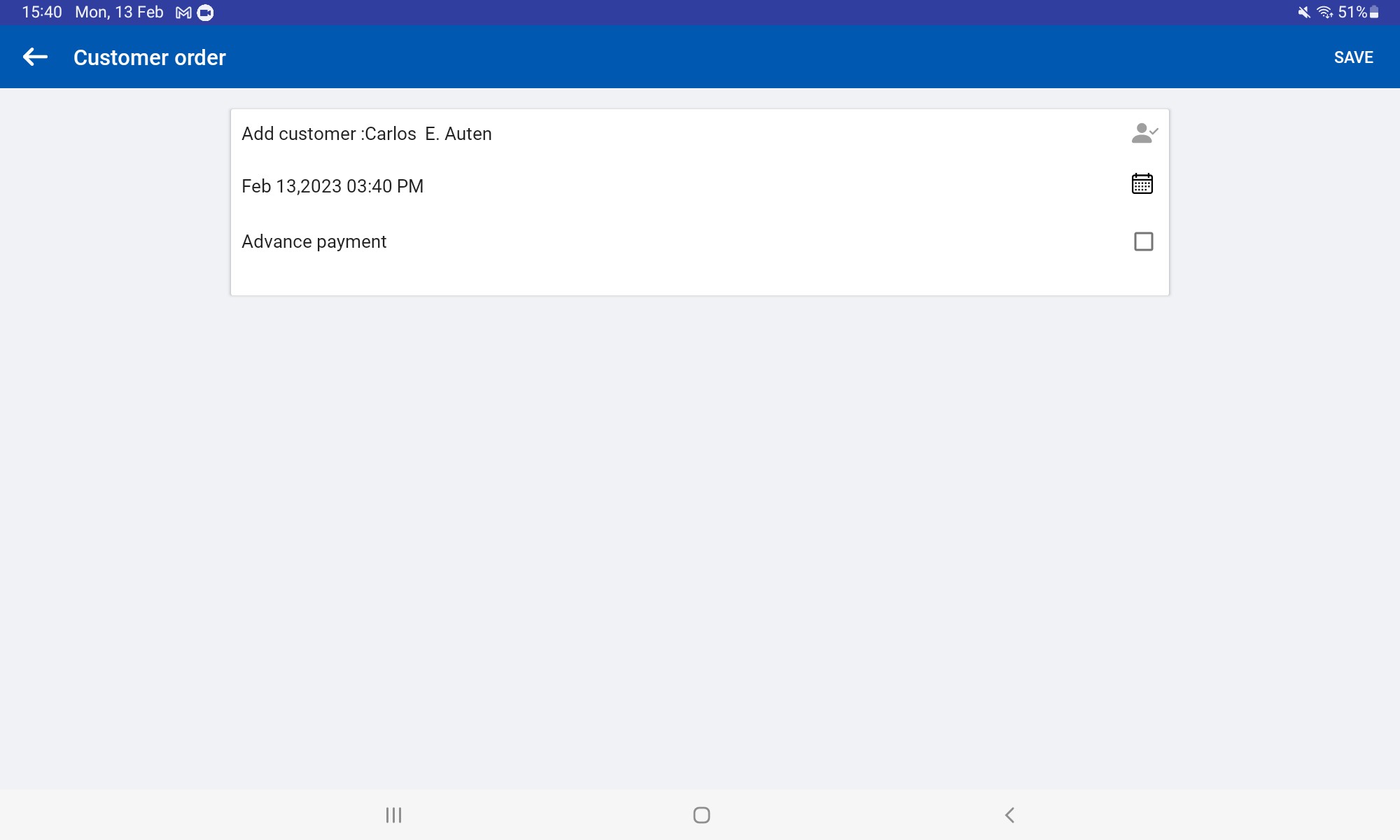
- Add Customer ( Add new or select existing) and click “Add to order “
6. Create Customer Orders with Advance Payment
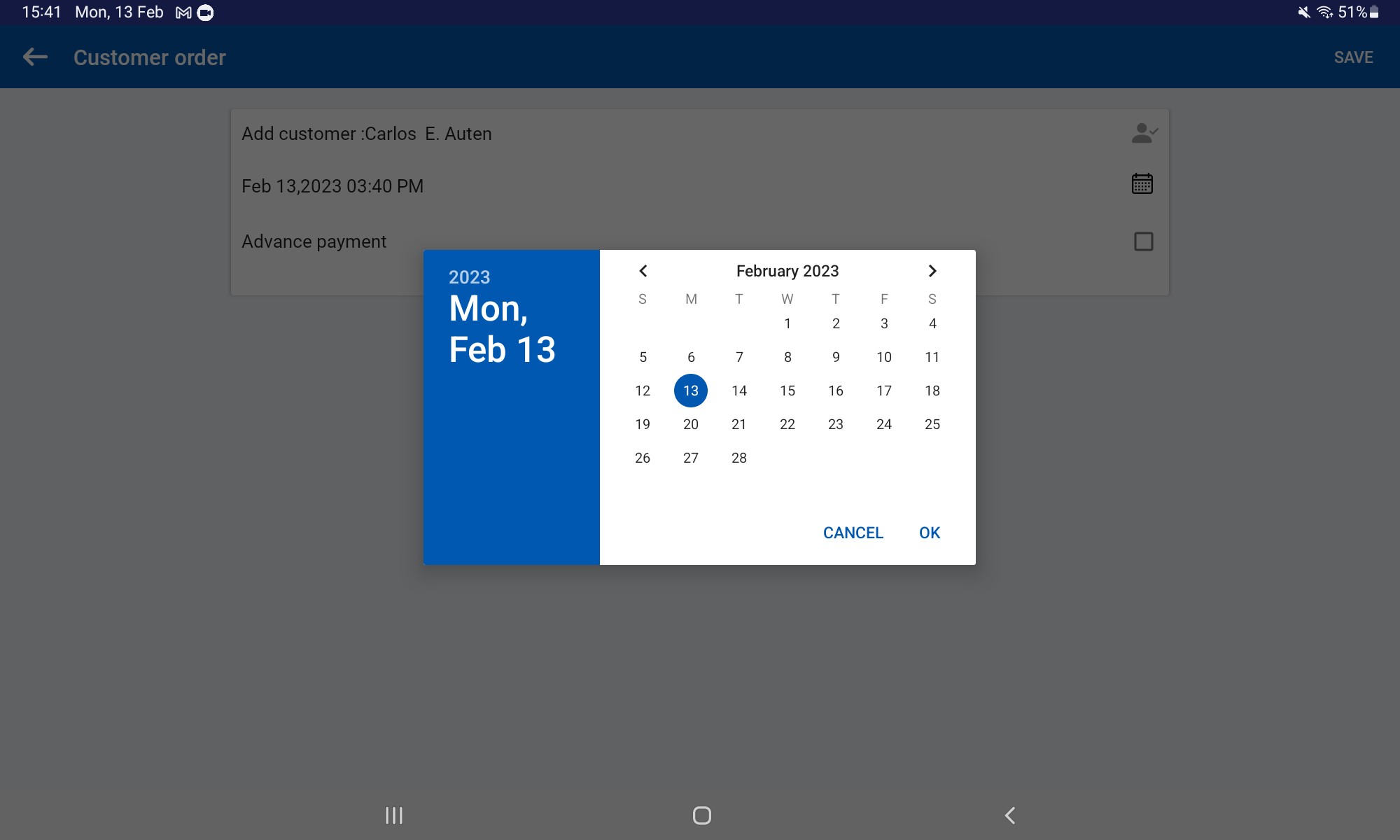
- Select calendar icon and provide delivery date and time
7. Create Customer Orders with Advance Payment
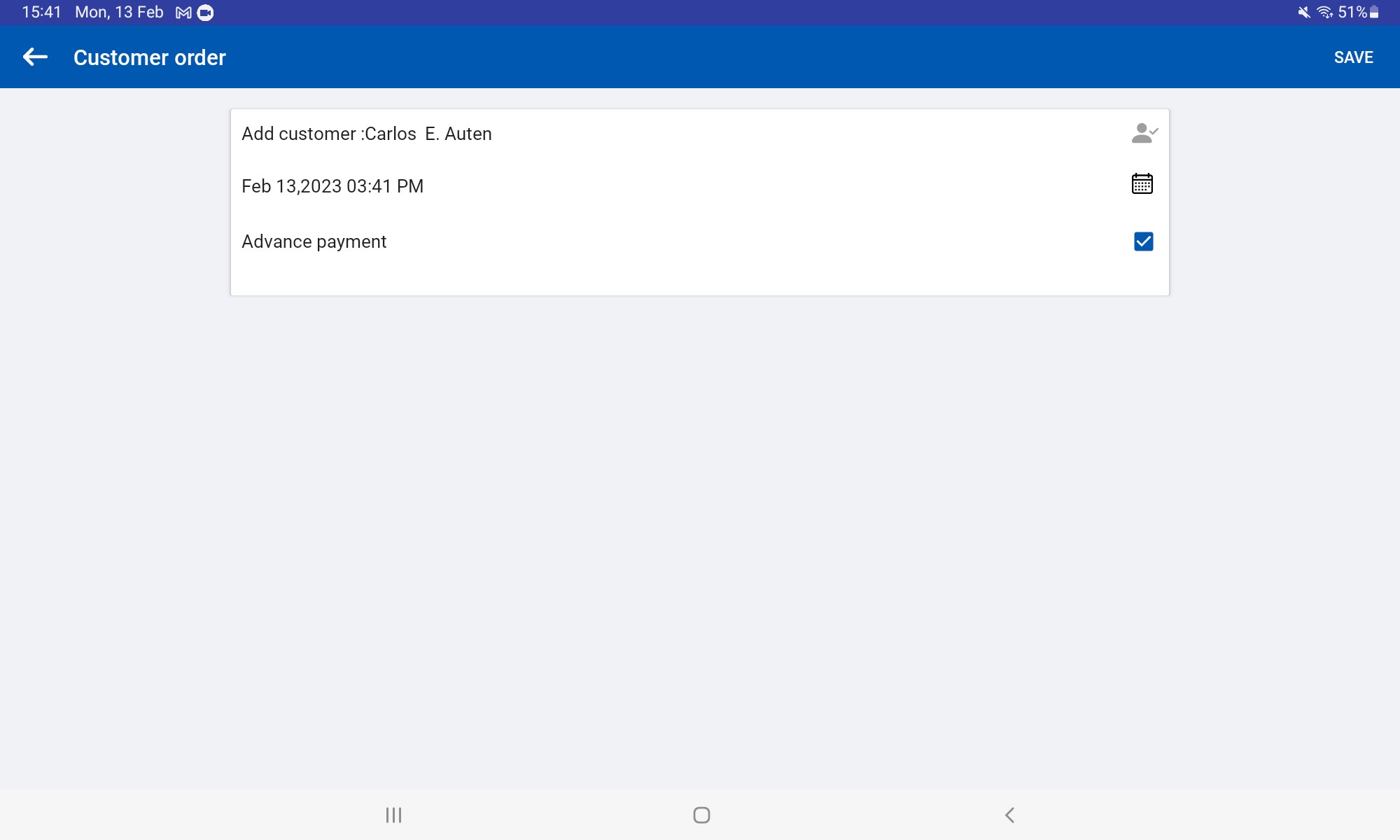
- Tick ON “Advance Payment” icon
- Click “Save” button
8. Create Customer Orders with Advance Payment
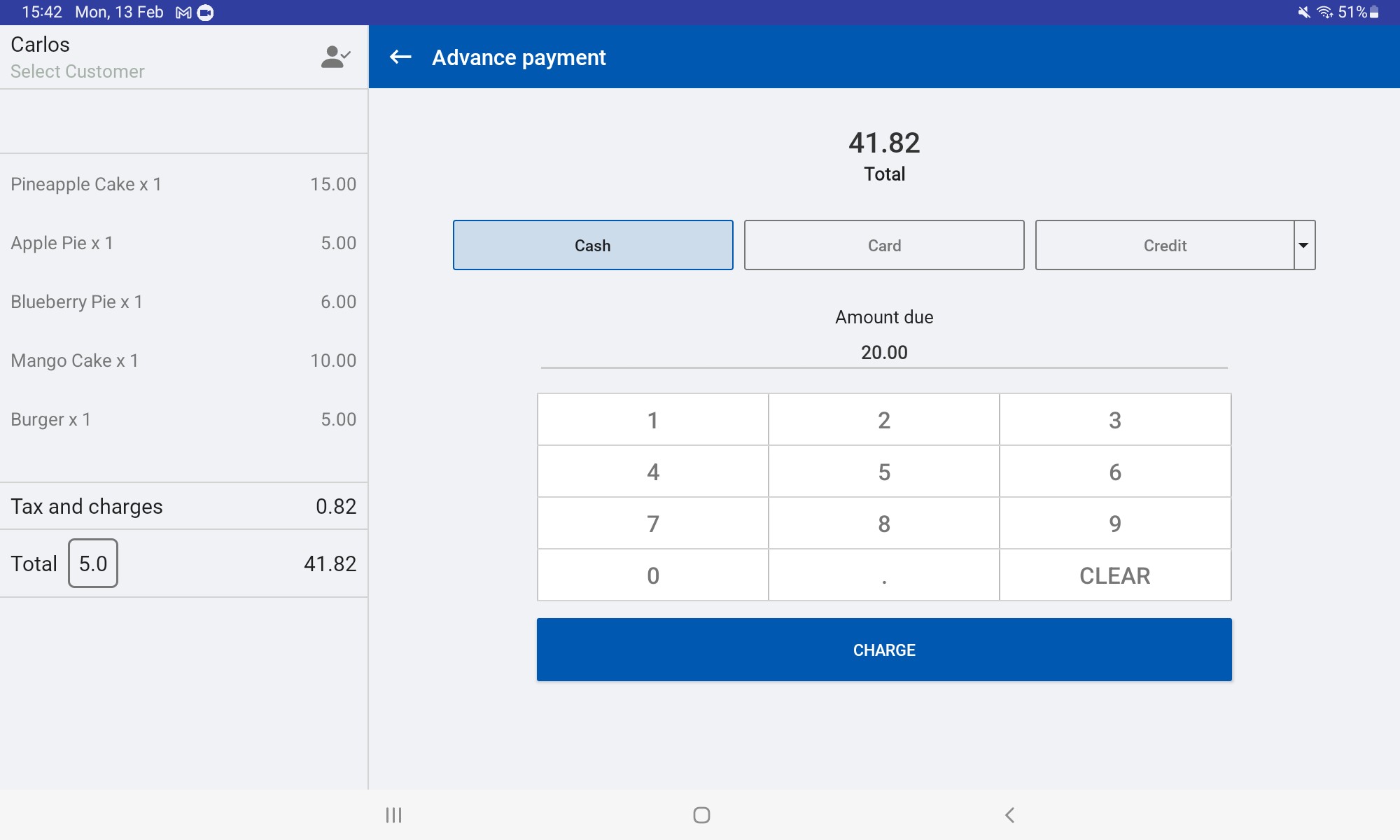
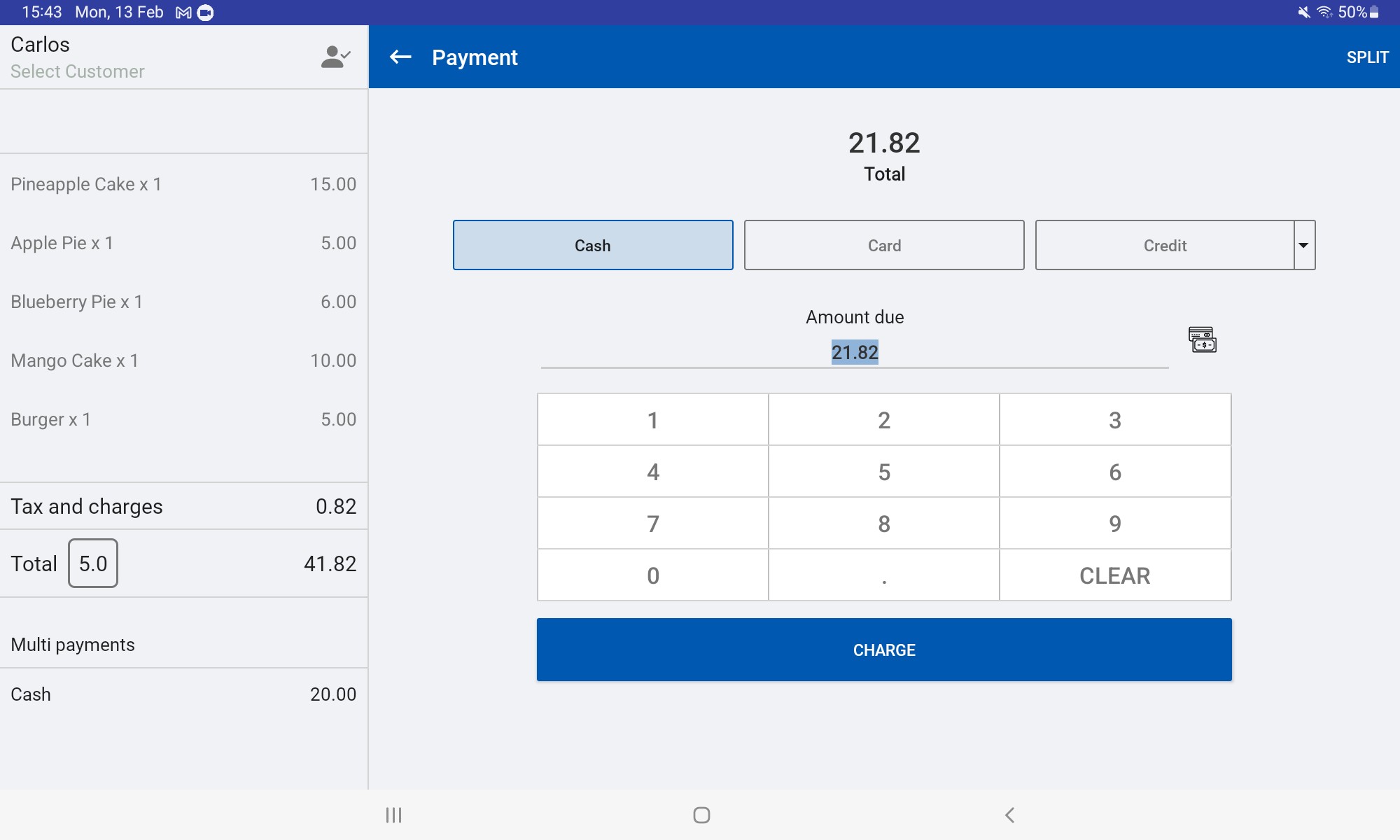
- Enter the advance amount customer willing to pay
- Click “Charge” button
9. Create Customer Orders with Advance Payment
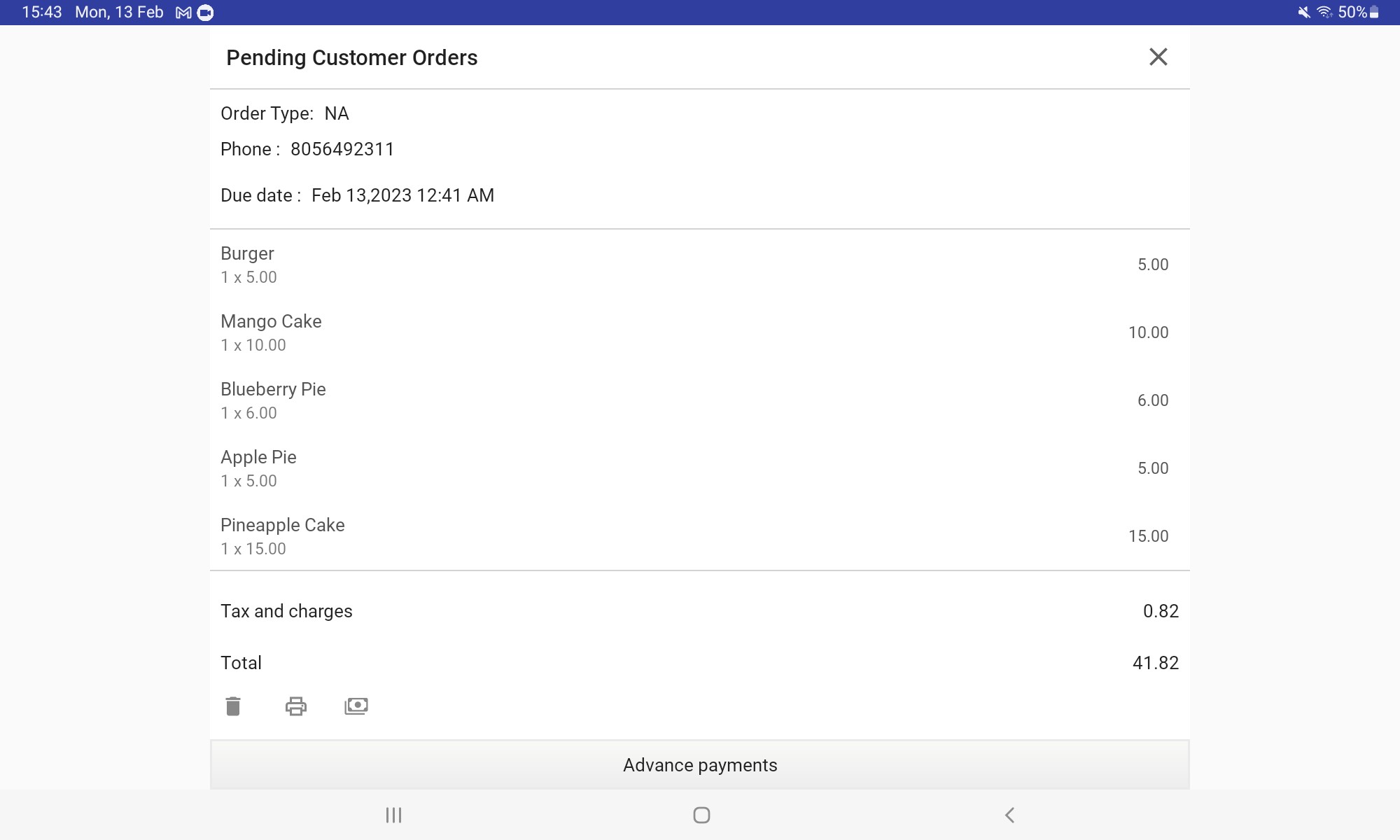
- Once click Charge, Advance receipt will be created with paid advance amount and due amount
10. Create Customer Orders with Advance Payment
Related Help Articles
Reservations / Appointments / Bookings / Scheduling
Related Videos
Was this article helpful? Tell our team what was missing.
Send us feedback